

Face Emoji Remover
Got a photo where an emoji is covering someone's face? Select the area and let AI fill it in with clean, natural-looking detail, no awkward patches, no visible edits. It reconstructs plausible features from the surrounding image, so the result looks complete and believable even when the original pixels are long gone.
 Add an image Or drag and drop here · JPEG, PNG, WEBP
 Key Features of AI Emoji Removal Tool
OpenArt's AI image editor uses advanced models like GPT Image 2.0, Nano Banana Pro, and Recraft V4 to generate realistic edits with accurate detail and consistency. This allows removed areas to be reconstructed naturally instead of leaving gaps.
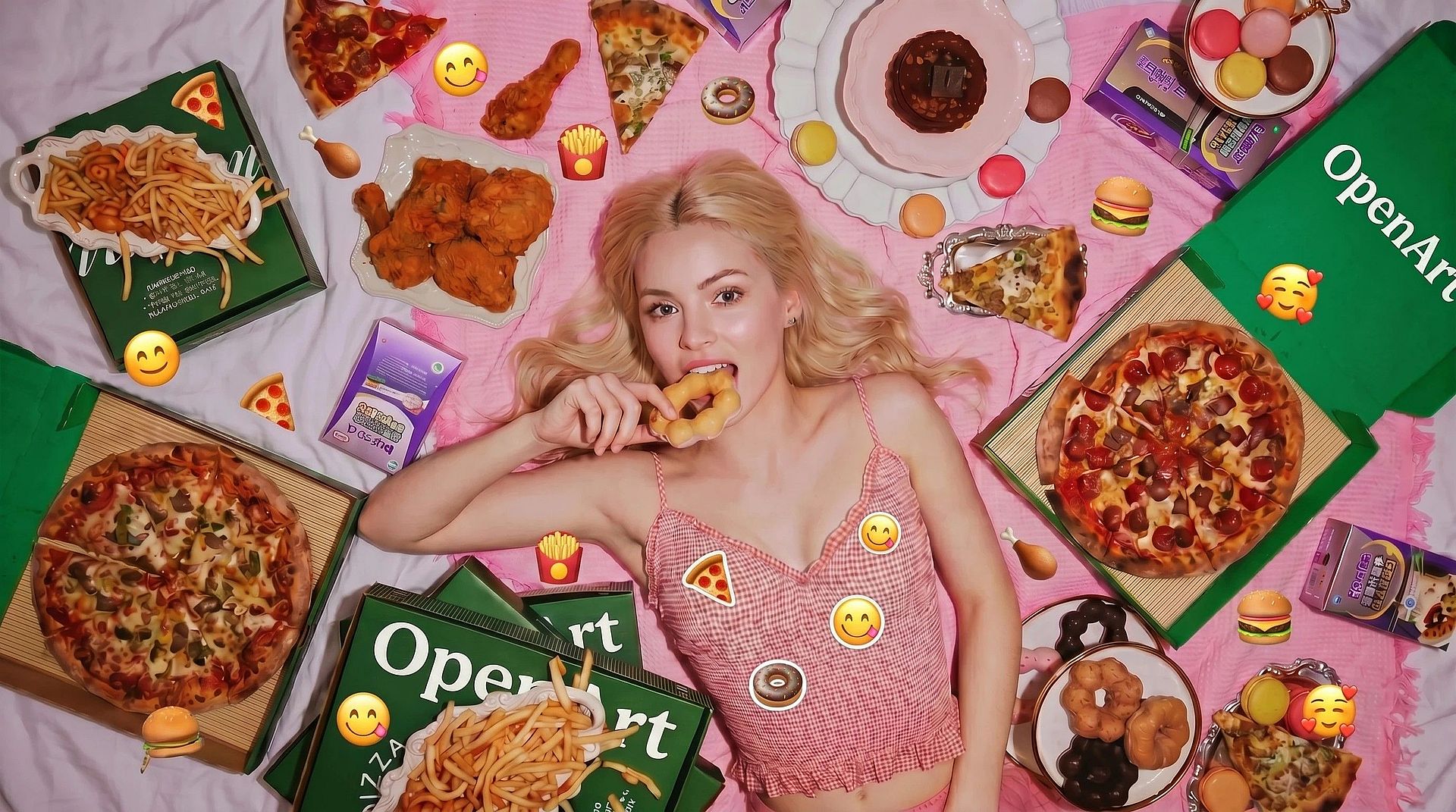

Pinpoint the Covered Area
Draw a selection around the emoji on the face. The tighter and more accurate your selection, the better the AI can read what surrounds it and decide what belongs there.
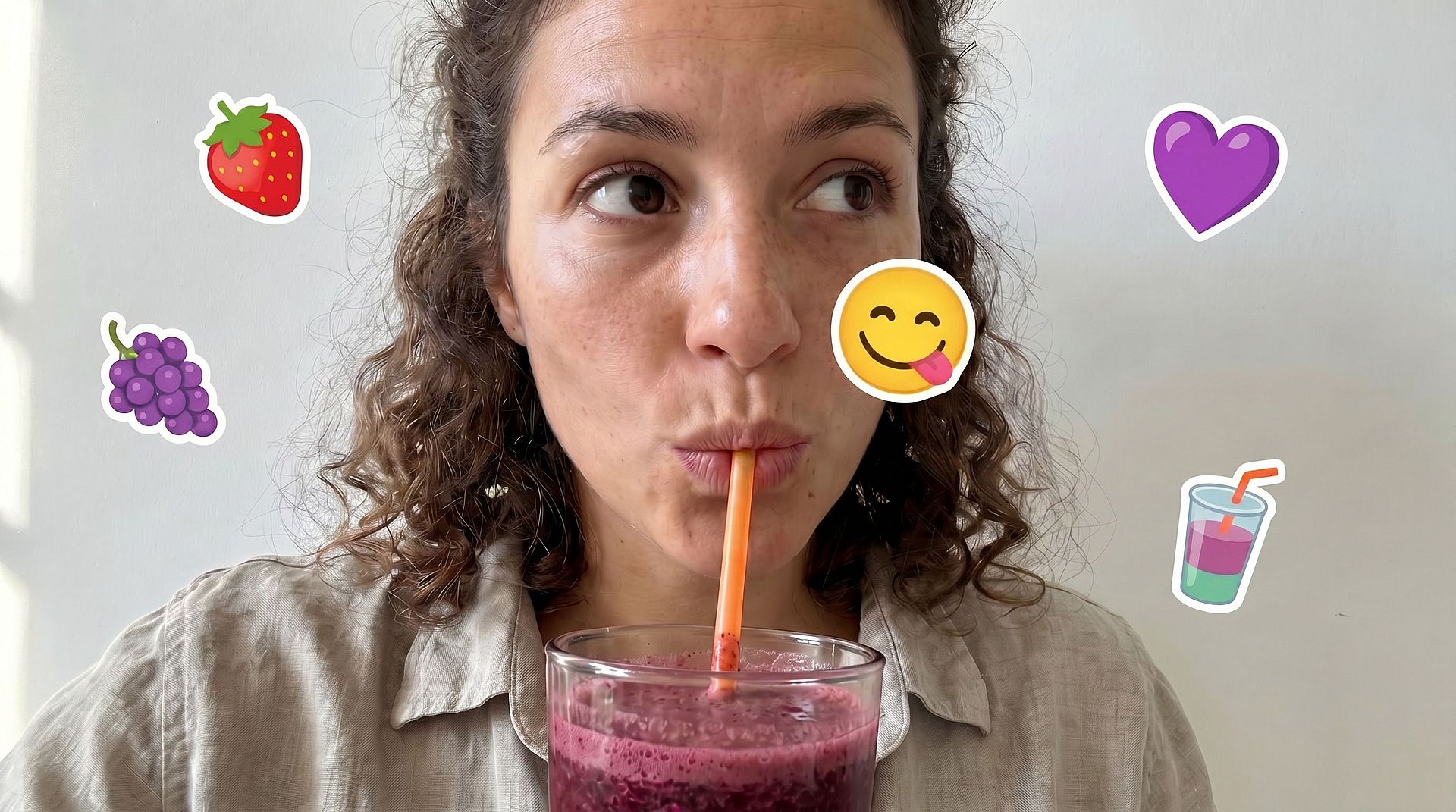
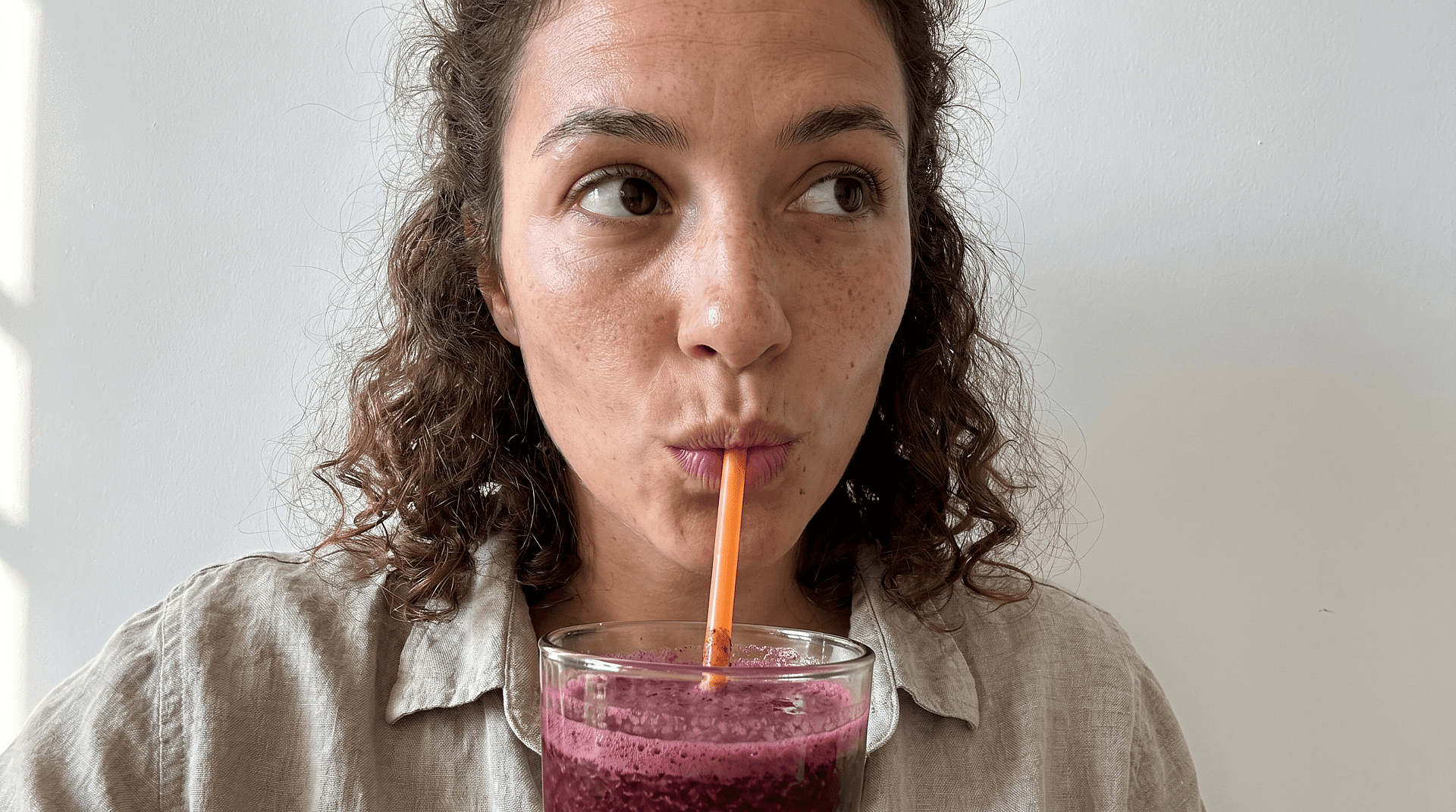
Rebuild Faces, Not Just Fill Gaps
Filling a patch on a wall is easy. Filling a face is harder — the AI has to infer eyes, skin tone, expression, and proportion from the parts of the face still visible. That is the specific problem this tool is designed for.
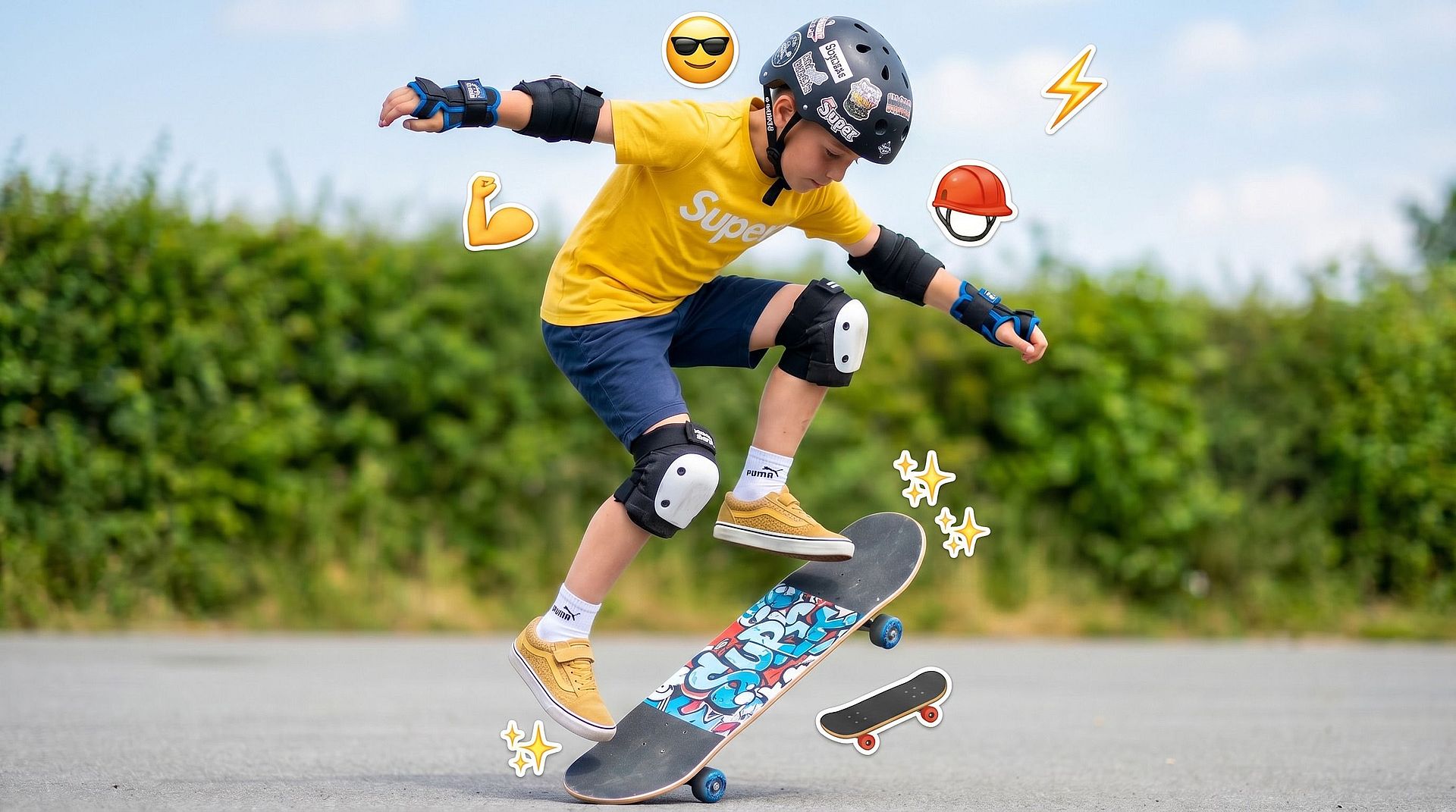
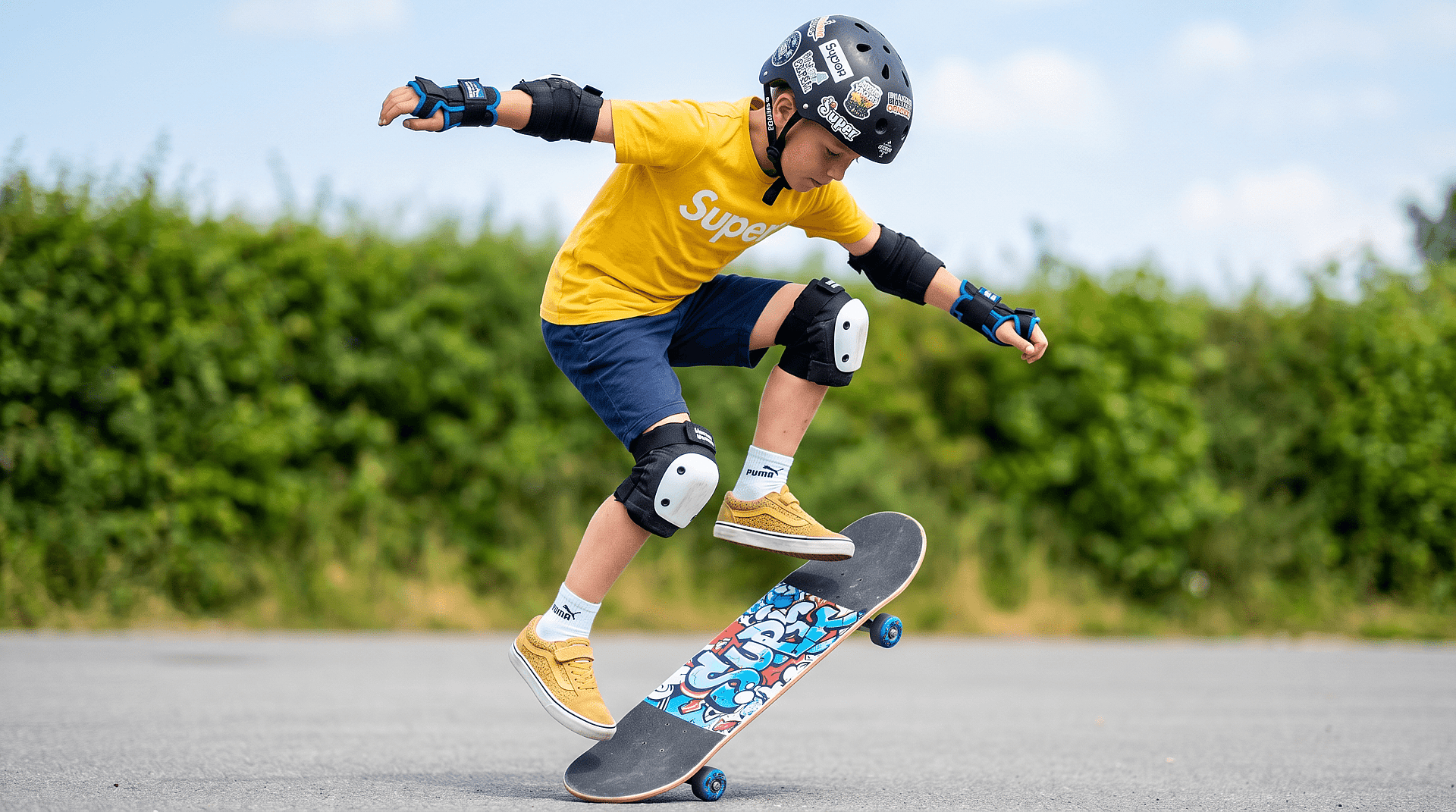
Clean Up Whatever the Emoji Touched
Sometimes the emoji bleeds into hair, shoulders, or background. The tool handles the full covered region, not just the face, so the entire area reads naturally.
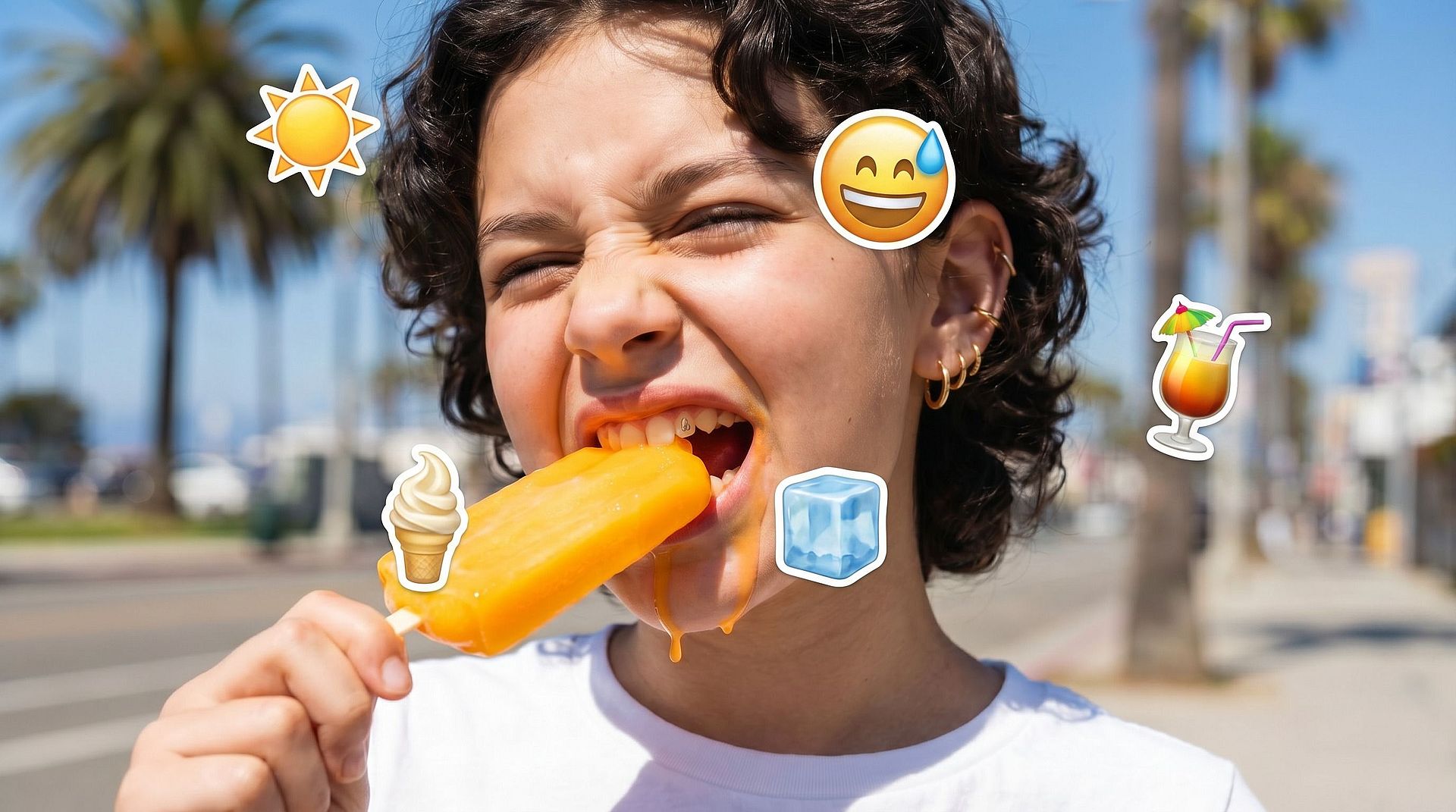
Iterate Until the Face Looks Right
Faces are unforgiving. One slightly off eye and the result looks wrong. Rerun the edit, tighten the selection, and adjust until the reconstructed face holds up at a normal viewing distance.
How to Use the OpenArt Face Emoji Remover
Three steps take you from a covered photo to a clean one.
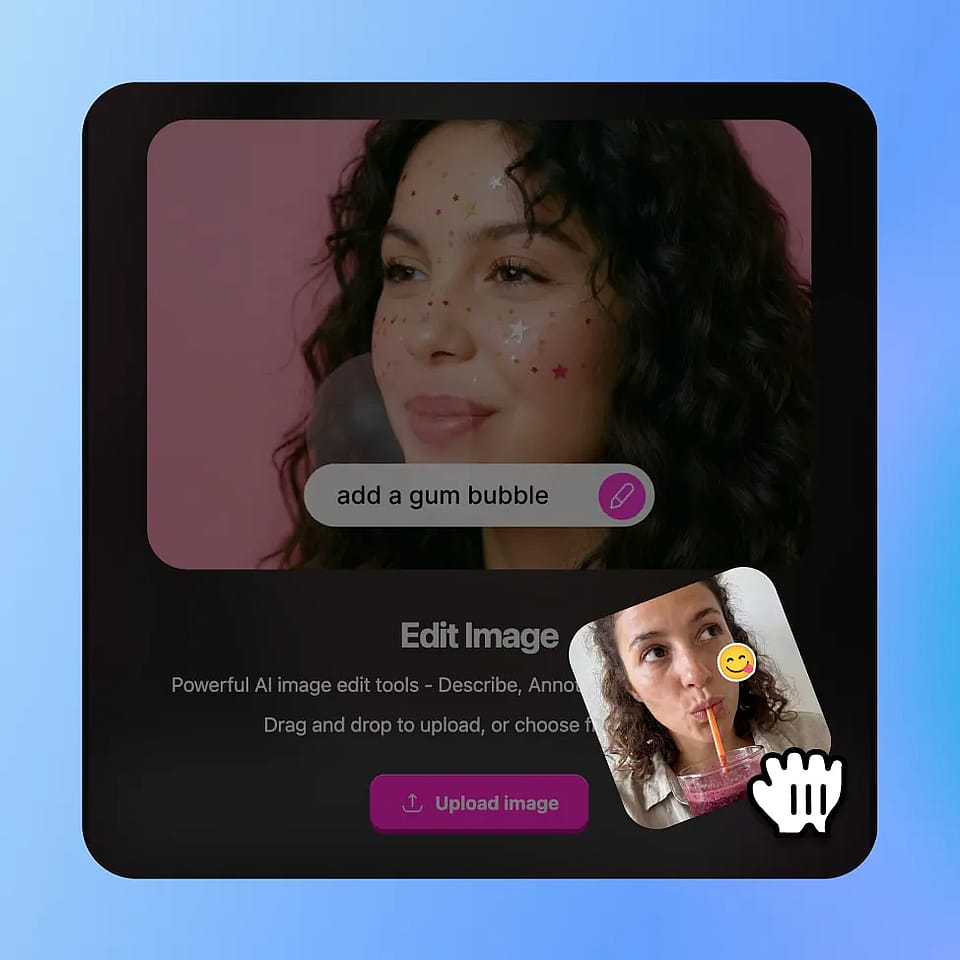
Open the Editor and Upload
Go to OpenArt’s image tools, select Edit Image mode, and upload your photo. JPEG, PNG, and WEBP all work.
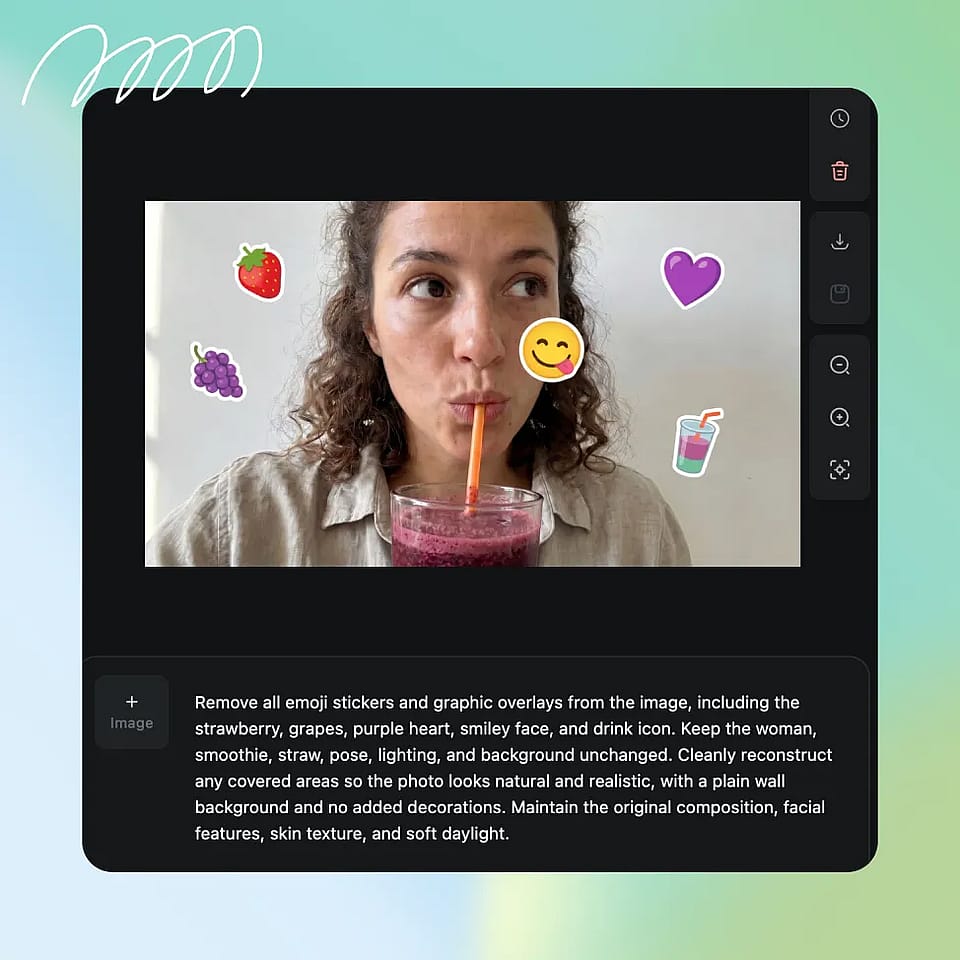
Select the Emoji Area
Highlight or select the emoji or the covered region. Be a little generous around the edges so the AI has room to blend.
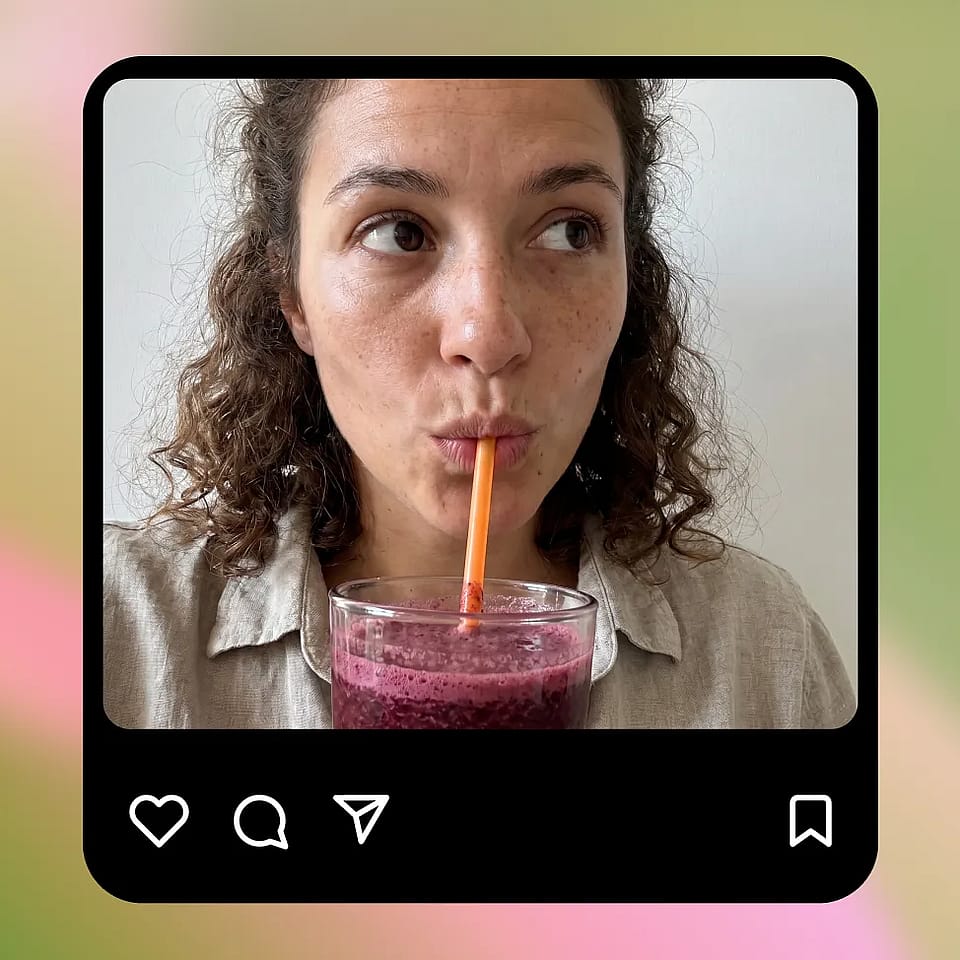
Generate and Refine
Run the edit, then review the result. If the selection missed a corner or the fill looks off, refine the selection and run it again until the image looks right.
Use Cases: Clean Up Any Photo with an Emoji Over a Face
Fix edited or covered images and recover original details quickly without manual editing.
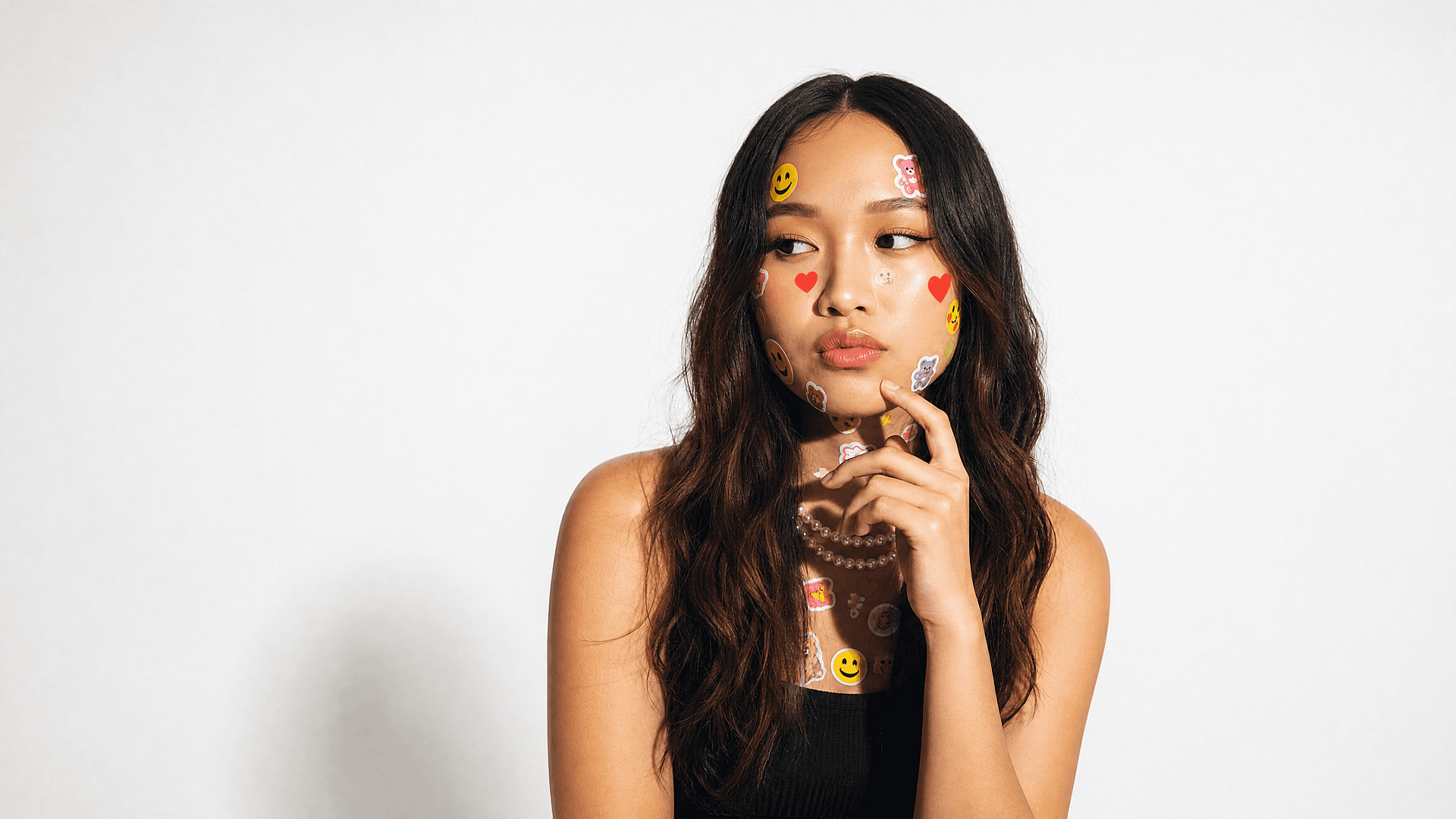

Restore Privacy-Censored Faces
People cover faces before sharing, then later want a complete version for a personal album or a print. The tool rebuilds a natural face region so the photo reads complete again, a clean reconstruction, not a recovered identity, but for personal use that is exactly what you need.
Try it Now

Clean Up Social Media Saves and Screenshots
Saved posts and screenshots often carry sticker and emoji overlays. Creators who reuse this content need it clean. The face emoji remover clears those overlays so a saved image is presentable again, which pairs well with the broader remove emoji from photo workflow for non-face overlays.
Try it Now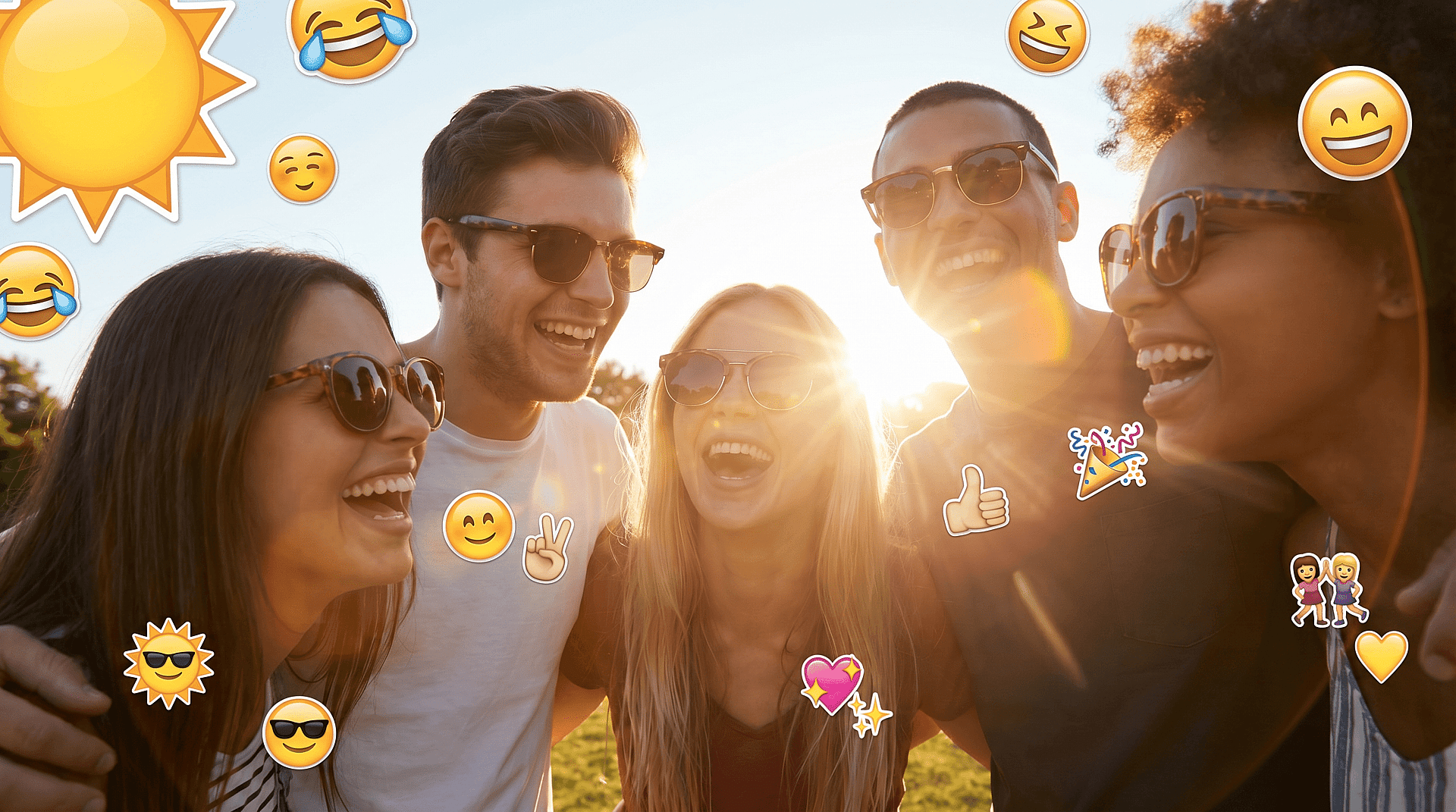
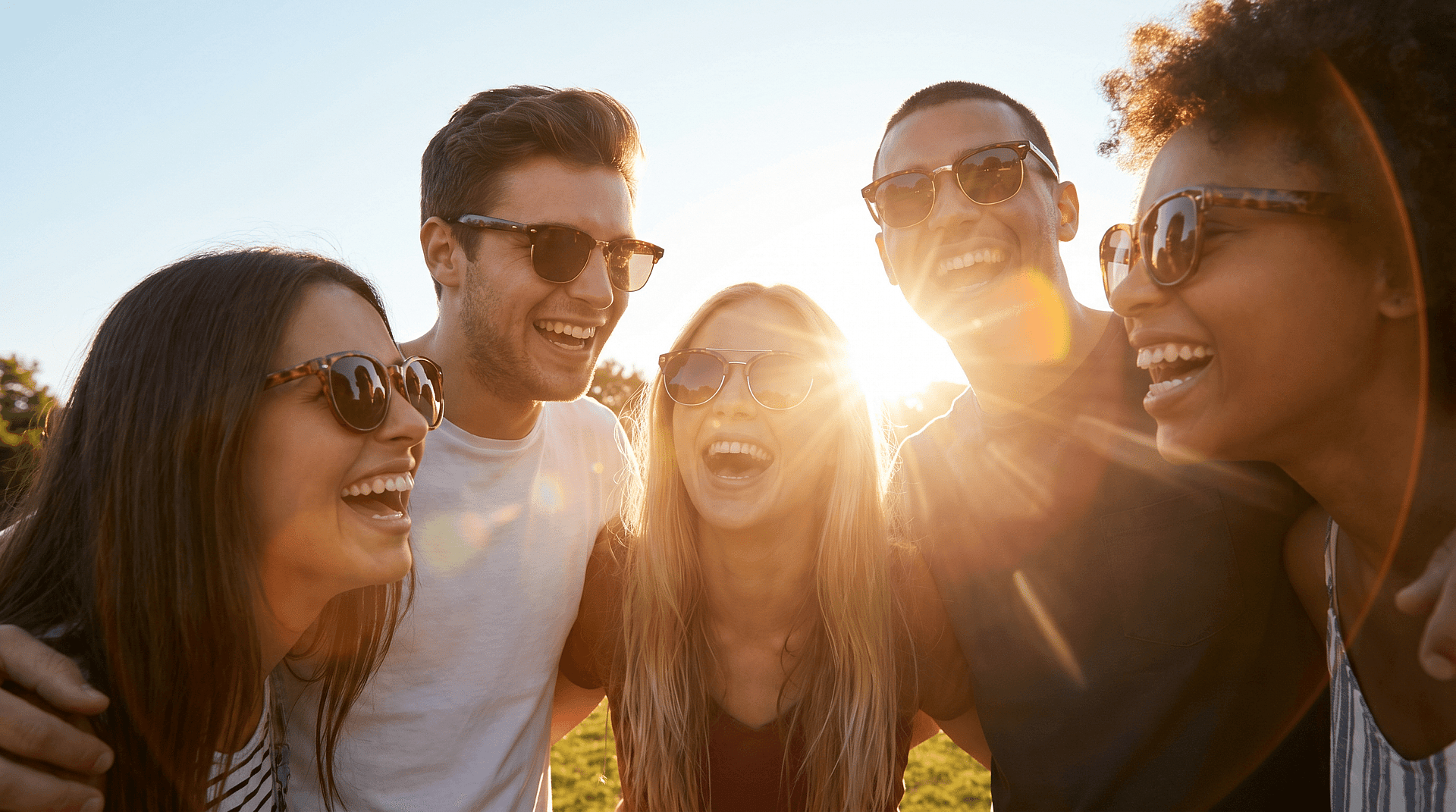
Fix Group Photos Where One Face Is Covered
A great group shot is sometimes ruined by a single emoji over one person. Select that face region, rebuild it, and the whole group reads naturally again.
Try it Now

Prep Product and Marketing Images
Product shots and marketing assets sometimes arrive with watermark-style emoji or placeholder stickers. Clearing them gives you a clean base to work from before you drop the image into a layout or pass it to an AI image generator for further variations.
Try it Now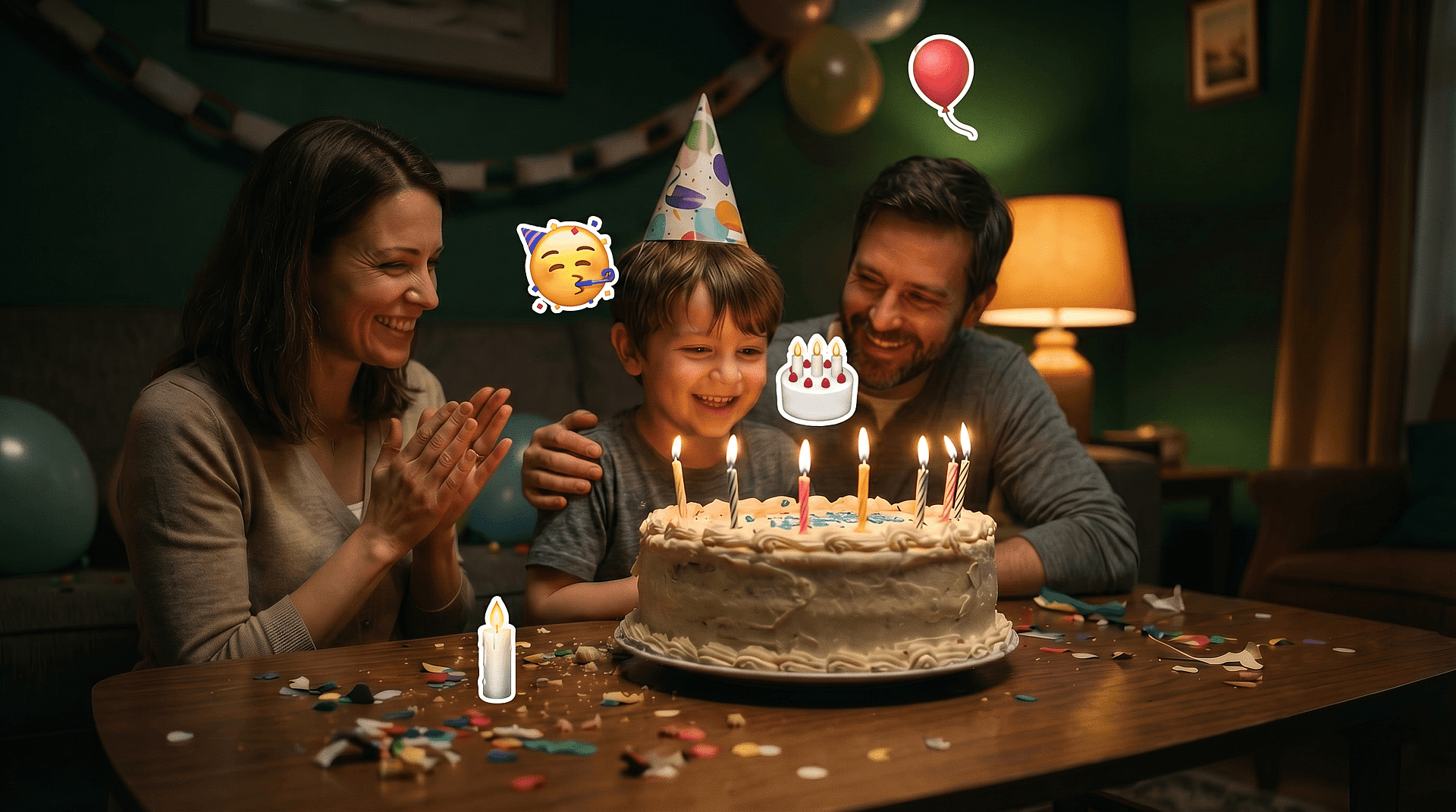
Remove Decorative Stickers
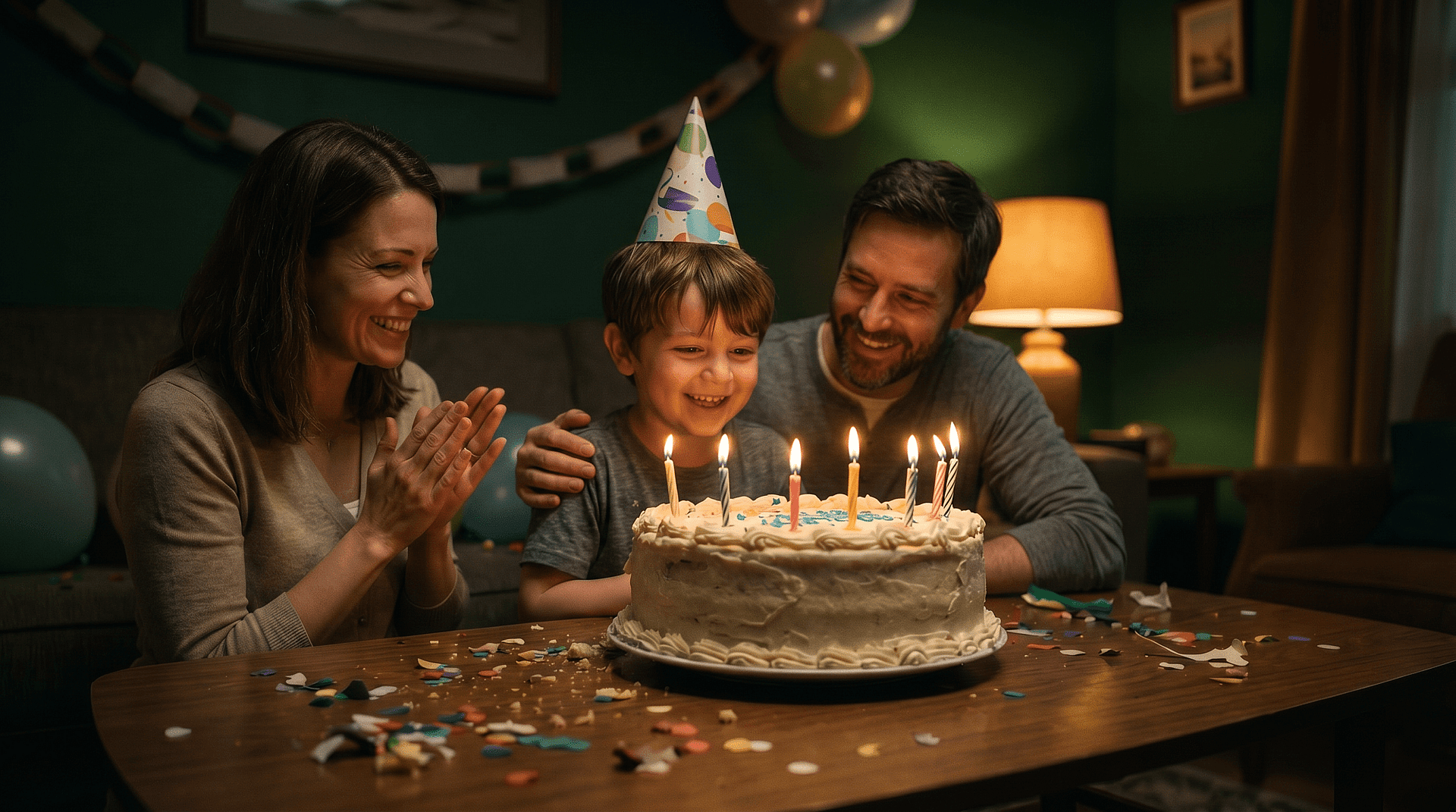
Birthday stickers, location tags, and decorative emoji clutter a frame. Pull them out and let the background fill rebuild what was behind them, leaving a clean composition.
Try it NowFrequently Asked Questions
Get Insights from Experts Blog
Get the insights you need. Our experts share actionable hacks, break down the hottest topics, and provide essential how-to guides to help you build, optimize, and scale.
Read More
Create without limits
Join thousands of creators using OpenArt to generate stunning images, videos, and more — all in one platform.
Get Started for Free →