
Sora 2 — AI Video Generator
The new updated Sora 2 on OpenArt gives you longer AI videos with consistent characters, detailed environments, and production-ready visuals. With support for up to 20-second video generation and full 1080p output, Sora 2 makes it easier to create high-quality scenes for storytelling, content creation, and visual experimentation.
Key Features of Sora 2 Update
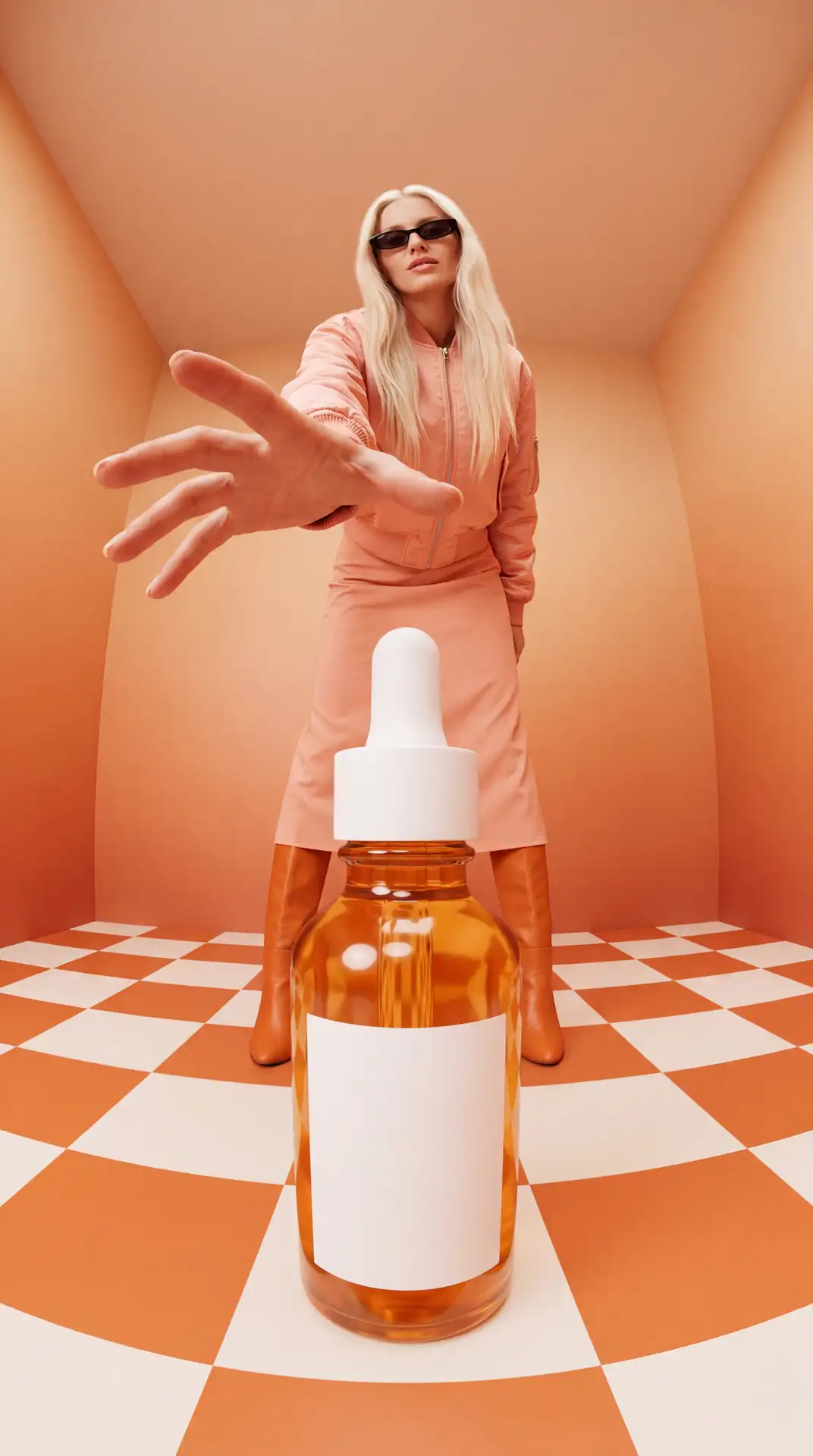
20-Second AI Video Generation
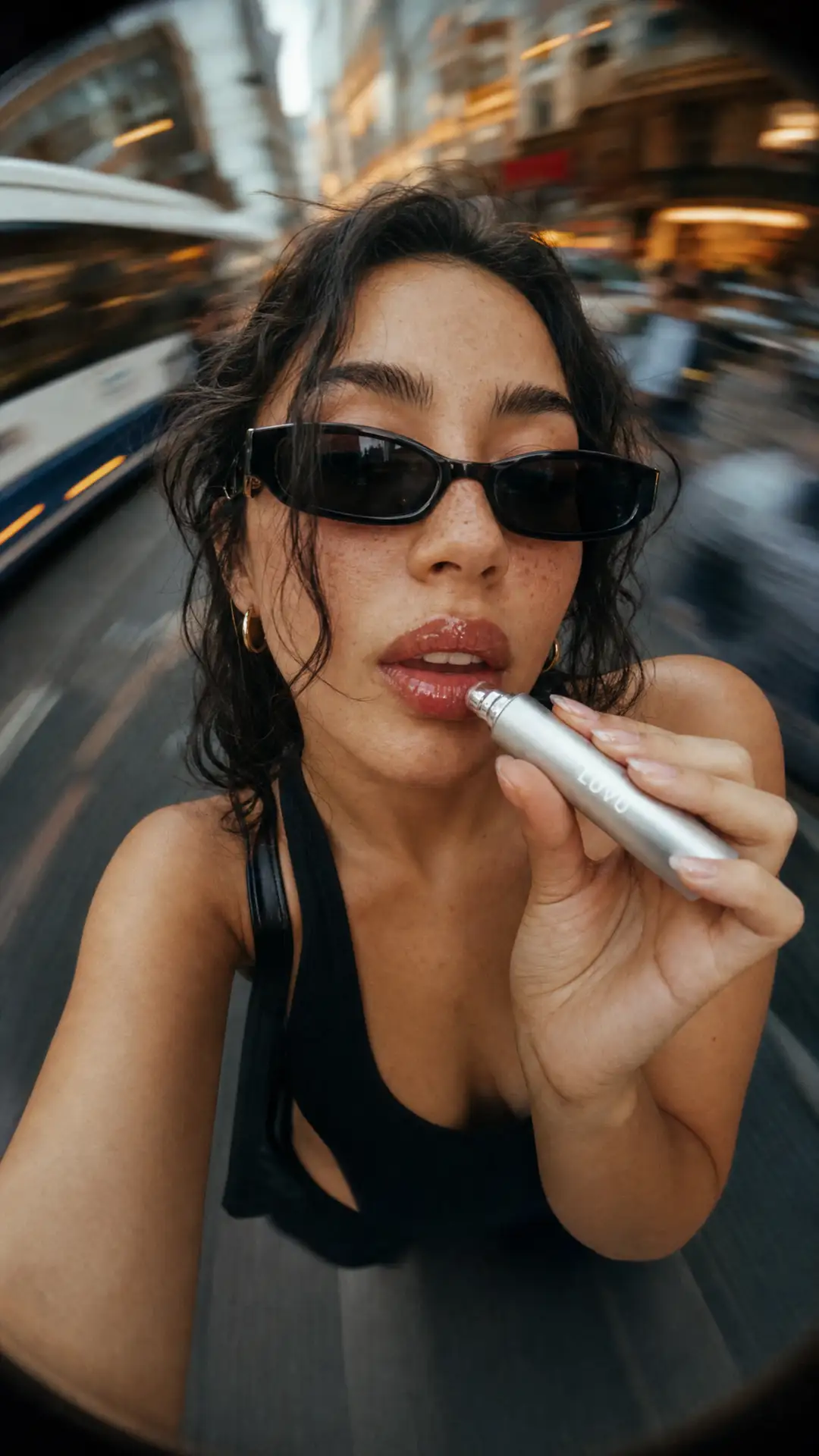
Sora 2 Update generates longer AI videos with clips up to 20 seconds in a single output.
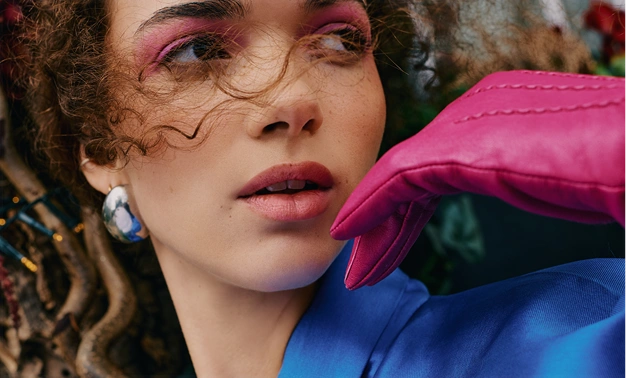
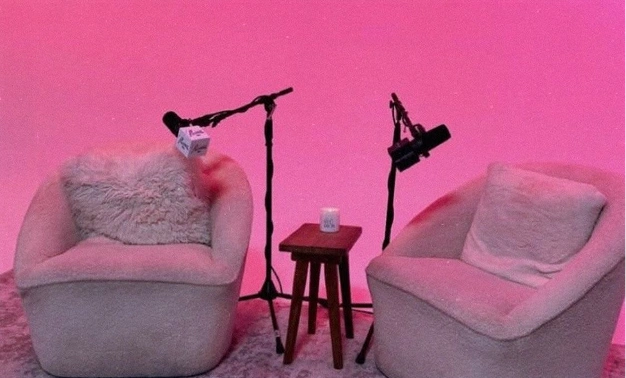
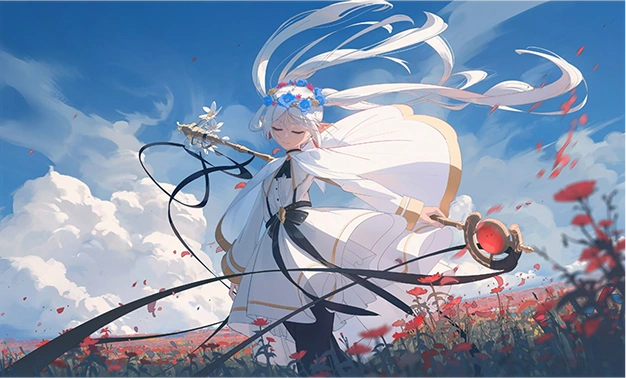
Consistent Multi-Character Generation
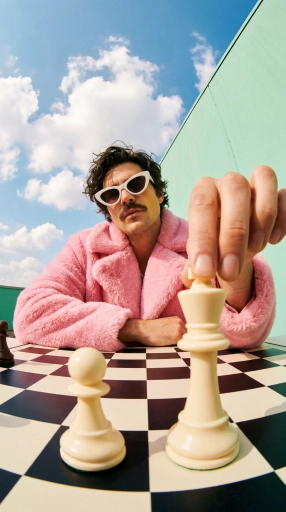
Maintain up to two consistent characters with recognizable details across frames in a single generated scene.
Full 1080p Video Output
Create high-resolution videos in portrait or landscape aspect ratio for production-ready quality.
Key Features of Sora 2 Update
Longer 20-Second AI Video Generation
Sora 2 update supports longer AI video generation with clips up to 20 seconds in a single output. This extended duration allows creators to produce more complete scenes with smoother motion and continuous action. Instead of combining multiple short clips, creators can generate longer sequences that better capture storytelling moments and environmental movement.
Try it NowConsistent Multi-Character Generation
Sora 2 update improves character consistency in AI-generated video while supporting up to two characters within the same scene. Characters maintain recognizable details such as clothing, facial structure, and overall design across frames, helping scenes feel stable and believable.
Try it NowFull 1080p Output in Two Aspect Ratios
Sora 2 now generates videos in full 1080p resolution, supporting both portrait (1080 × 1920) and landscape (1920 × 1080) formats. The higher resolution helps preserve visual detail in lighting, textures, and motion throughout the video.
Try it NowHow To Use Sora 2
Turn a real motion clip into a new AI video in five simple steps.
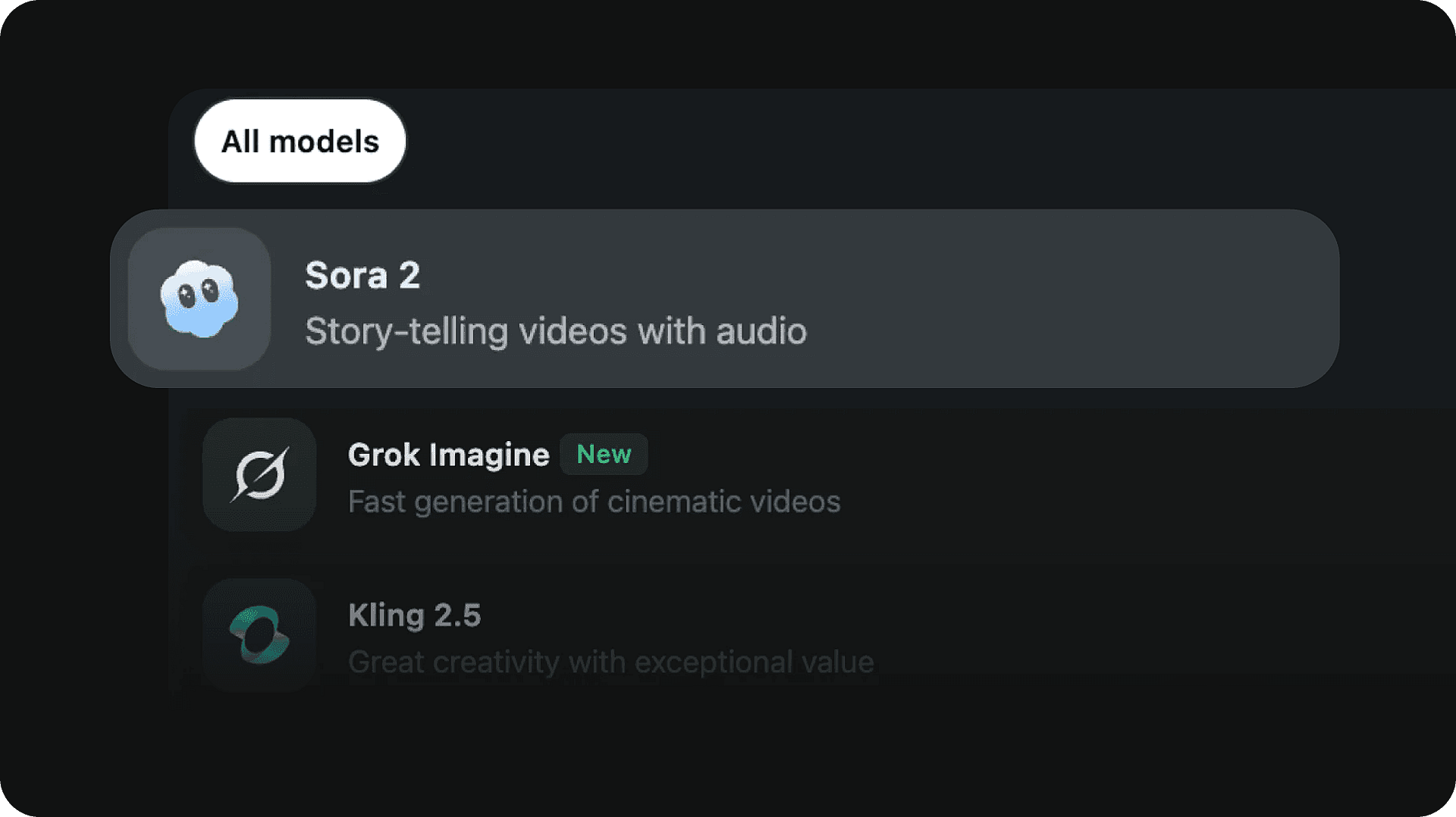
Pick the model
Select the Sora 2 AI video model to get started.
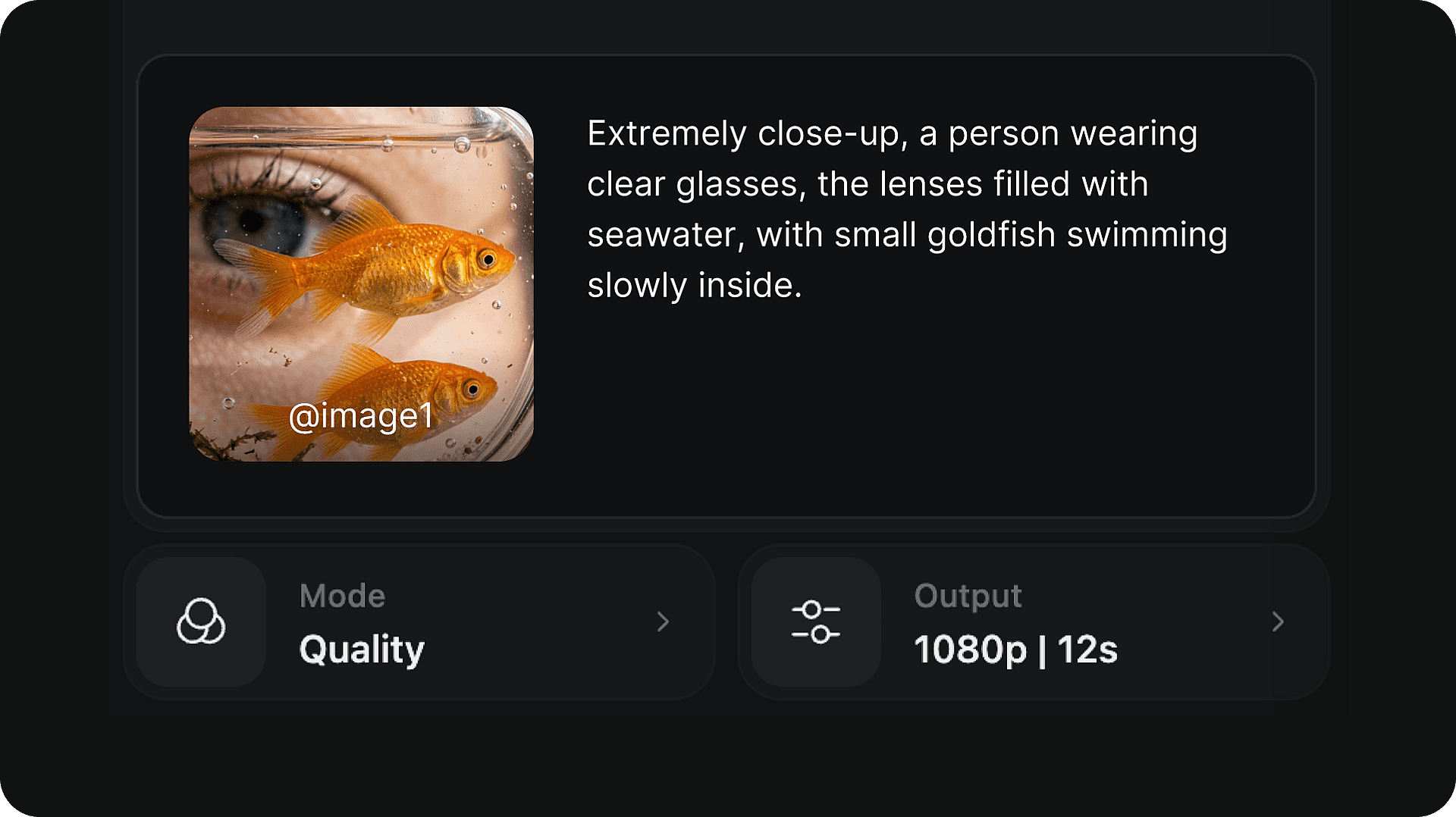
Write your prompt
Describe the scene, characters, lighting, and action you want to generate.
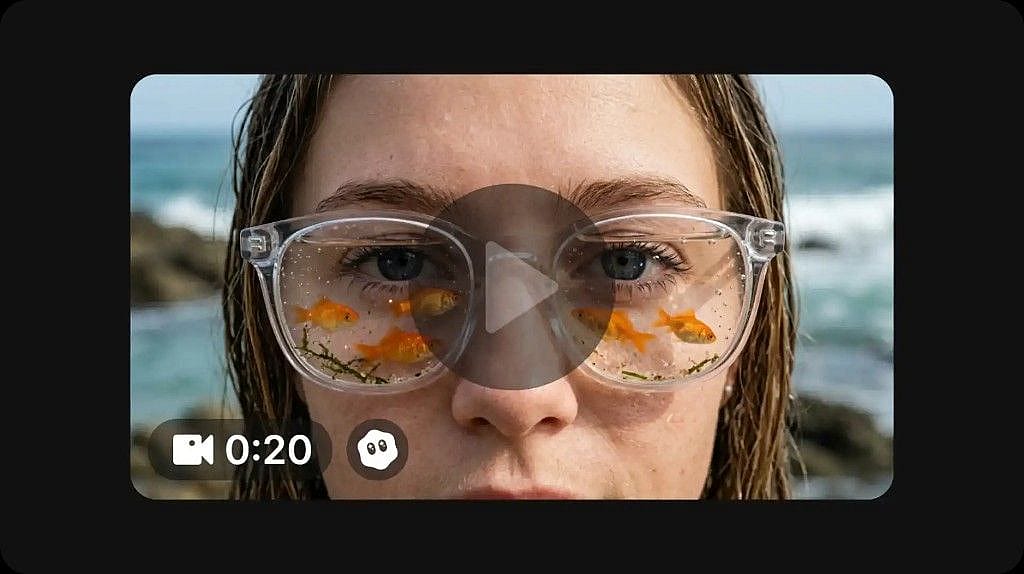
Generate and download your video
Click generate to create your video. Once complete, preview the result and download it directly to your device in full 1080p resolution.
How To Get The Best Results With Sora 2 Update
Describe the scene clearly
Include specific details about the characters, environment, lighting, and mood. More precise prompts give the model clearer direction and tend to produce more accurate results.
Keep scenes simple
Starting with a focused scene — one or two elements — can improve consistency. Complex multi-action prompts may produce less predictable output.
Use consistent character descriptions
Describe each character with specific physical details — hair color, clothing, build — and keep those descriptions the same across prompts.
Experiment with camera descriptions
Adding camera language to your prompt — such as "wide shot", "close-up", "slow pan", or "tracking shot" — can significantly shape the visual style and framing.
Test different prompts
Small changes in wording can lead to noticeably different outputs. Try reframing the same scene with different vocabulary to explore the range.
Iterate and refine
Each generation gives you new information about what works. Use the results to refine your prompt progressively — adjusting details and honing in on the output you want.
Frequently Asked Questions
Get Insights from Experts Blog
Get the insights you need. Our experts share actionable hacks, break down the hottest topics, and provide essential how-to guides to help you build, optimize, and scale.
Read More
Loved by Creators
I've tried many AI platforms... but OpenArt is still the best for character creation, image-to-video quality, and the variety of models available.
OpenArt offers an excellent array of AI tools... once you learn the features, the creative possibilities are amazing - and their support team is outstanding.
OpenArt is a very versatile AI platform with many image and video models, consistent character creation, and powerful editing tools.
Helpful AI tools all in one place - image and video generation, editing, and more... no need for multiple subscriptions.
Customer service is always quick and helpful... and the platform keeps getting better with new features and tools.
I've tried many AI platforms... but OpenArt is still the best for character creation, image-to-video quality, and the variety of models available.
OpenArt offers an excellent array of AI tools... once you learn the features, the creative possibilities are amazing - and their support team is outstanding.
OpenArt is a very versatile AI platform with many image and video models, consistent character creation, and powerful editing tools.
Helpful AI tools all in one place - image and video generation, editing, and more... no need for multiple subscriptions.
Customer service is always quick and helpful... and the platform keeps getting better with new features and tools.
I've tried many AI platforms... but OpenArt is still the best for character creation, image-to-video quality, and the variety of models available.
OpenArt offers an excellent array of AI tools... once you learn the features, the creative possibilities are amazing - and their support team is outstanding.
OpenArt is a very versatile AI platform with many image and video models, consistent character creation, and powerful editing tools.
Helpful AI tools all in one place - image and video generation, editing, and more... no need for multiple subscriptions.
Customer service is always quick and helpful... and the platform keeps getting better with new features and tools.
With so many AI platforms out there, OpenArt stood out as a stellar choice - I'd recommend it to any creator.
This platform includes everything you need for AI content creation - images, video, characters, audio, and multiple AI models in one place.
OpenArt is pushing the boundaries of AI video creation... and it's clear the team is committed to improving the creator experience.
I made my first AI music video with OpenArt... and their support team was the best help I've ever experienced.
I'm very happy with the support - my issue was resolved quickly and the team made the process easy.
With so many AI platforms out there, OpenArt stood out as a stellar choice - I'd recommend it to any creator.
This platform includes everything you need for AI content creation - images, video, characters, audio, and multiple AI models in one place.
OpenArt is pushing the boundaries of AI video creation... and it's clear the team is committed to improving the creator experience.
I made my first AI music video with OpenArt... and their support team was the best help I've ever experienced.
I'm very happy with the support - my issue was resolved quickly and the team made the process easy.
With so many AI platforms out there, OpenArt stood out as a stellar choice - I'd recommend it to any creator.
This platform includes everything you need for AI content creation - images, video, characters, audio, and multiple AI models in one place.
OpenArt is pushing the boundaries of AI video creation... and it's clear the team is committed to improving the creator experience.
I made my first AI music video with OpenArt... and their support team was the best help I've ever experienced.
I'm very happy with the support - my issue was resolved quickly and the team made the process easy.
Create without limits
Join thousands of creators using OpenArt to generate stunning images, videos, and more — all in one platform.
Get Started for Free →