
4K Image Upscaler
Give your images a sharper, cleaner look with AI-powered upscaling. From photos and AI art to product shots and graphics, OpenArt helps you create high-resolution visuals ready for any screen or project.
 Add an image Or drag and drop here · JPEG, PNG, WEBP
 How To Upscale An Image To 4K Online
Upscaling an image takes three steps.
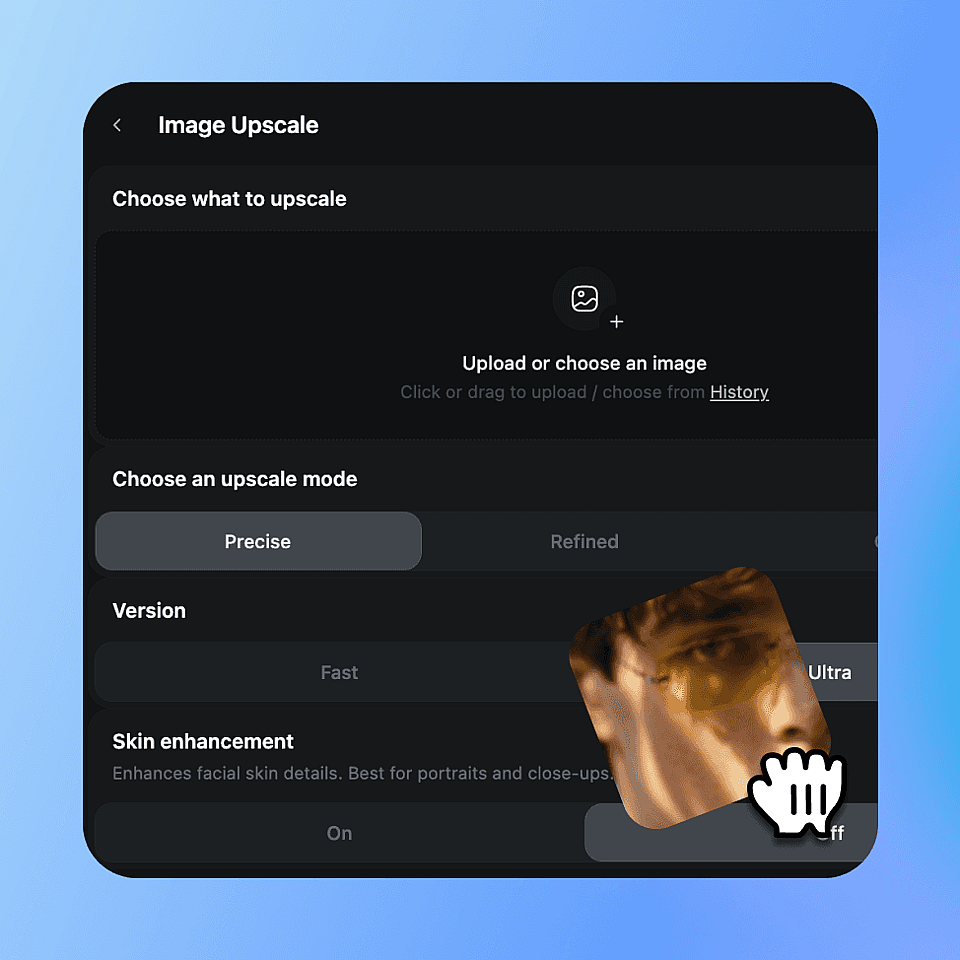
Upload your image
Drop in any photo, AI artwork, product shot, portrait, or graphic. JPG, PNG, and WEBP all work. Start with the cleanest version you have for the best result.
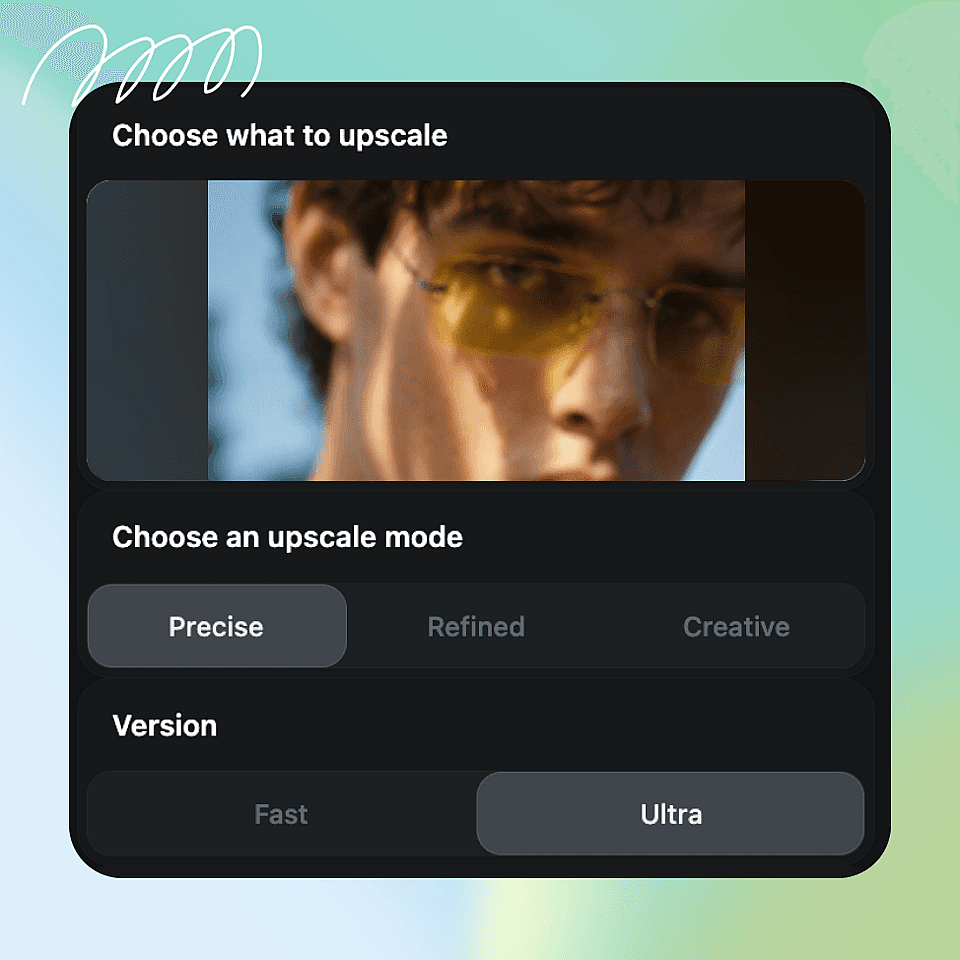
Choose your settings
Pick your upscale mode: Precise to stay close to the original, Refined for a cleaner balanced result, or Creative to add more texture and detail. If your image includes a face, turn on skin enhancement. Then set the output quality, Fast for a quick result, or Ultra for the highest-quality finish.
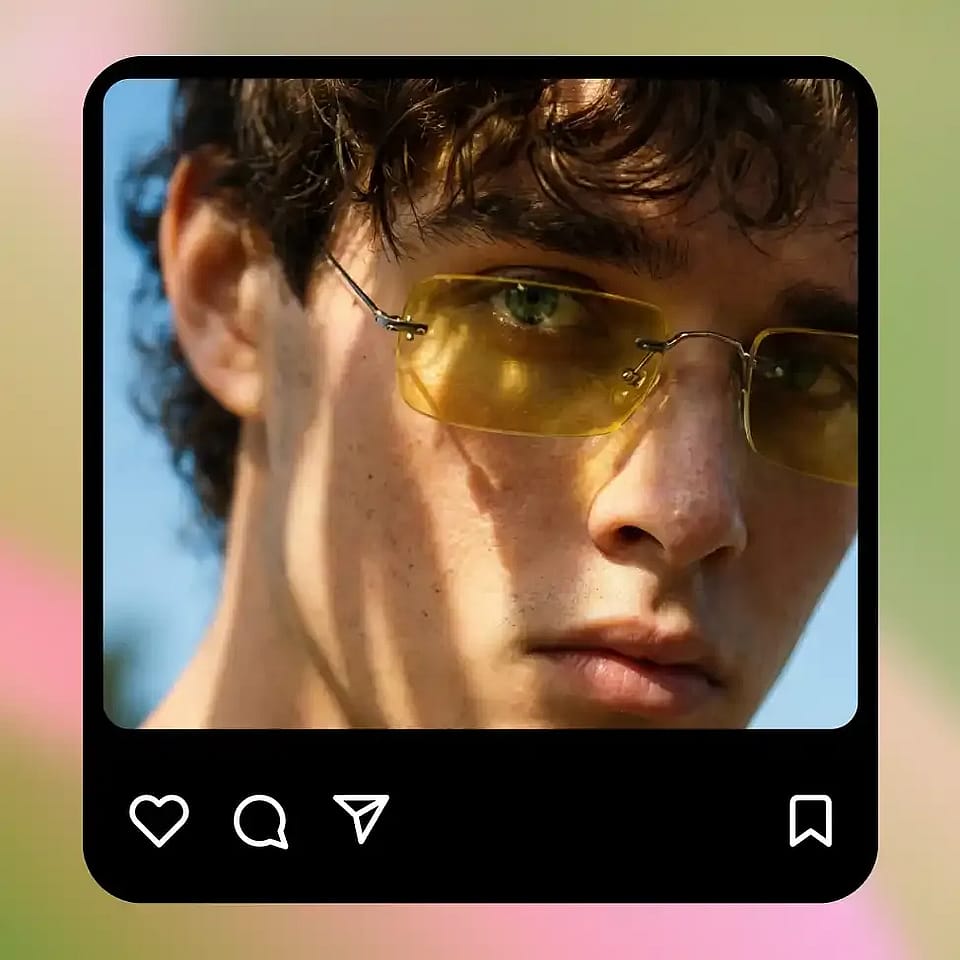
Upscale & download
Run the upscaler and review the output. Switch modes if the result needs adjusting. Once it looks right, download the high-resolution file and use it wherever you need it.
Built For Every Image Type
Wherever your image is too small or too blurry, the 4K upscaler tool brings it up to a superior quality.
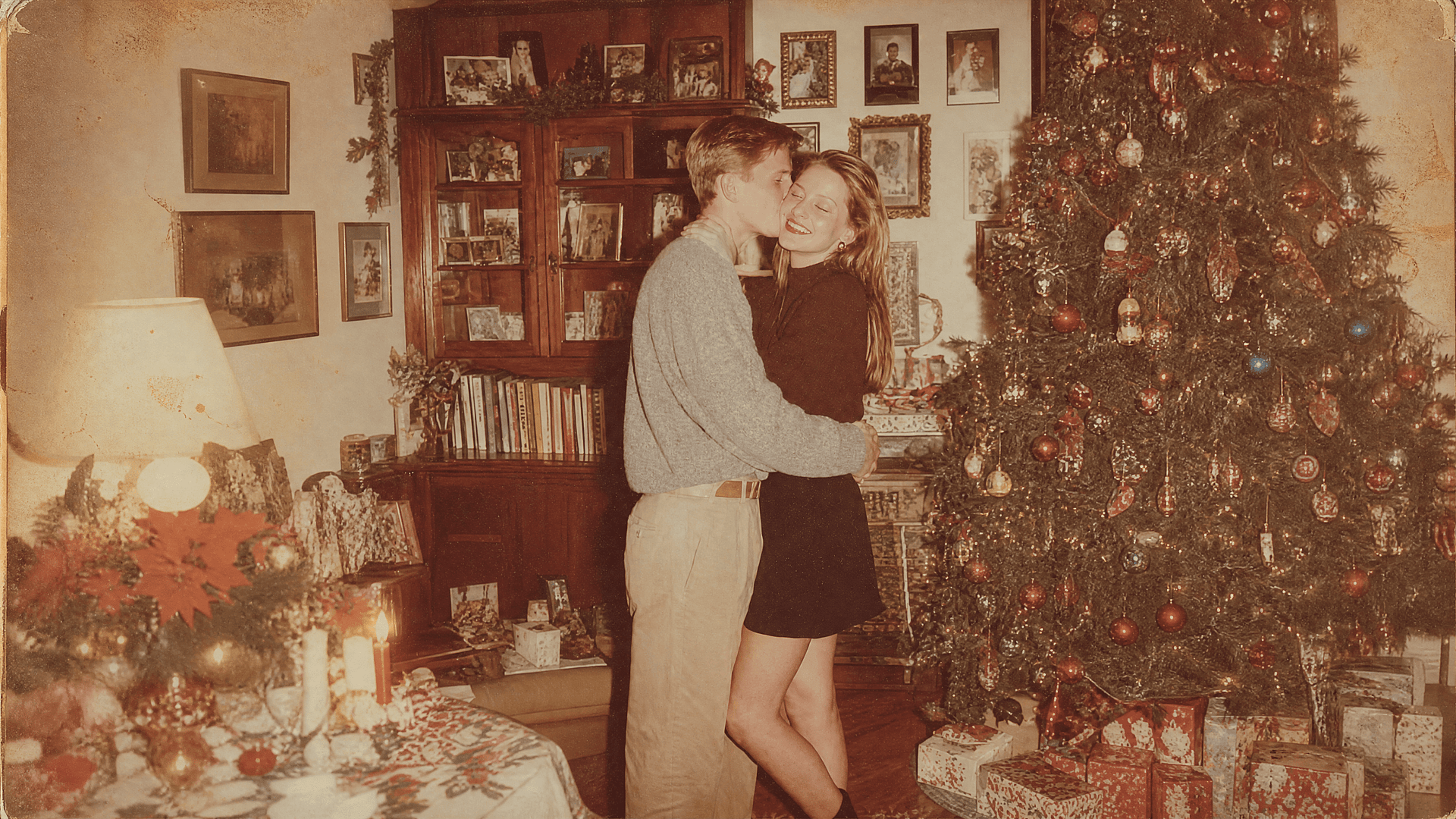
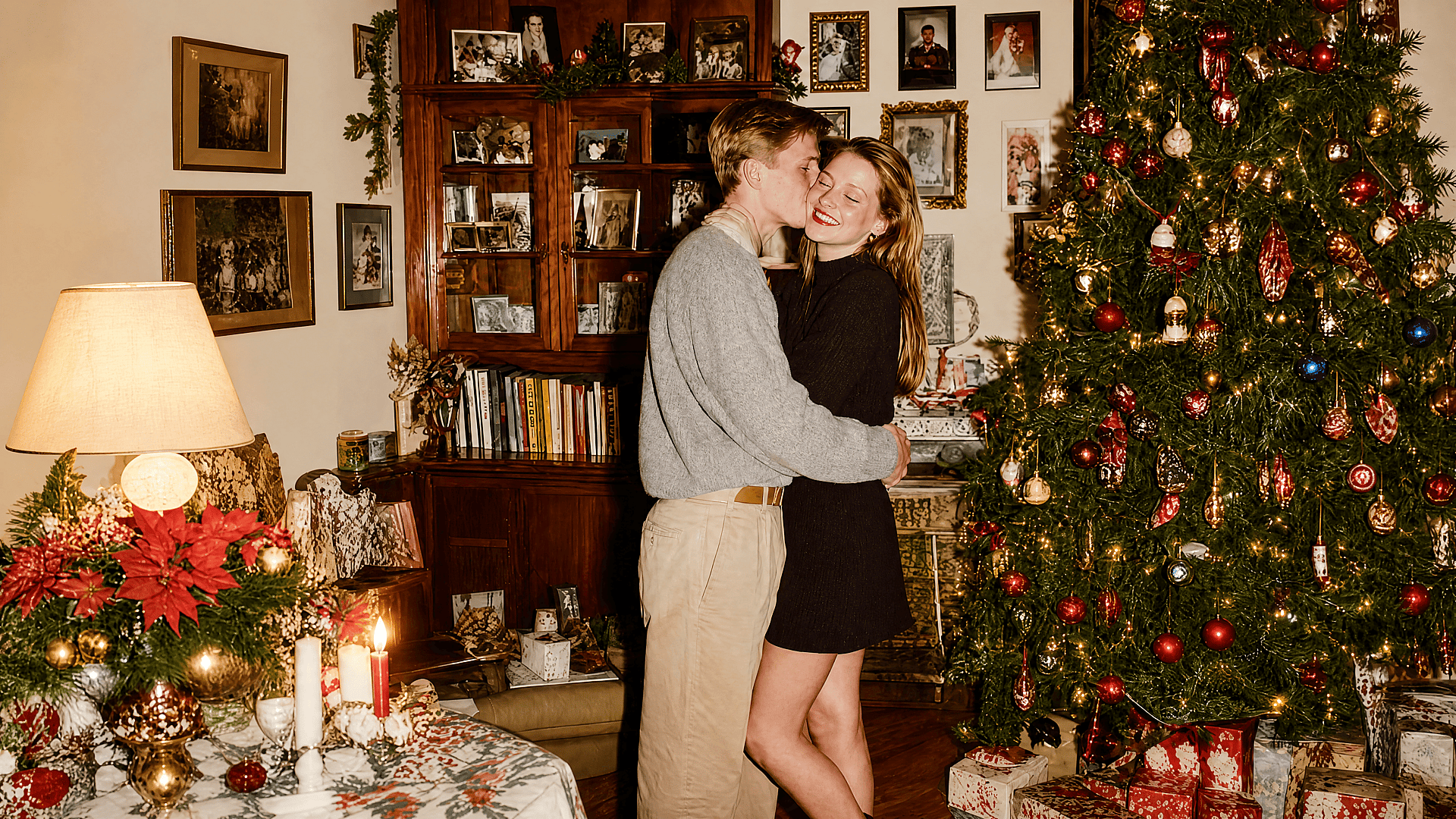
Old Photos And Personal Memories
Old images are often small, scanned, compressed, or blurry. OpenArt can enlarge them and rebuild detail so they look cleaner on modern screens. For family photos, vintage prints, and older digital files, use a more faithful mode first so the result still feels like the original memory.
Try it Now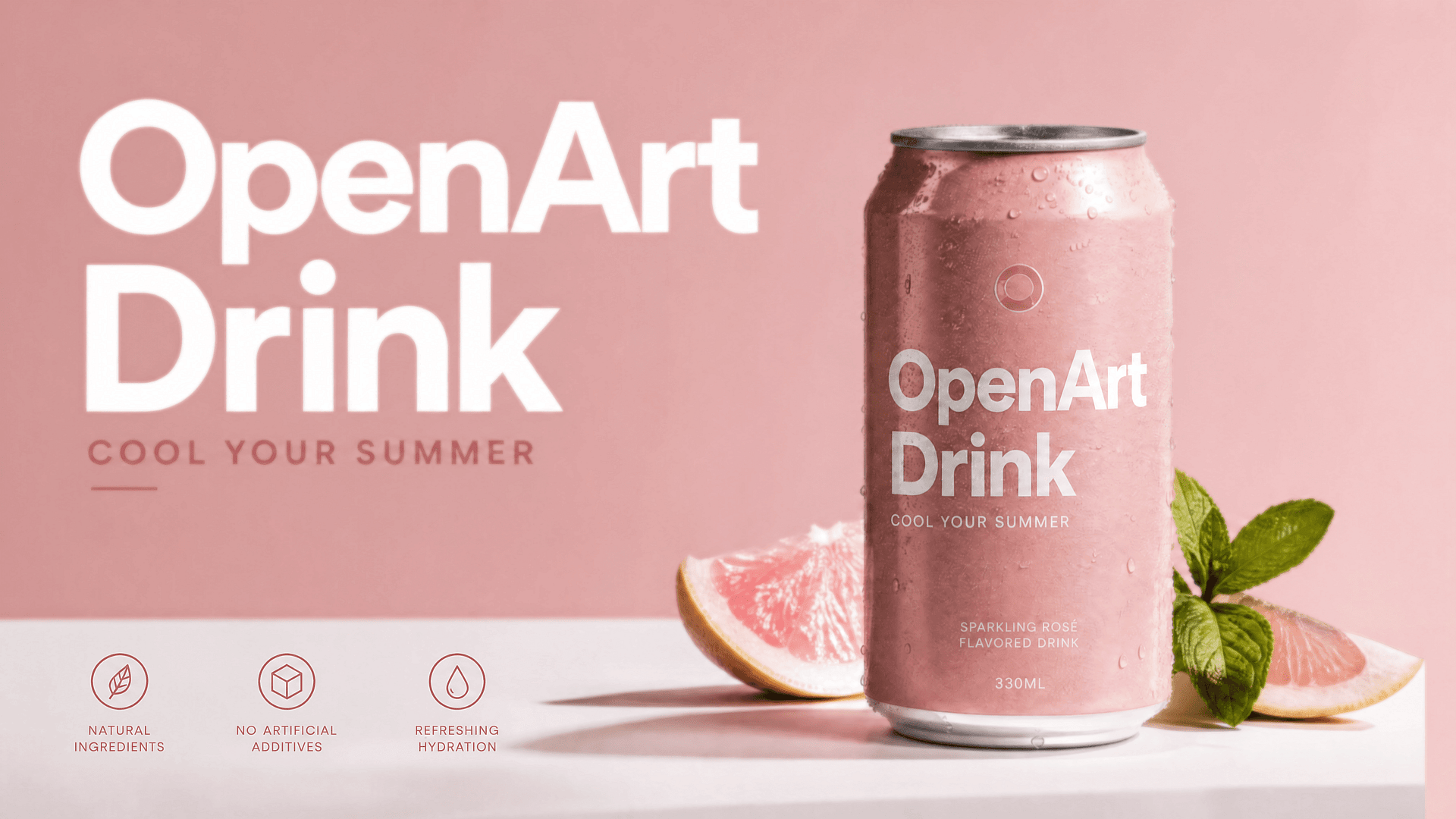
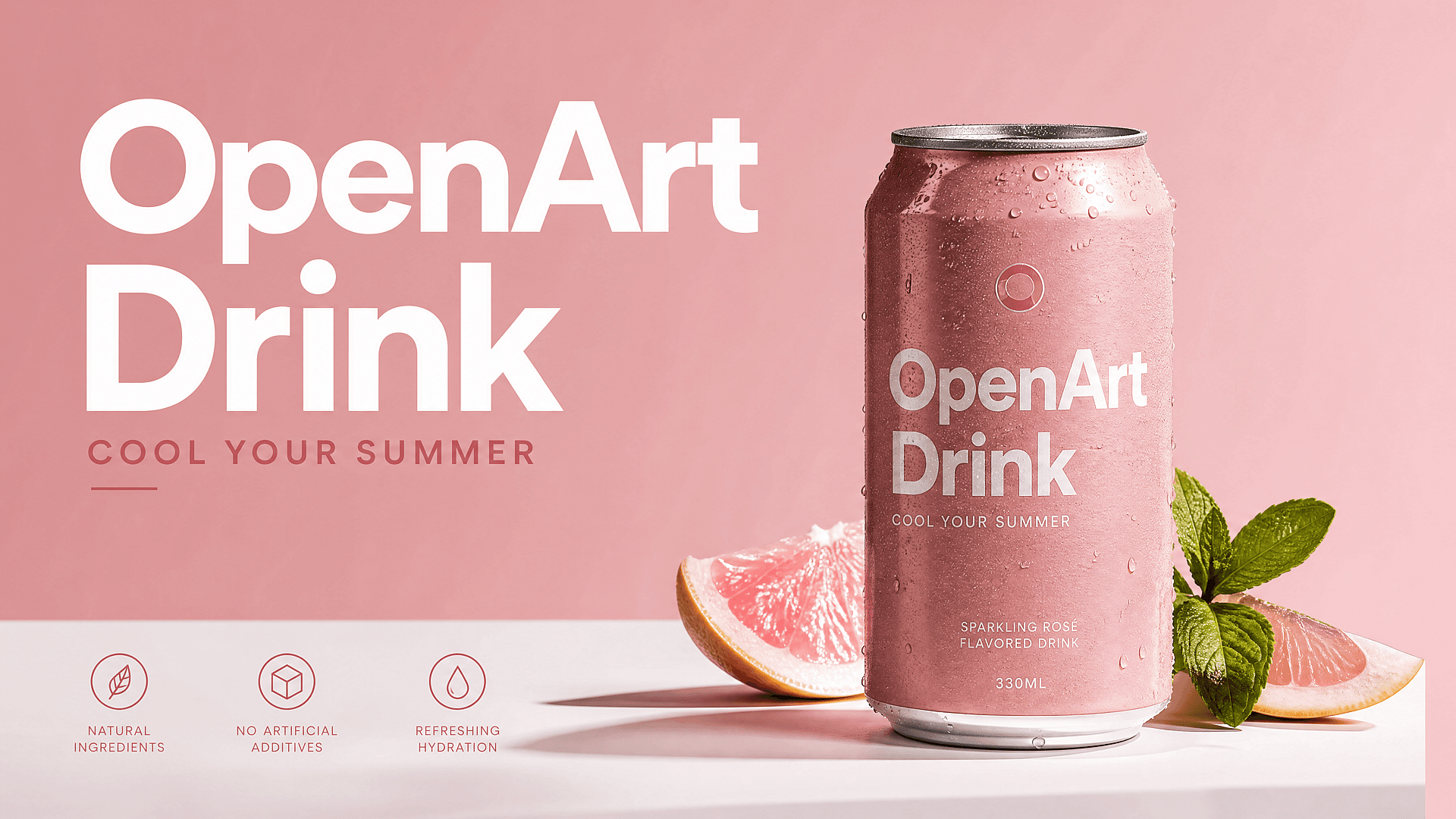
Product Photos And Ecommerce Images
Small product photos make a store feel less trustworthy. Use the 4K image upscaler to sharpen edges, fabric texture, packaging detail, and lifestyle shots before placing them on product pages, marketplace listings, ads, or banners. A clearer image can make the product feel more premium without a reshoot.
Try it Now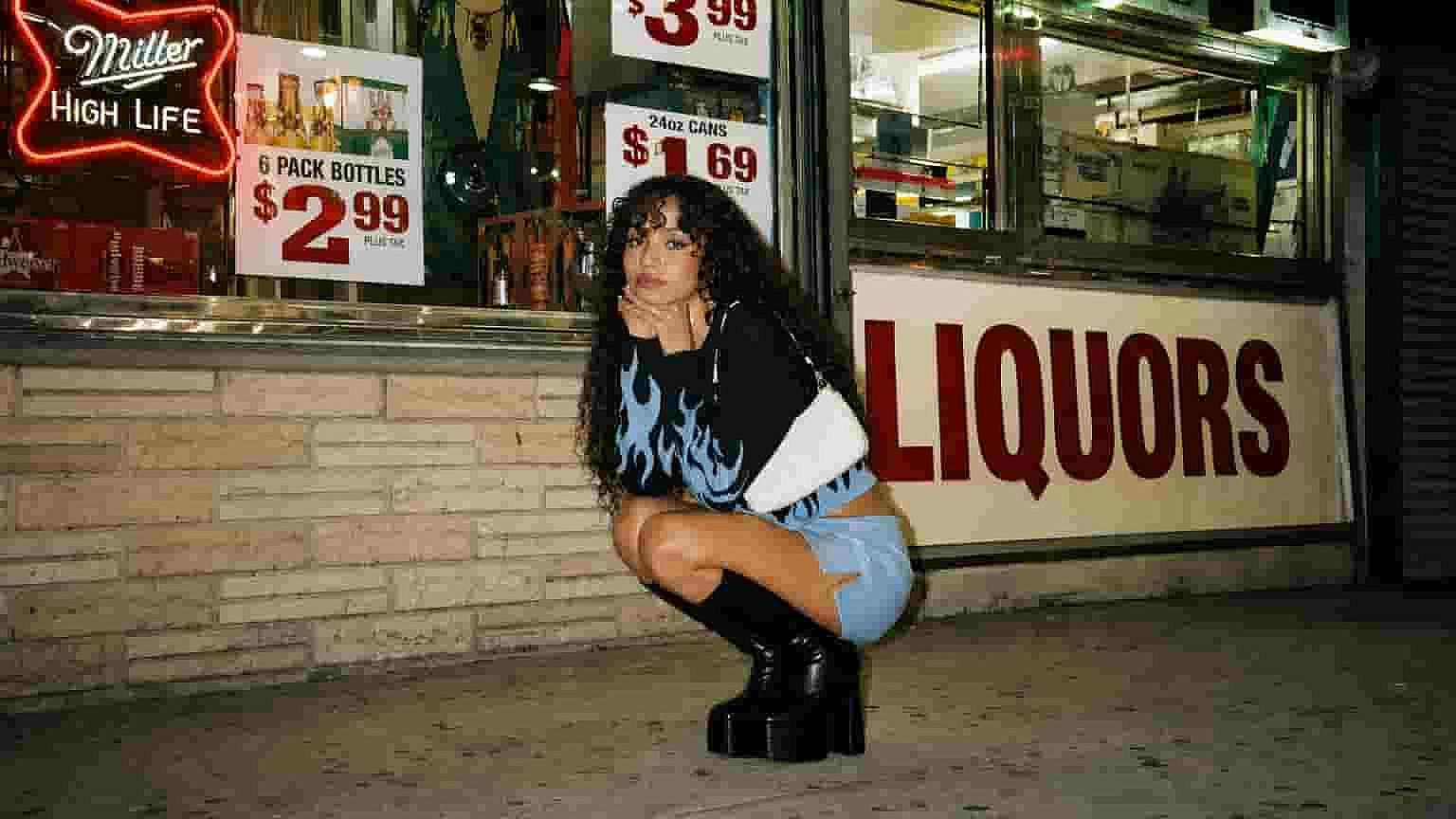
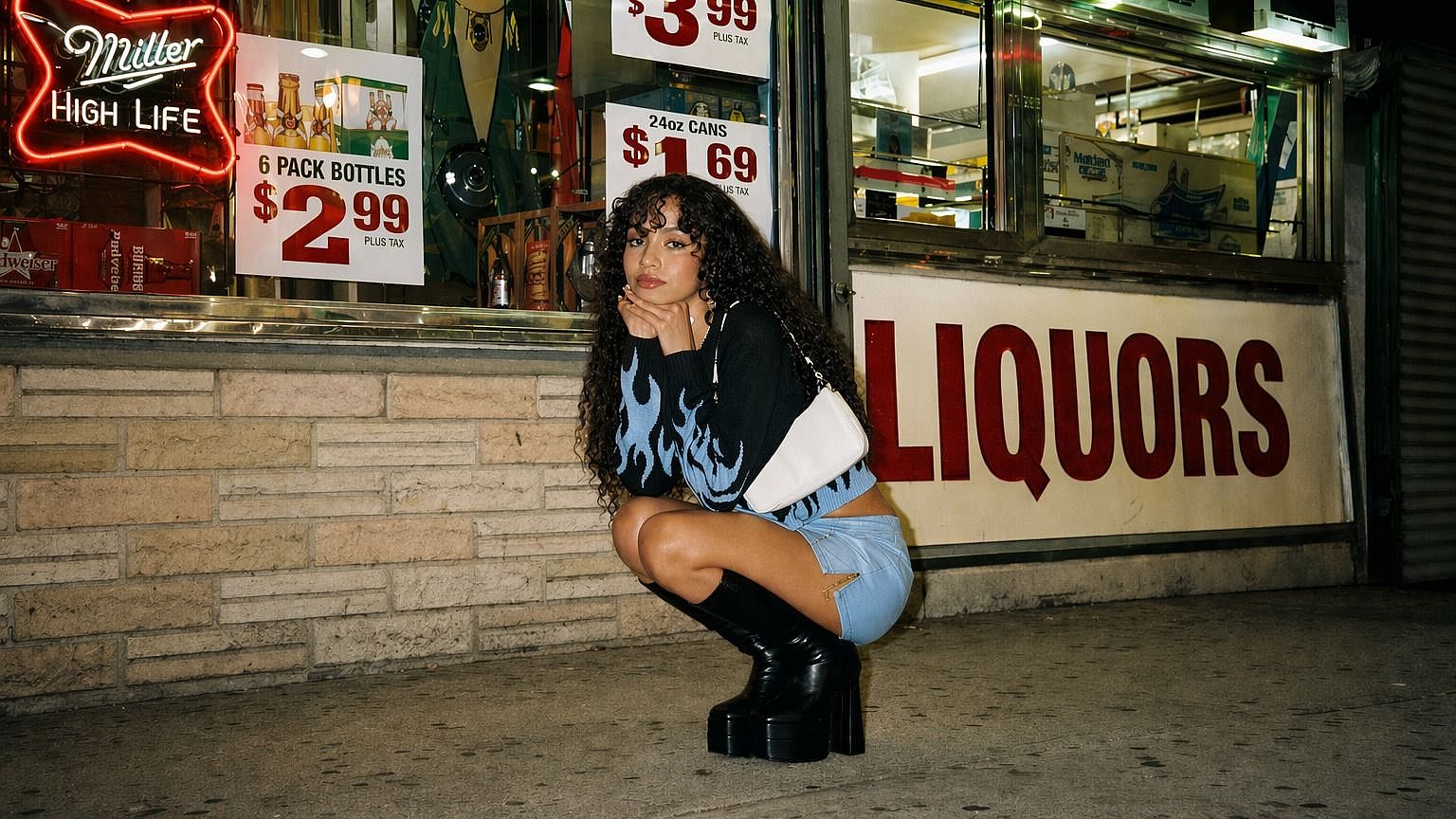
AI-Generated Art And Illustrations
AI art often looks great in preview but too small for publishing. Upscale AI-generated images so they hold up as wallpapers, posters, thumbnails, book covers, social graphics, or print assets. Creative mode is especially useful when you want richer texture, sharper lines, and a more finished look.
Try it Now
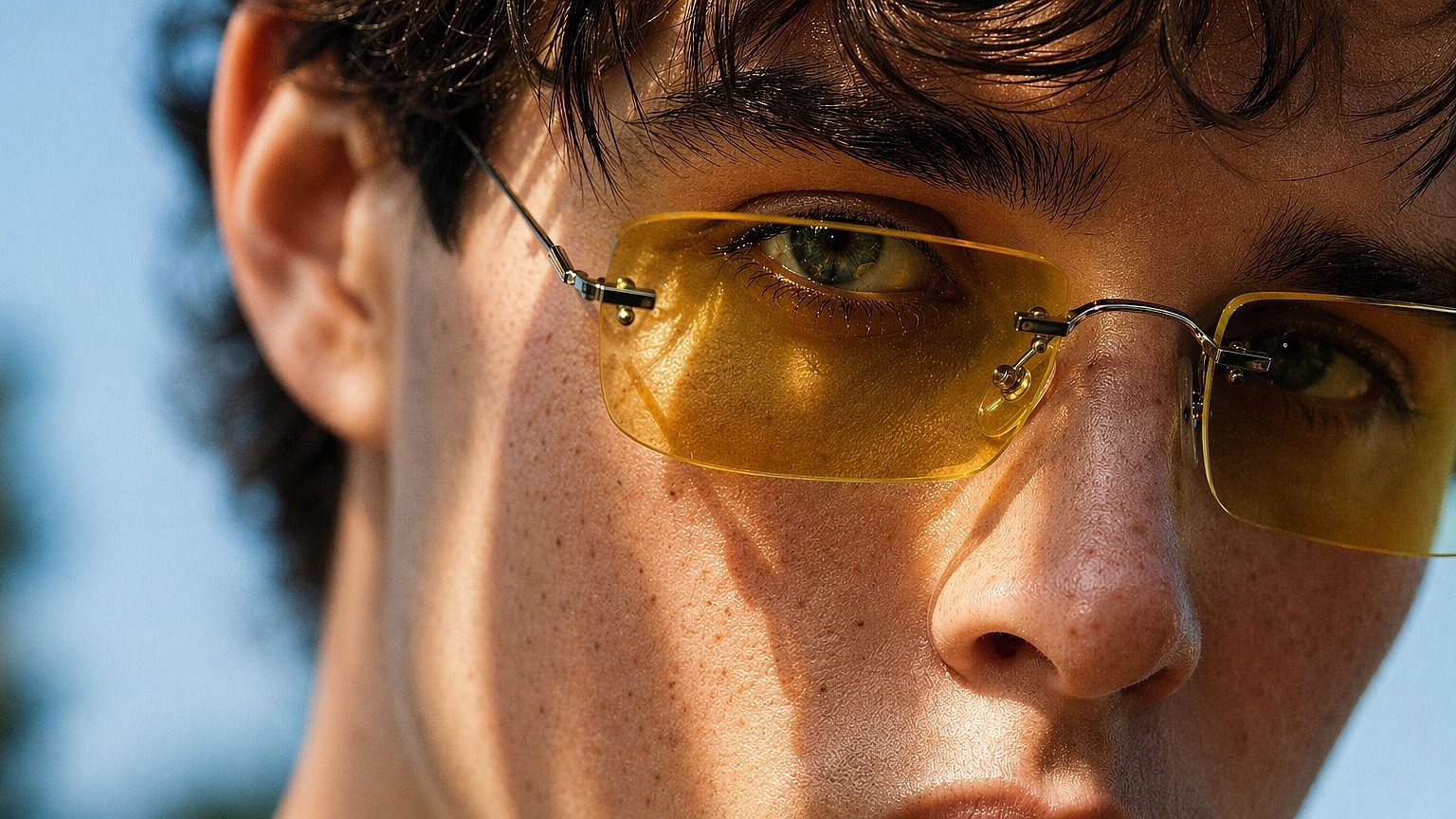
Portraits And Headshots
Use AI upscaling to rescue soft portraits, profile photos, creator headshots, and character images. Skin enhancement helps faces stay natural while adding clarity. This is useful for LinkedIn images, creator profiles, press kits, website bios, and campaign portraits.
Try it Now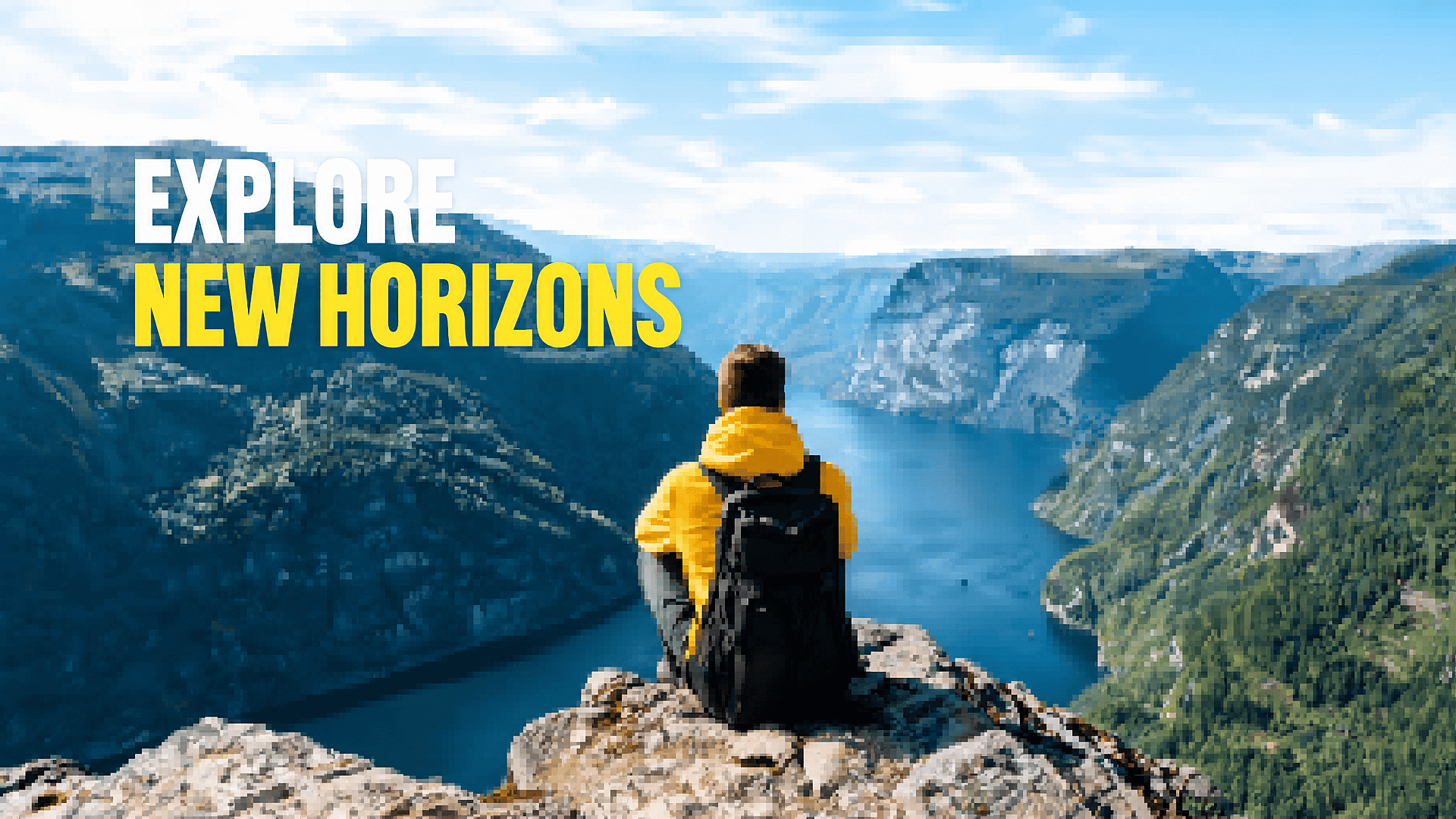
Social Posts, Thumbnails, And Banners
Blurry visuals get ignored fast. Upscale images for YouTube thumbnails, TikTok covers, Instagram posts, Pinterest pins, X banners, and blog hero images. A sharper image helps the main subject stand out on mobile, especially when the original file was cropped or downloaded from another source.
Try it NowBest Settings for Different Image Types
For Portraits
Use Precise or Refined first. Turn on skin enhancement. The goal is to improve sharpness without changing the person's identity or making skin look artificial. If the face still looks soft after the first pass, try Refined before moving to Creative.
For Product Photos
Use Precise for clean product edges and packaging details. If the original image is noisy or compressed, try Refined to clean it up. Avoid too much creative enhancement if the product must stay accurate. Always check the final output at full size before publishing.
For AI Art
Use Creative when the image can benefit from added detail, richer texture, and stronger line work. AI-generated art usually handles creative upscaling well because the output does not need to match a real-world reference exactly. If the result feels overdone, step back to Refined.
For Old Photos
Start with Precise or Refined. Old photos need clarity, but they also need respect. Too much creative detail can make faces or backgrounds feel invented. If the result looks too changed, reduce the creative setting and run it again.
For Logos And Text
Use Precise. AI upscalers can improve edges, but small text and logos need careful review. Creative mode can reinterpret fine lines or letterforms in ways that look wrong. Always check the final file at full size before using it in brand or client work.
For Screenshots And UI Captures
Use Precise. Screenshots rely on sharp edges, readable text, and pixel-accurate layouts. Creative mode can blur interface elements or reinterpret small icons in ways that look wrong. If the screenshot includes fine text or UI components, review the output at full size before use.
Frequently Asked Questions
Loved by Creators Worldwide
See what our community has to say
I've tried many AI platforms… but OpenArt is still the best for character creation, image-to-video quality, and the variety of models available.
OpenArt offers an excellent array of AI tools… once you learn the features, the creative possibilities are amazing - and their support team is outstanding.
OpenArt is a very versatile AI platform with many image and video models, consistent character creation, and powerful editing tools.
Helpful AI tools all in one place - image and video generation, editing, and more… no need for multiple subscriptions.
Customer service is always quick and helpful… and the platform keeps getting better with new features and tools.
I've tried many AI platforms… but OpenArt is still the best for character creation, image-to-video quality, and the variety of models available.
OpenArt offers an excellent array of AI tools… once you learn the features, the creative possibilities are amazing - and their support team is outstanding.
OpenArt is a very versatile AI platform with many image and video models, consistent character creation, and powerful editing tools.
Helpful AI tools all in one place - image and video generation, editing, and more… no need for multiple subscriptions.
Customer service is always quick and helpful… and the platform keeps getting better with new features and tools.
I've tried many AI platforms… but OpenArt is still the best for character creation, image-to-video quality, and the variety of models available.
OpenArt offers an excellent array of AI tools… once you learn the features, the creative possibilities are amazing - and their support team is outstanding.
OpenArt is a very versatile AI platform with many image and video models, consistent character creation, and powerful editing tools.
Helpful AI tools all in one place - image and video generation, editing, and more… no need for multiple subscriptions.
Customer service is always quick and helpful… and the platform keeps getting better with new features and tools.
With so many AI platforms out there, OpenArt stood out as a stellar choice - I'd recommend it to any creator.
This platform includes everything you need for AI content creation - images, video, characters, audio, and multiple AI models in one place.
OpenArt is pushing the boundaries of AI video creation… and it's clear the team is committed to improving the creator experience.
I made my first AI music video with OpenArt… and their support team was the best help I've ever experienced.
I'm very happy with the support - my issue was resolved quickly and the team made the process easy.
With so many AI platforms out there, OpenArt stood out as a stellar choice - I'd recommend it to any creator.
This platform includes everything you need for AI content creation - images, video, characters, audio, and multiple AI models in one place.
OpenArt is pushing the boundaries of AI video creation… and it's clear the team is committed to improving the creator experience.
I made my first AI music video with OpenArt… and their support team was the best help I've ever experienced.
I'm very happy with the support - my issue was resolved quickly and the team made the process easy.
With so many AI platforms out there, OpenArt stood out as a stellar choice - I'd recommend it to any creator.
This platform includes everything you need for AI content creation - images, video, characters, audio, and multiple AI models in one place.
OpenArt is pushing the boundaries of AI video creation… and it's clear the team is committed to improving the creator experience.
I made my first AI music video with OpenArt… and their support team was the best help I've ever experienced.
I'm very happy with the support - my issue was resolved quickly and the team made the process easy.
Get Insights from Experts Blog
Get the insights you need. Our experts share actionable hacks, break down the hottest topics, and provide essential how-to guides to help you build, optimize, and scale.
Read More
Create without limits
Join thousands of creators using OpenArt to generate stunning images, videos, and more — all in one platform.
Get Started for Free →