
Convert Your Photo to Sketch
Turn any image to sketch art with OpenArt. Upload a picture, type the drawing style you want, like pencil, charcoal, or clean line art, and download your sketch in minutes.
 Add an image Or drag and drop here · JPEG, PNG, WEBP, HEICJPEG, PNG, WEBP, HEIC
How to Convert a Photo to Sketch
You can turn a photo into a sketch in three steps.
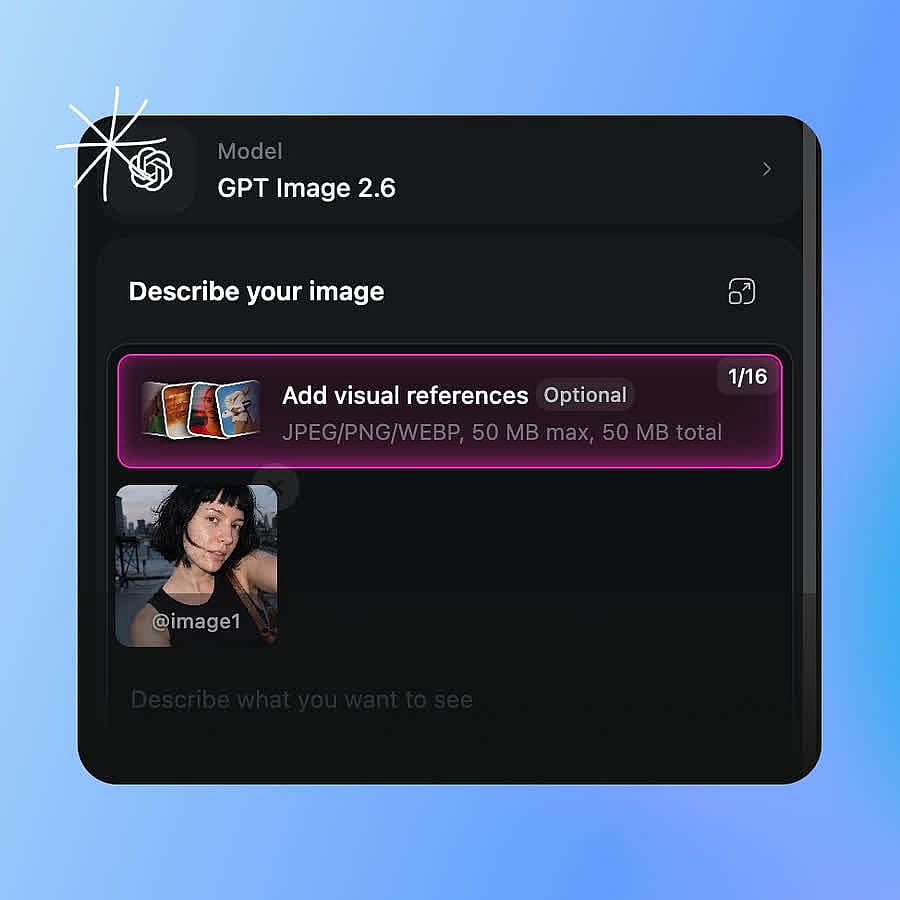
Upload your photo
Open AI image generator and upload your photo, or choose a picture from your OpenArt library.
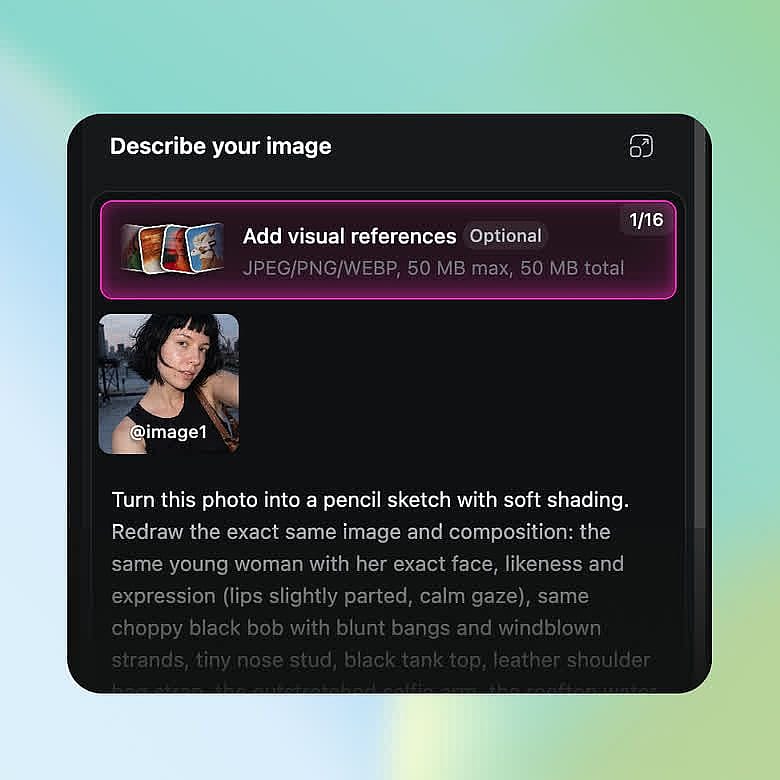
Describe the sketch
Type the drawing style you want, like "turn this photo into a pencil sketch with soft shading."
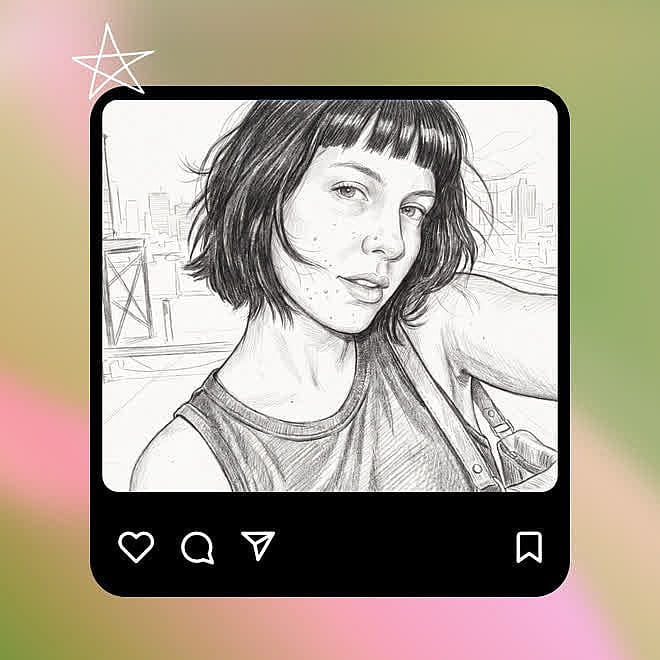
Generate and download
Check your sketch and change the words to try again if you want. Download the version you like.
Key Features of Image to Sketch Generator
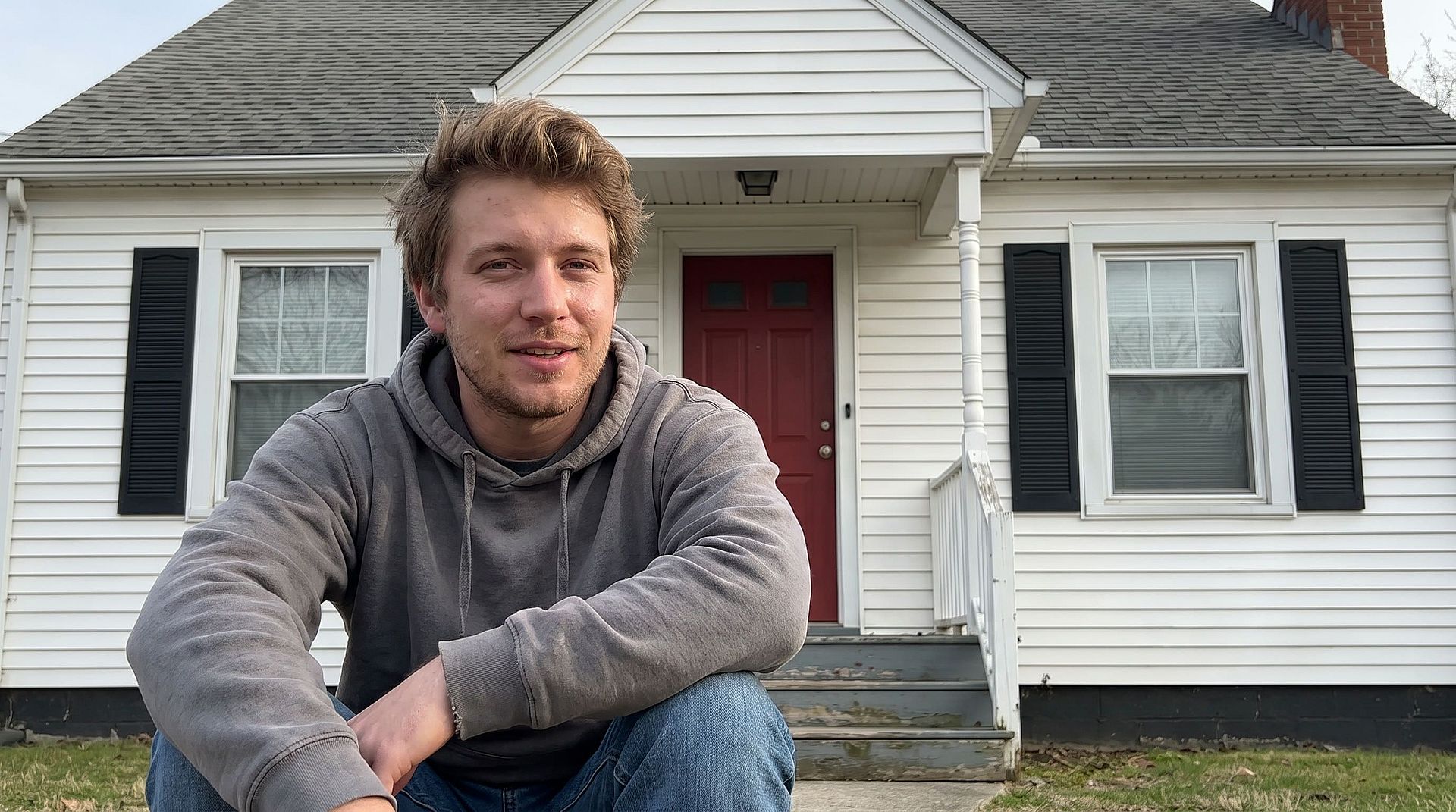
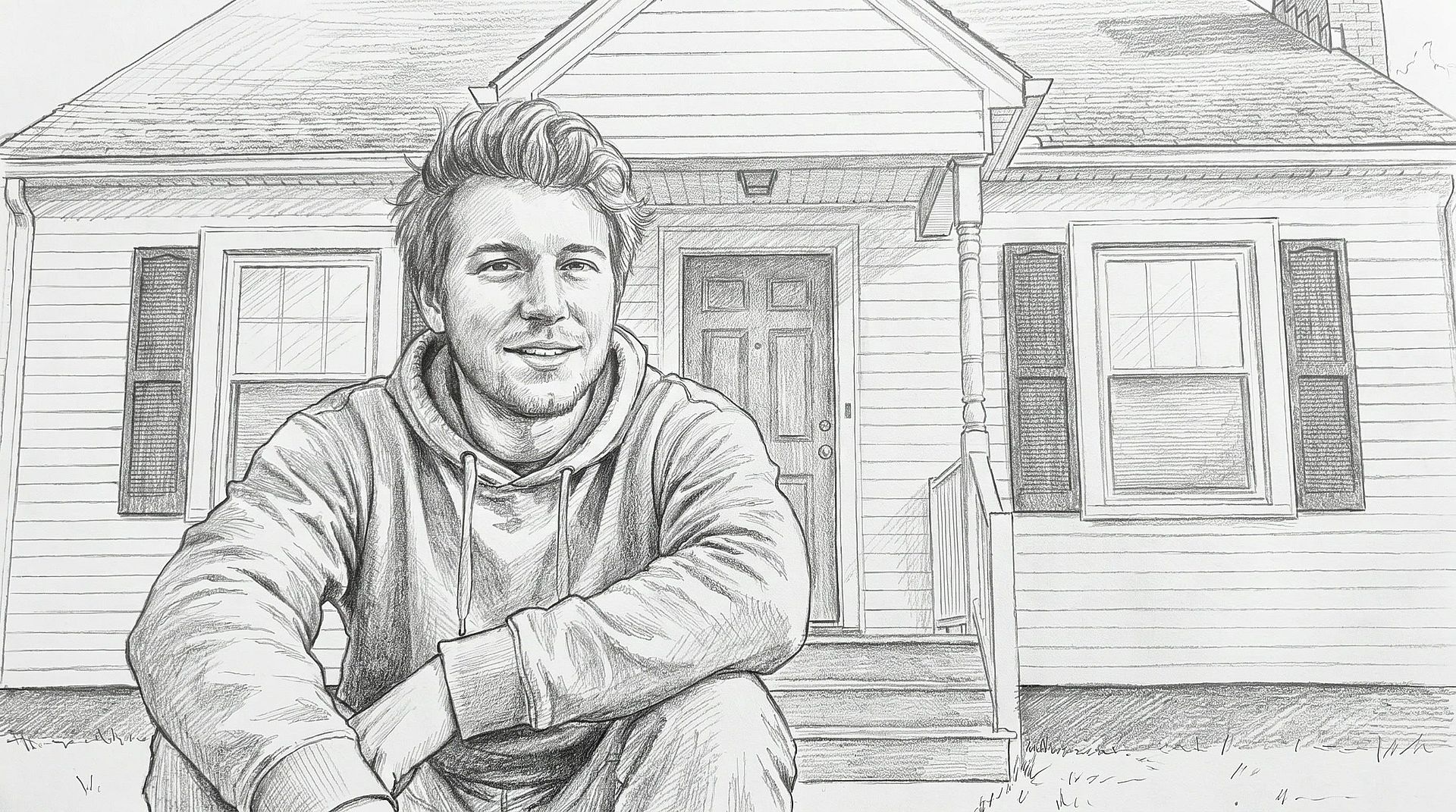
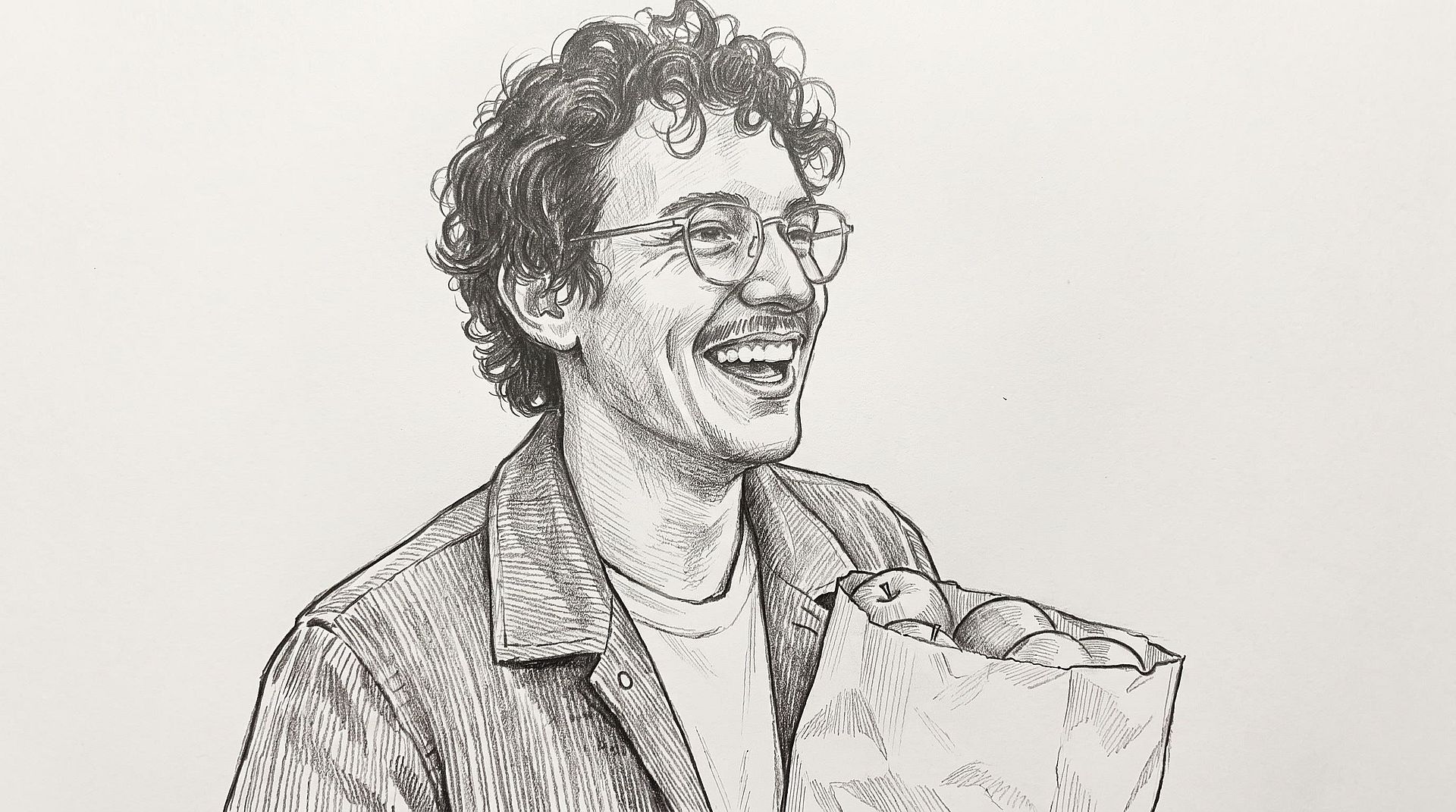
Turn a photo into a pencil sketch
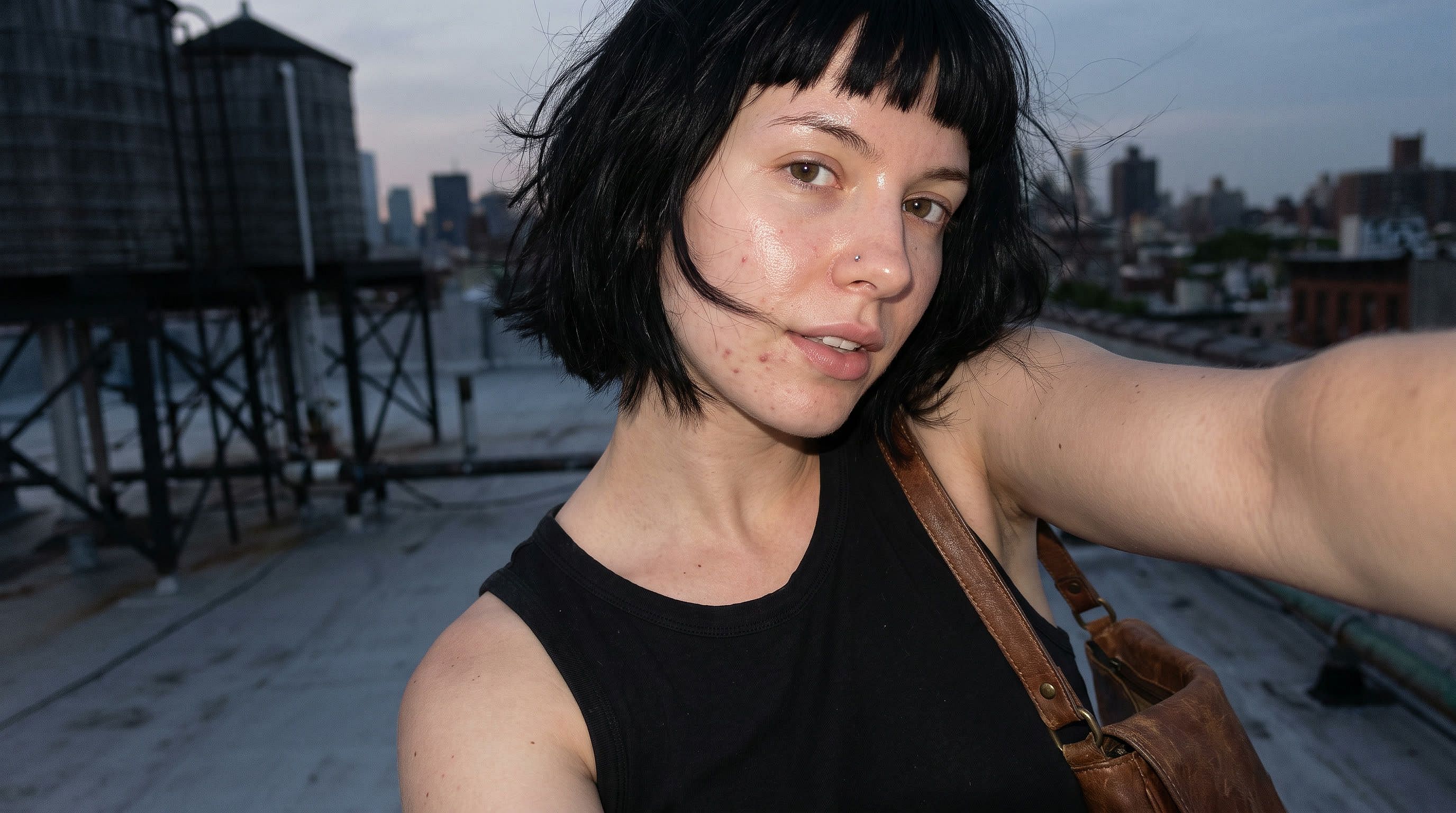
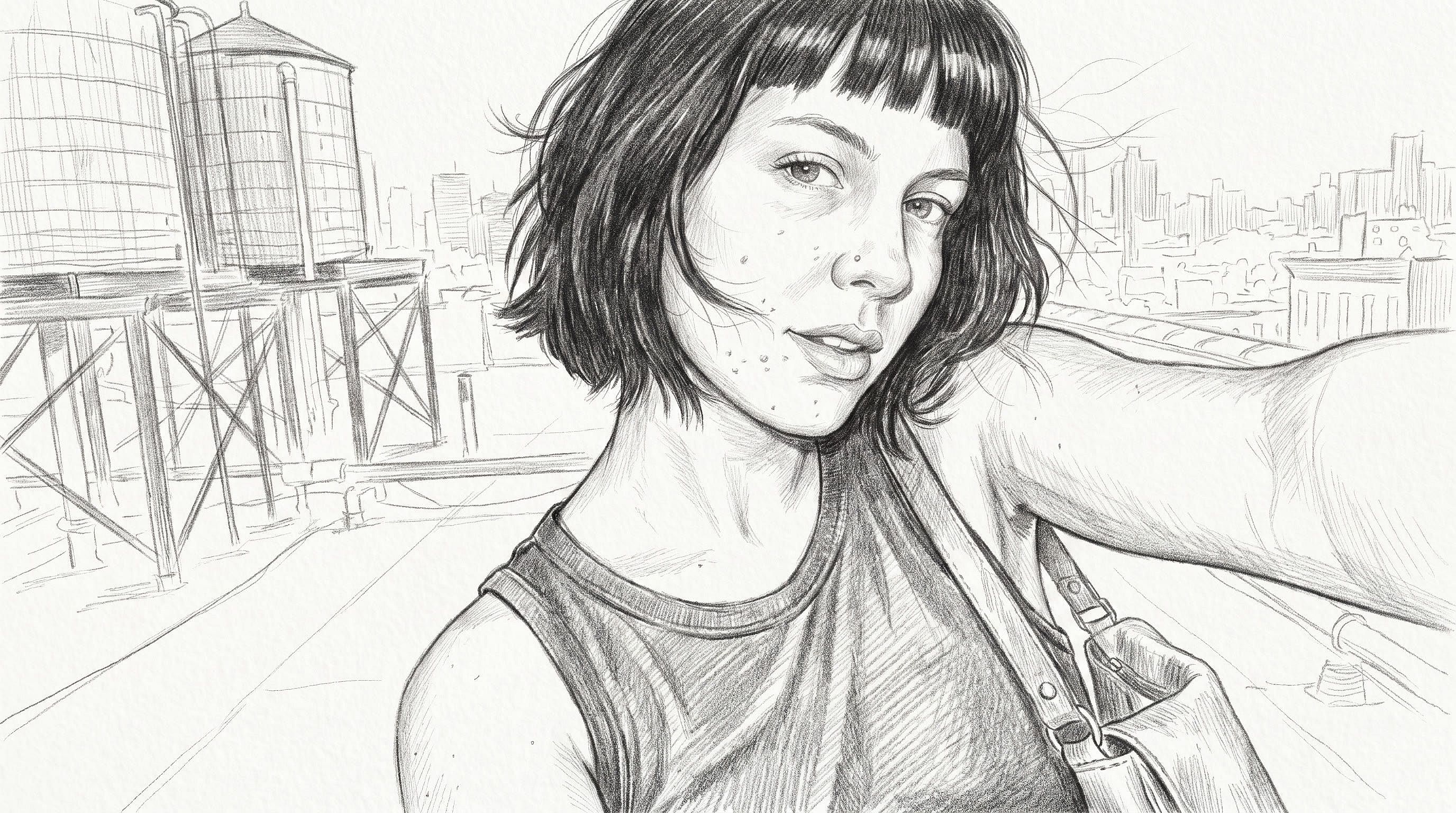
Upload your photo as a reference image and type "turn this photo into a pencil sketch with soft shading." The AI image generator makes a new picture of the same scene, drawn in gray pencil lines on white paper. A portrait keeps the shape of the face and the hair. A photo of your house keeps its windows, roof, and front door. Photo-to-pencil sketch takes one upload and one sentence.
Try it Now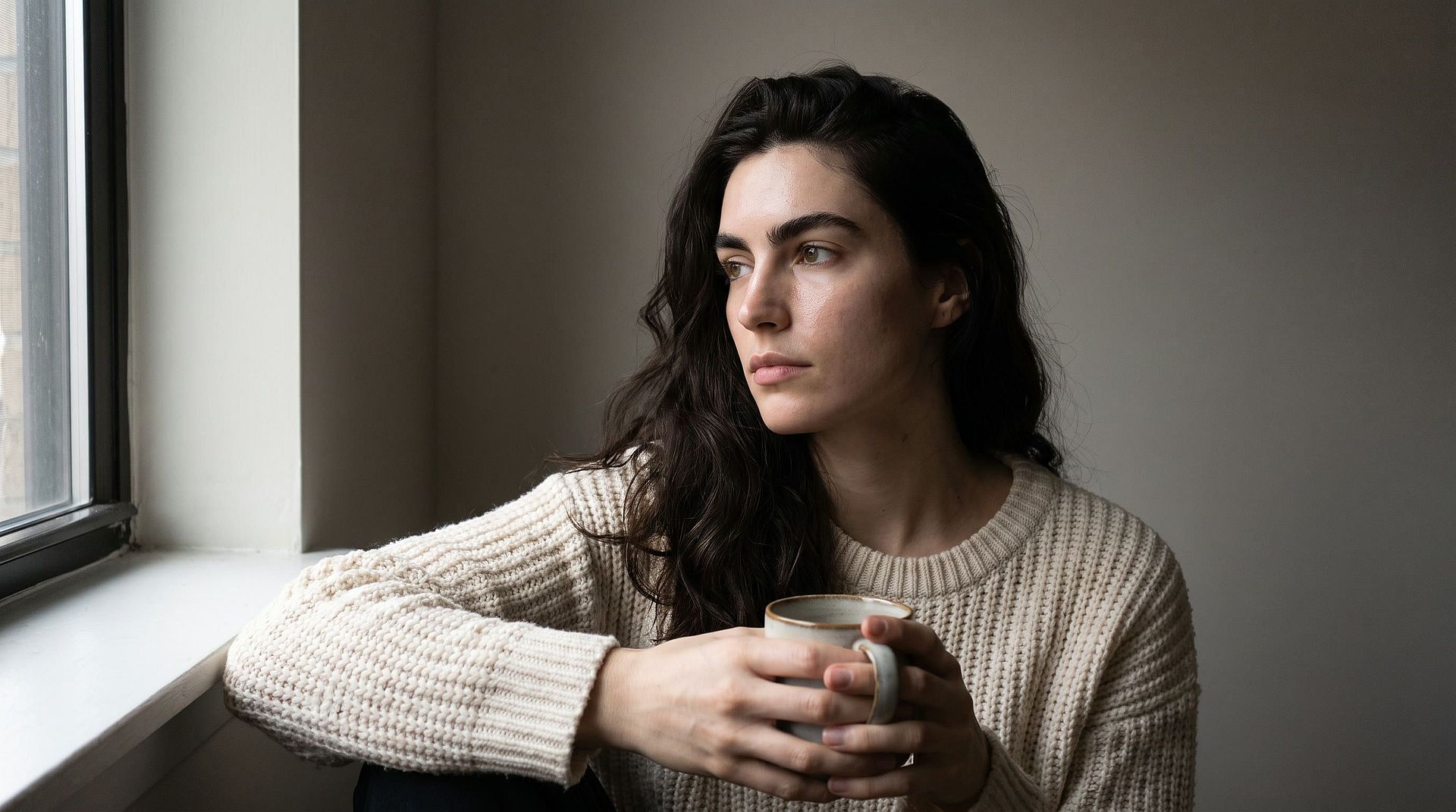
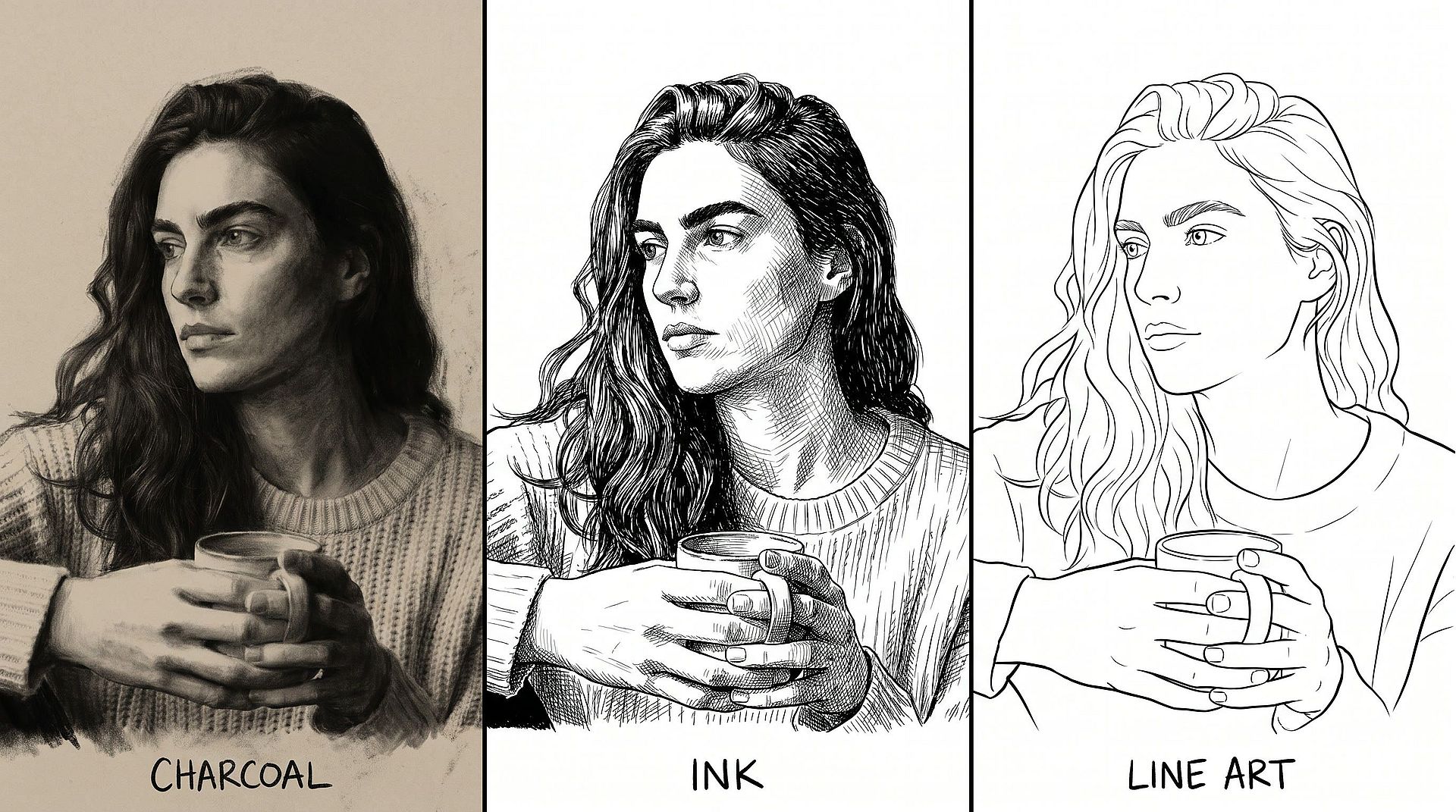
Pick charcoal, ink, or line art
The words in your prompt set the drawing style. Ask for "a dark charcoal drawing with heavy shadows" for a bold, smudgy look. Ask for "clean black line art with no shading" to turn an image to line art you can color in or print. With GPT Image 2.6, you can also ask for line art on a transparent background, ready to place on a poster or a T-shirt design.
Try it Now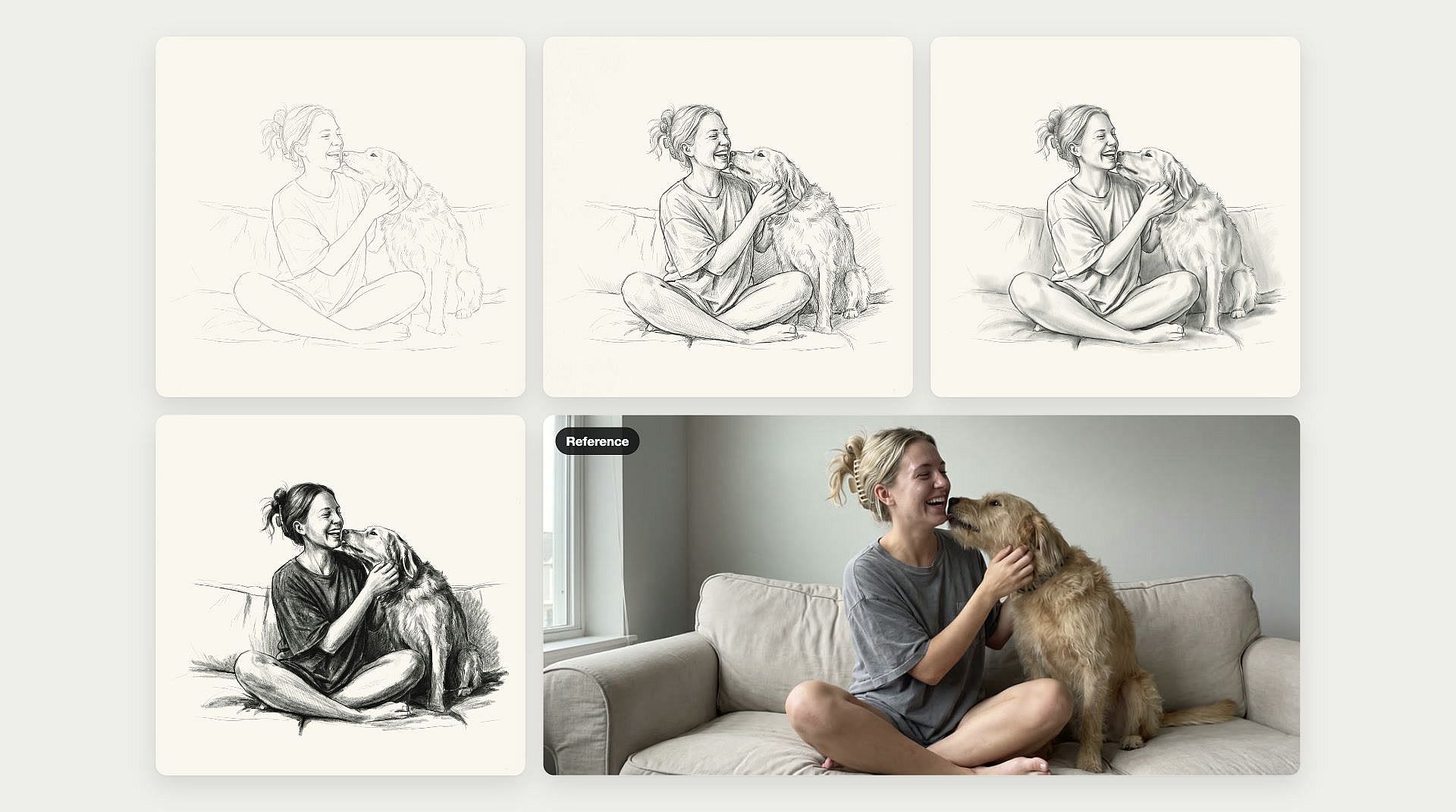
Make several sketch versions at once
The AI image generator makes up to 8 images from one prompt. Upload one photo and get several sketches to compare, from light pencil lines to heavy shading. Pick a square shape for a social post or a tall shape for a printed portrait. Choose the sketch you like best and download it.
Try it Now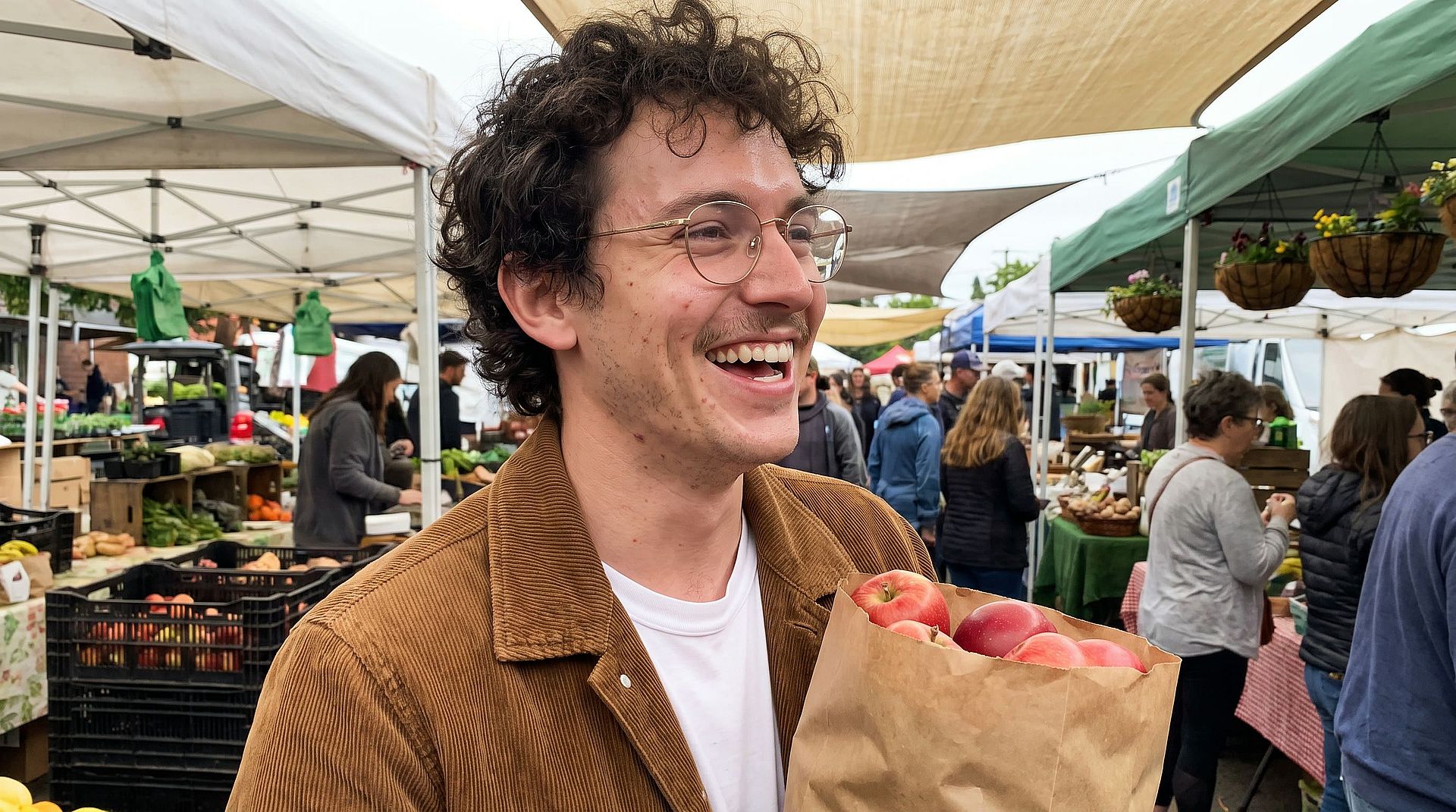
Change the sketch until it looks right
Change a few words in your prompt and generate again to adjust your sketch. Try "make the lines darker," "add more shading on the face," or "plain white background." On GPT Image 2.6, use Flare mode for quick tries and Sunburst mode for your final sketch. You can also switch models, because each model draws in its own way. Keep trying until the drawing matches the look you have in mind.
Try it NowFrequently Asked Questions
A photo to sketch AI tool redraws a photo as a drawing, like a pencil sketch, a charcoal drawing, or line art.
You can make any style you can describe in words. Common picks are pencil sketch, charcoal drawing, ink drawing, colored pencil, ballpoint pen, and clean line art. Name the style and the amount of shading in your prompt, like "light pencil sketch with no shading."
A clear, well-lit photo with one main subject makes the cleanest sketch. Good contrast between the subject and the background helps the drawing show clear edges. Plain backgrounds keep the sketch from looking busy.
Yes. Photo to drawing on OpenArt covers any style you describe, such as watercolor, cartoon, comic book, or oil painting. To copy the look of one picture onto another, use OpenArt's AI Style Transfer or AI Image to Image tools.
Every new OpenArt account starts with 40 free credits, so you can try the product right away. When you're ready to create more, paid plans add monthly credits and watermark-free downloads. See current plans on the OpenArt pricing page.
Yes. OpenArt turns a picture into a sketch from one sentence. Upload a portrait, a pet photo, a building, or a product shot, and describe the drawing style you want.
A sketch has loose lines plus shading, like a pencil drawing in an artist's notebook. Line art uses only clean outlines with no shading, which makes it good for coloring pages, tattoos, and printing. To turn an image to line art on OpenArt, type "clean black line art, no shading, white background."
Yes. Upload a photo and ask for "simple black line art with thick outlines and no shading on a white background." OpenArt turns your photo into an outline drawing you can print and color in. Pet photos, family photos, and favorite places all make fun coloring pages.
No. OpenArt only needs your photo and a sentence about the style you want. Everything happens in your web browser, on a laptop or a phone.
Get Insights from Experts Blog
Get the insights you need. Our experts share actionable hacks, break down the hottest topics, and provide essential how-to guides to help you create, optimize, and scale.
Read More
Create without limits
Join thousands of creators using OpenArt to generate stunning images, videos, and more — all in one platform.
Get Started for Free →