
AI Video Editor
Edit any video with AI by typing what you want to change. OpenArt's AI video editor swaps backgrounds and faces, adds subtitles, dubs your video into new languages, and upscales it to 4K, right in your browser.
Key Benefits of AI Video Editor
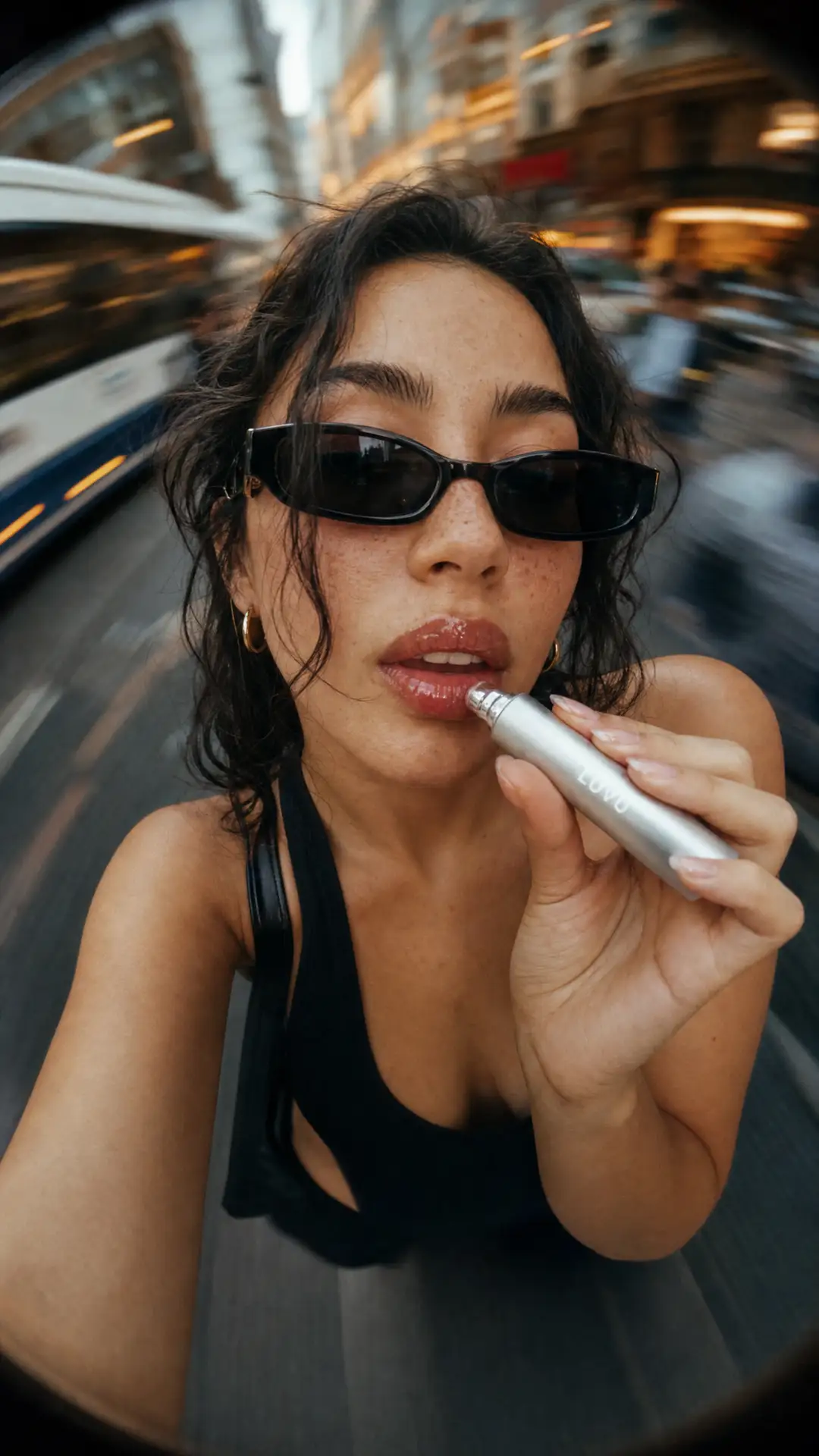

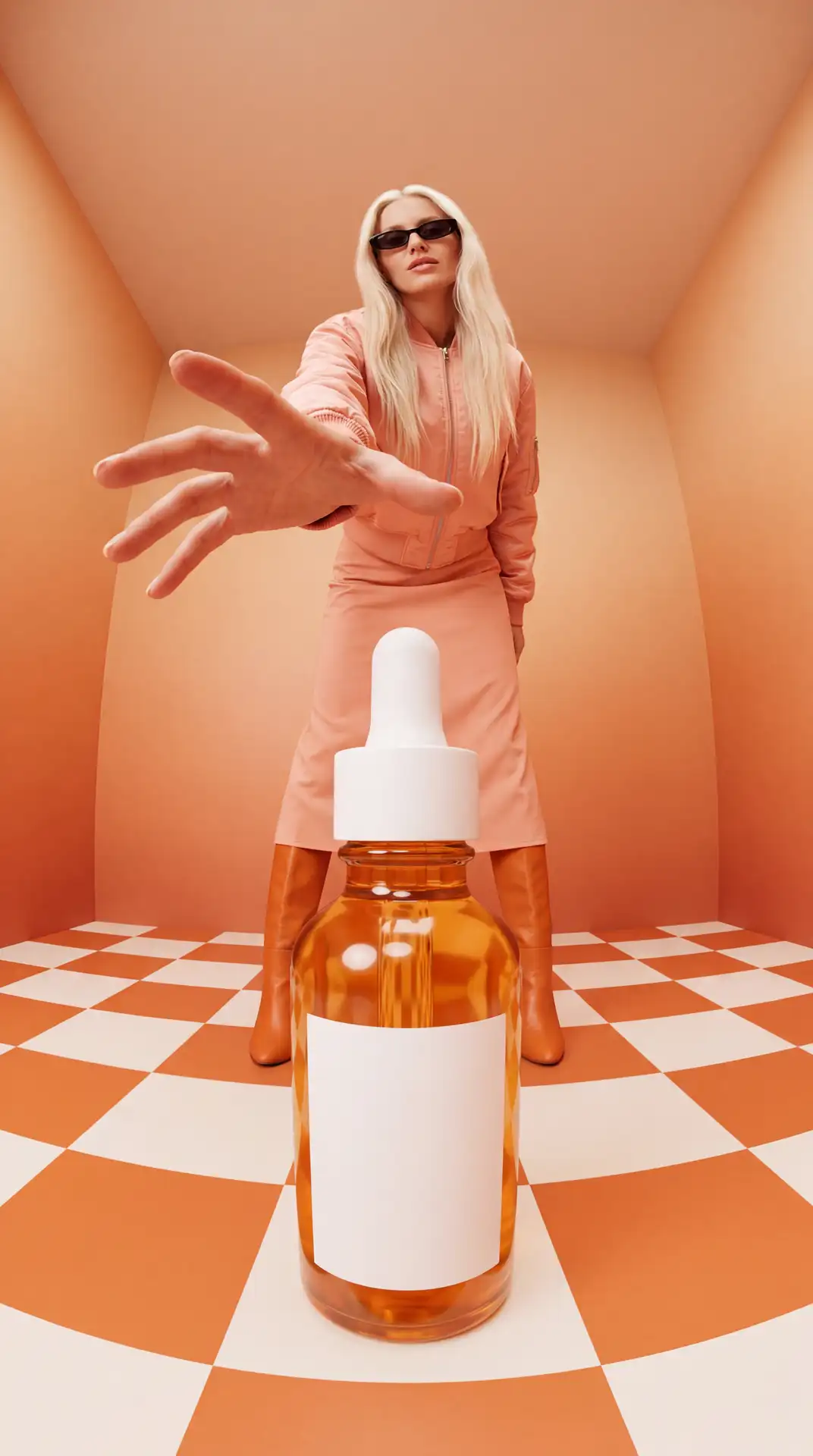
Edit by Typing
Describe your edit in plain words and OpenArt makes the change, with no timeline to learn and nothing to download on your PC or Mac.
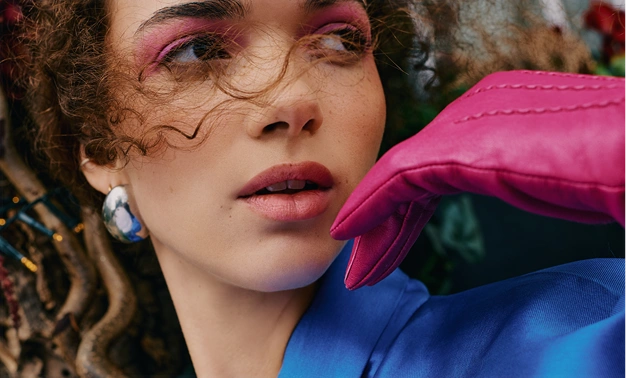
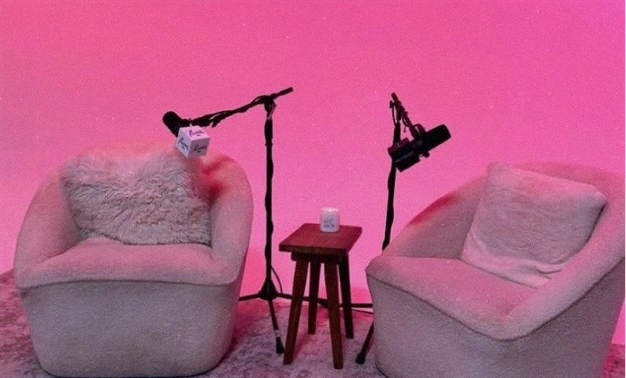

Change One Thing and Keep the Rest
OpenArt AI video editor edits the part you ask for changes, so the people, scenes, and the motion in your clip stay just as you filmed them.
One Account for Every Video Edit
Swap faces, relight scenes, dub voices, add subtitles, and upscale clips on one AI video editing platform with top models built in.
Key Features of AI Online Video Editor
OpenArt's AI-powered video editor runs on top video models like Seedance 2.5, Gemini Omni Flash, Kling 4, Wan 3, LTX-2.3, and more. Upload a clip and type the change you want to see.
Edit Your Video with a Text Prompt
Upload a clip and describe the video edits in plain language. The AI video changer reads your prompt and edits the real footage you shot. Replace backgrounds without green screen, change lighting to match the light to a new scene, or restyle the whole video. Pick an AI video editing model and test your prompt. If the first result is close but not quite right, change a few words or try a different model. Each new version takes a few minutes, so you can test several ideas in one sitting.
Swap Faces and Copy Motion in Any Video
With OpenArt AI video editor, you can replace characters, swap faces, or a whole person in your video using image reference. You can pick a saved face from OpenArt Characters, so the same person shows up in every clip. To maintain your character’s personality and movement, motion sync lets you copy the moves from one video onto another. Use this AI face swap video tool to test a new spokesperson in an ad or put your own character into a short skit.
Add Voices, Subtitles, Dubbing, and Sound Effects
Translate the speech and dub your video in 24 global languages, and the speaker's lips move to match the new words. With this AI video editing tool, you can even record and add voiceover to your video and synchronize the lip movements with the lines you give it. Add subtitles and sound effects by giving the AI video editor a short text description.
Upscale Your Video and Make It Longer
Upscale your video up to 4K with OpenArt AI video editor and clean up blur and blocky pixels, so your footage looks clear on every screen. Extend your video up to 30 seconds, so a clip that ends soon keeps going in a natural way. The AI video extender picks up right where the video stopped and creates new shots of selected duration while maintaining scene and character consistency.
Create New Shots and Full Videos
When a shot is missing, type a prompt in the AI video generator or upload a still image to make the clip you didn't film. Smart Shot plans a storyboard first and then makes a video with several cuts. For bigger projects, Director mode puts your scenes together into one video up to 5 minutes long. That makes OpenArt AI video creation software as well as an editor, so one account covers both jobs.
How to Edit a Video with AI
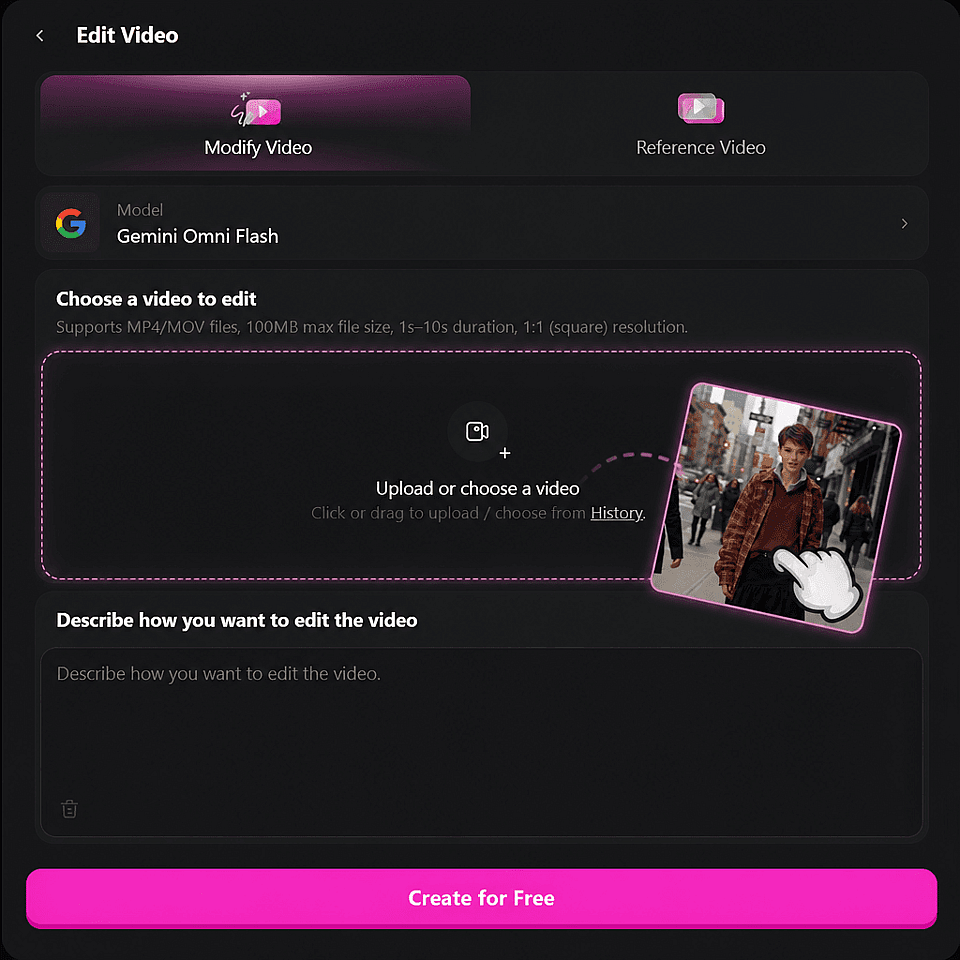
Open Edit Video
Go to Edit Video and choose a model. OpenArt AI video editor features Gemini Omni Flash, Kling 4, Seedance 2.5, Wan 3, and more.
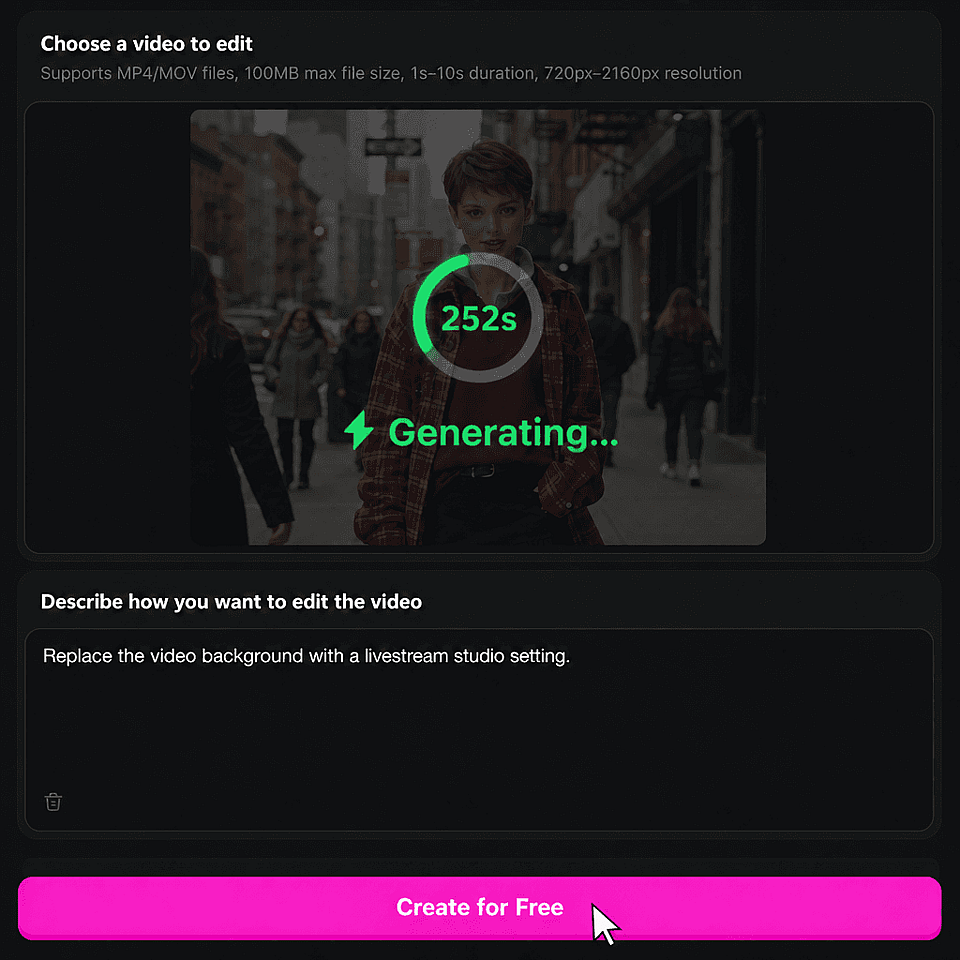
Upload your clip
Add an MP4 or MOV file, 1 to 30 seconds long, and max file size of up to 300MB, depending on the selected model. Or pick a clip from your Library.
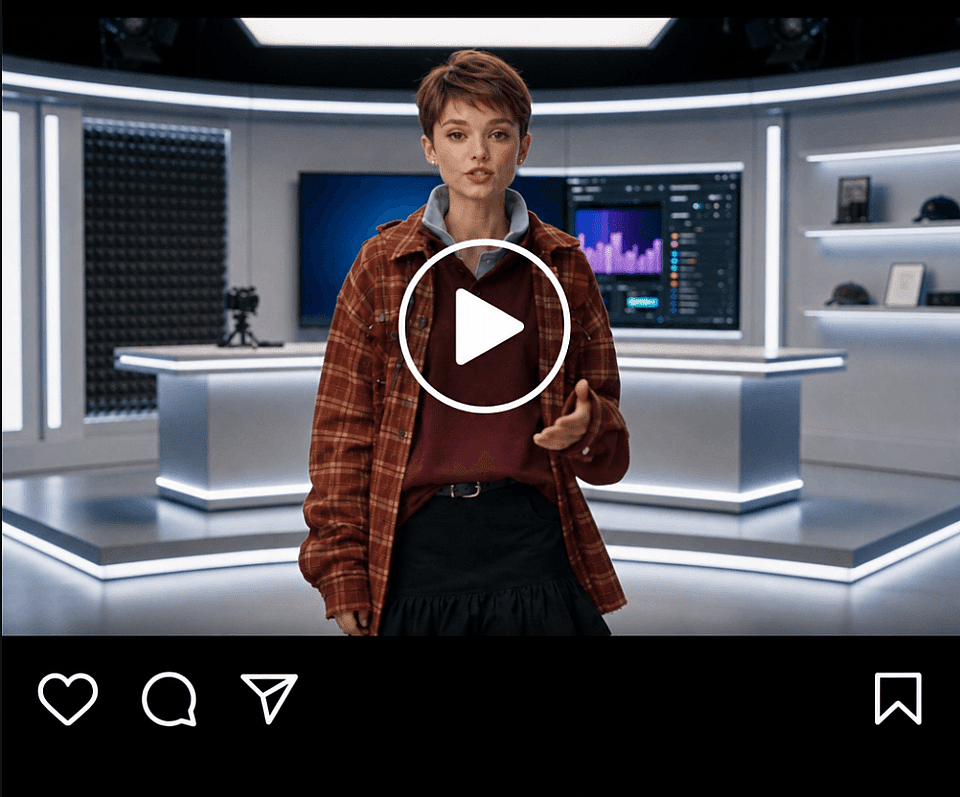
Type your edits
Enter your video edit prompt, describing the change you want and click generate. Download the result, or change your prompt and try again
Best Uses for the AI Video Editor
You do not need to be a professional editor. If you can just describe the change, you can make it.
Creators Making YouTube, TikTok, and Reels Videos
Film one clip and turn it into several versions for each platform. Change the setting or add subtitles so viewers can follow along with the sound off. You can also upscale older footage before you post it again on YouTube. This way you post more often without spending more days filming.
Try it NowFriends and family having fun with clips
Put your friend's face on the dancing guy. Turn a birthday video into a snow scene. Give your dog a voice. These are the edits that used to need a friend who owns editing software, and now they take one prompt and a couple of minutes.
Try it NowMarketers Testing Ad Versions
One winning ad can become many versions to test. Put the same product in a new place, or swap the person on screen by replacing and removing characters and objects. Each version keeps the pacing and the message that made the first ad work. You find out which version performs best before you pay for another shoot.
Try it NowE-commerce Teams Making Product Videos
Shoot your product once and show it in any setting. Move a sneaker from a studio table to a city sidewalk, then relight it for a sunset look. Upscale the result so it looks sharp on your product page. Each new version takes minutes, which costs far less than booking another photo shoot.
Try it NowFrequently Asked Questions
An AI video editor is software that changes a video based on what you type. You describe the edit in plain words, and AI makes it, such as a new background or added subtitles. OpenArt's AI video editor works on real footage and on clips made with AI, right in your browser.
Yes. Ask for one change and that is the only thing that moves. The person, the movement, and everything else stay the way you filmed them. If you want to be extra safe, you can mark the part of the video that should stay untouched.
Yes, OpenArt AI video editor applies your edits across multiple shots in a sequence, while keeping the rest of the video elements unchanged. You don’t have to edit shot by shot.
OpenArt AI video editor accepts MP4 and MOV files up to 300MB and between 1 and 30 seconds long. You can upload your own footage or pick a clip from your OpenArt Library. To make a short clip longer after editing, use Extend Video to add up to 30 more seconds.
The best AI video editor depends on the edit you need. Timeline editors are a good fit for cutting long footage into a final story. OpenArt is a strong pick when you want to change what is inside a clip, like the background or the language spoken. All of those tools and several top AI models sit in one account.
Each edit uses credits, and the number depends on which model you pick. You see the exact cost on the Generate button before you run it, so there are no surprises.
Open Edit Video and upload an MP4 or MOV clip. Type the change you want in plain words and click generate. When the result is ready, download it or adjust your prompt and try again. Most edits finish in a few minutes and run in the background while you work.
Clothes, colors, objects, the weather, the time of day, the background, the lighting, and the people in it. You can also add sounds, make someone say something new, copy movement from another video, make the clip longer, and make it look sharper.
Traditional video editors like Adobe Premiere Pro and Da VInc Resolve rely on keyframing, manual cutting, and mutli-layer timeline editing to incorporate video edits, which can take hours. AI video editors rely on text prompts and references to assemble cuts, remove unnecessary objects, add sounds and subtitles, or change video styles. AI video editors can’t replace traditional editing tools, the two work in tandem.
Use Gemini Omni Flash to change the background or add subtitles. Pick Seedance 2.5 to change the lighting or the style of your video. To compare outputs from different models, try your prompt in the OpenArt Arena.
Each edit uses credits, and the number depends on which model you pick. You see the exact cost on the Generate button before you run it, so there are no surprises.
Yes. You can use videos you edit with OpenArt for ads and client work, based on your plan terms. Before you publish, run IP Safety Check to see if your image or video matches existing IP. This helps you post brand content with more confidence
Get Insights from Experts Blog
Get the insights you need. Our experts share actionable hacks, break down the hottest topics, and provide essential how-to guides to help you create, optimize, and scale.
Read More