AI Text to Video Generator
Make complete AI videos in up to 4K resolution from simple text prompts, with OpenArt’s AI text to video generator. Just describe the scene, action, and camera moves you want, configure your output settings, and generate a cinematic clip with sound within minutes.
Key Benefits of AI Text to Video Maker
No Footage Needed
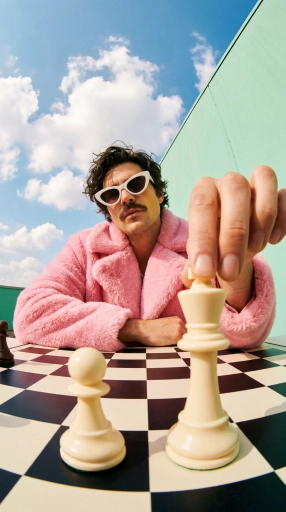
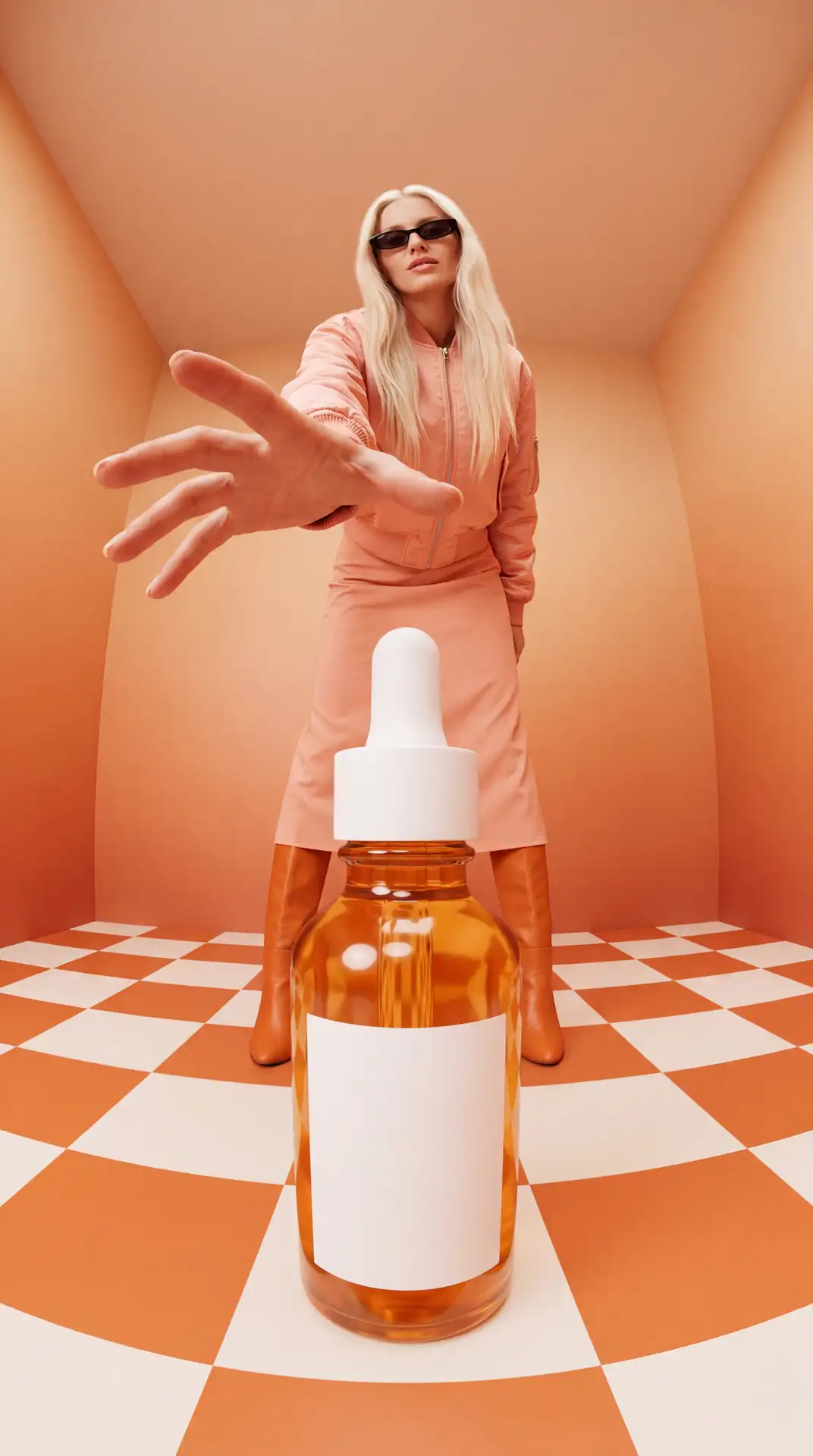
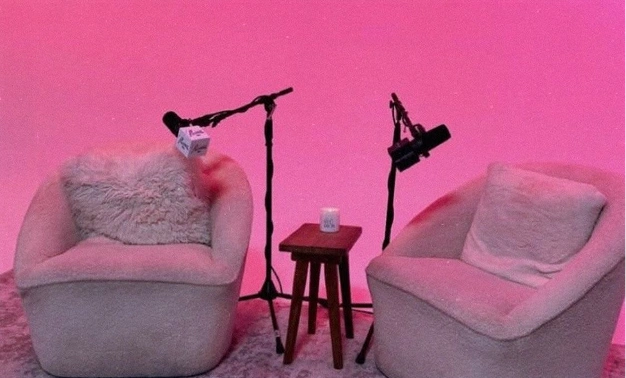
You start from words alone, so there is no camera, no actors, and no stock clips to source. Describe what you want to see and OpenArt generates the video for you from scratch.
Full Scenes, Not Clips
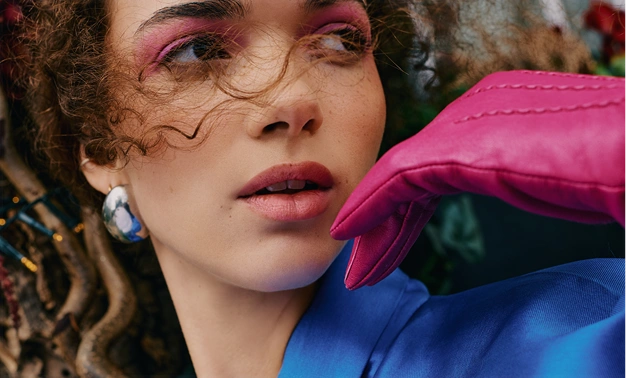
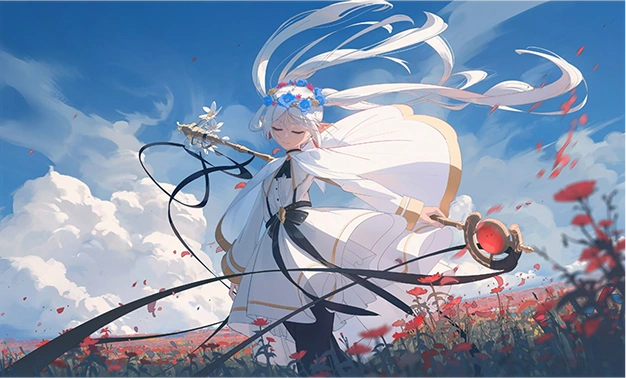
Generate a complete, multi-shot scene from a single prompt instead of stitching short pieces together by hand. OpenArt plans the shots for you so the finished video flows from one cut to the next.
Best AI Video Models
Choose from leading AI video models inside one tool, so you can match the model to the look you want. Compare results from the same prompt and keep the version that lands best.
Generate Complete Videos From a Text Prompt
Describe the Scene You Want
Write a prompt for the setting, the action, and the camera move, such as "a drone shot flying over a coastal city at sunset." OpenArt's AI video generator turns that description into a video with natural motion and a consistent scene. The more specific your prompt, the closer the result matches the shot in your head.
Build Multi-Shot Videos Easily
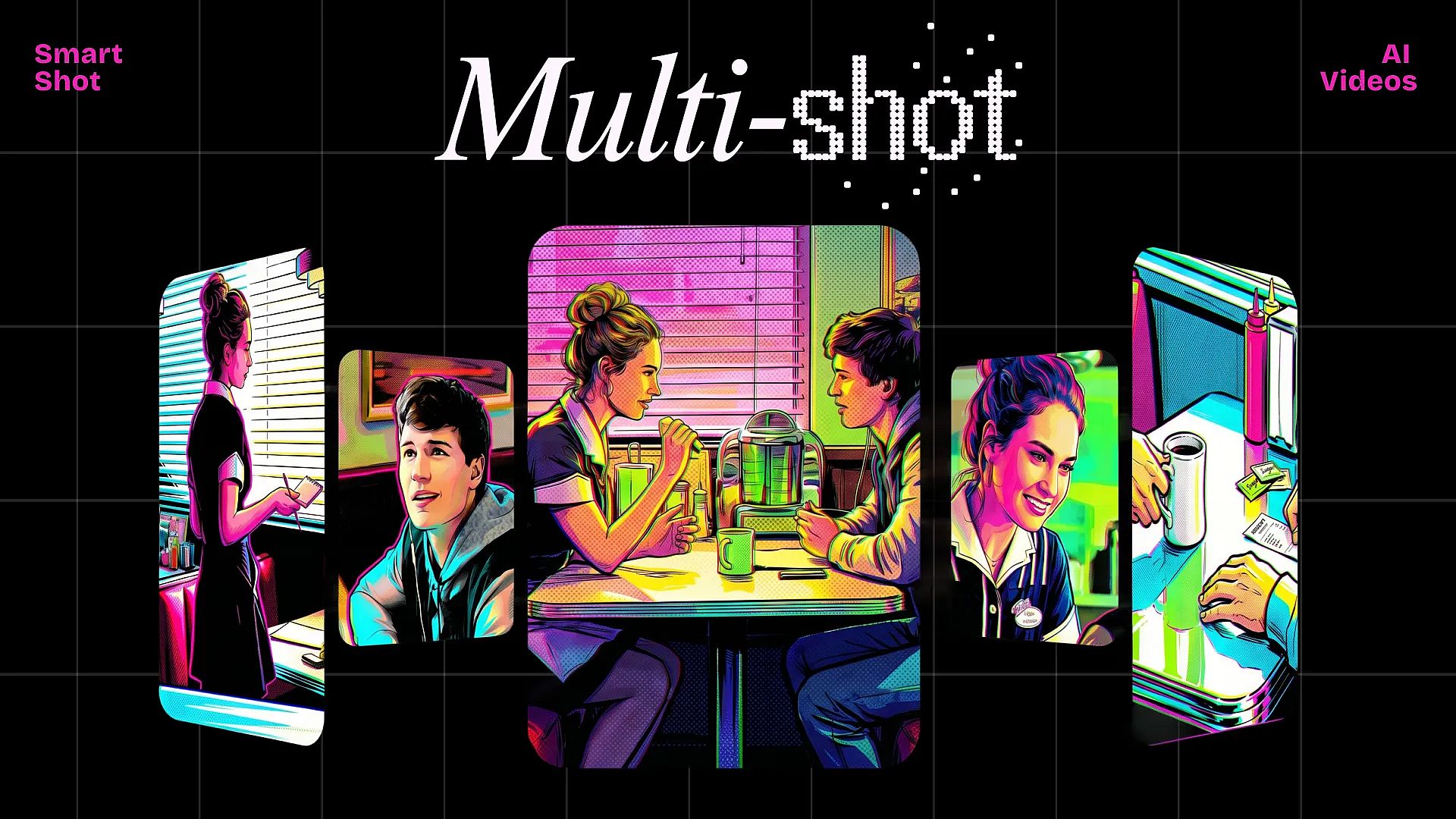
Smart Shot generates a full storyboard from your prompt, then produces a single longer video that moves through multiple cuts. Instead of making each shot separately, you get a complete sequence that holds together as one scene. This is the fastest way to create a story-driven video from text alone.
Set Your Model, Length, and Quality
Pick the AI video model that fits your prompt, then set duration up to 15 seconds, your aspect ratio, and resolution up to 4K. Switch between Fast output for quick drafts and Quality output for final delivery, and turn on ambient sounds to add atmosphere. Auto-Polish Prompt refines your wording automatically for a more accurate video.
Add Sound & Voiceover to Your Video
Add sound effect layers by describing them in your prompt, so the audio matches the scene you generated. Lip Sync matches a character's mouth movements to dialogue you provide, and you can extend a shot by up to 10 seconds or upscale the final clip to 4K. Together these finish a text-generated video so the picture and audio work as one.
How to Use the AI Text to Video Tool
Create a video from text prompts in three simple steps.
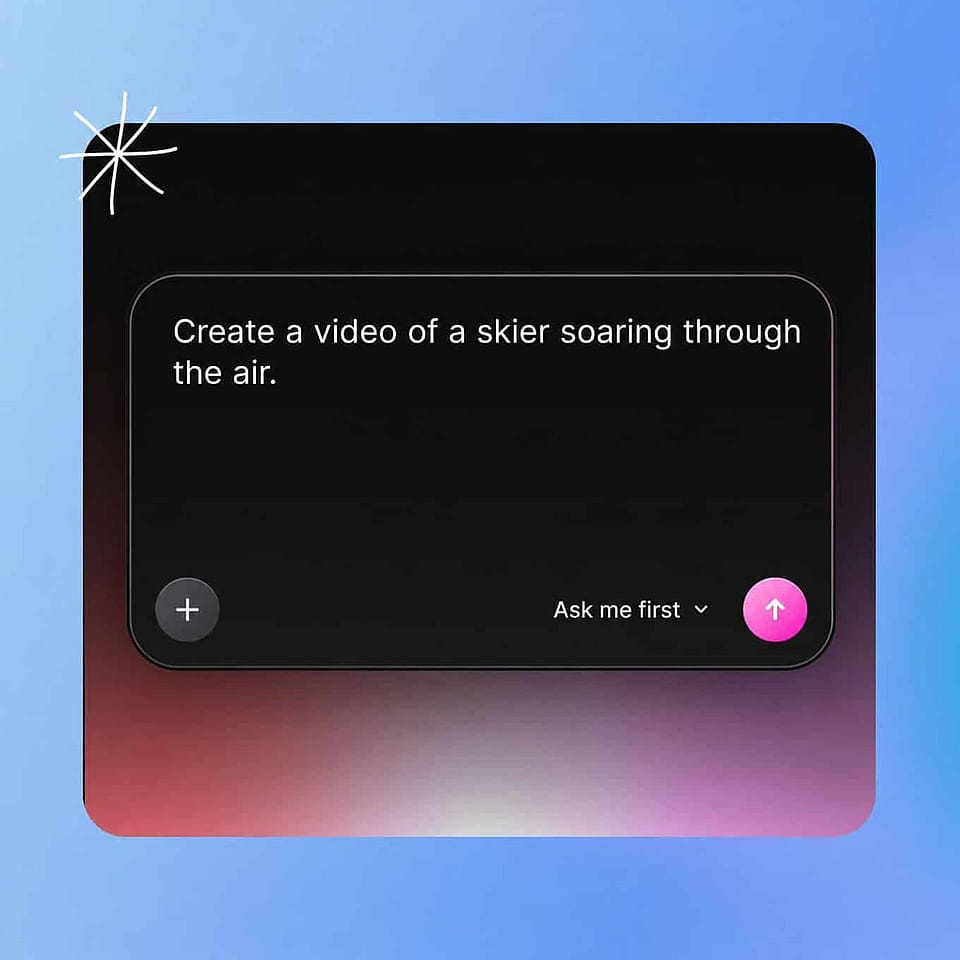
Write Your Prompt
Open the Text to Video generator and describe the scene, action, and camera move you want in plain language. A clear, specific prompt gives the model the most to work with and produces the closest result.
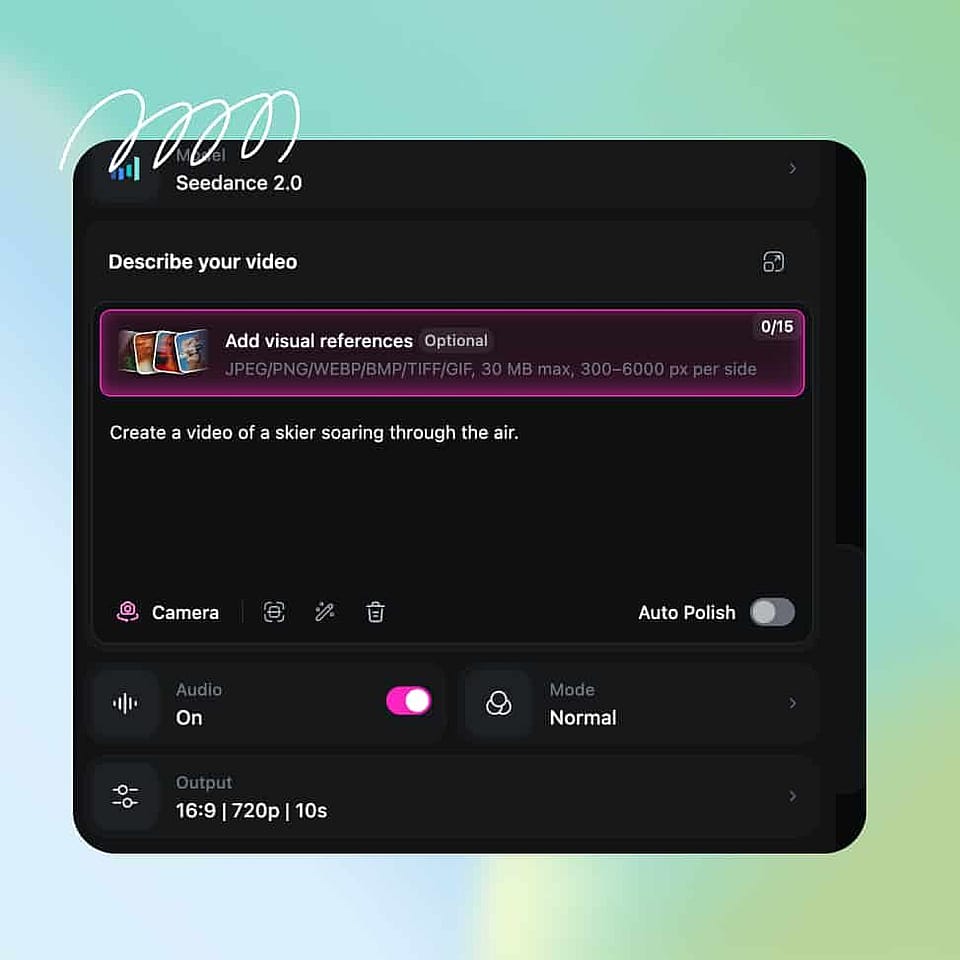
Choose Your Model and Settings
Pick the AI video model that suits your scene, then set duration, aspect ratio, number of generations, and resolution. Use Auto-Polish Prompt if you want OpenArt to refine your wording.
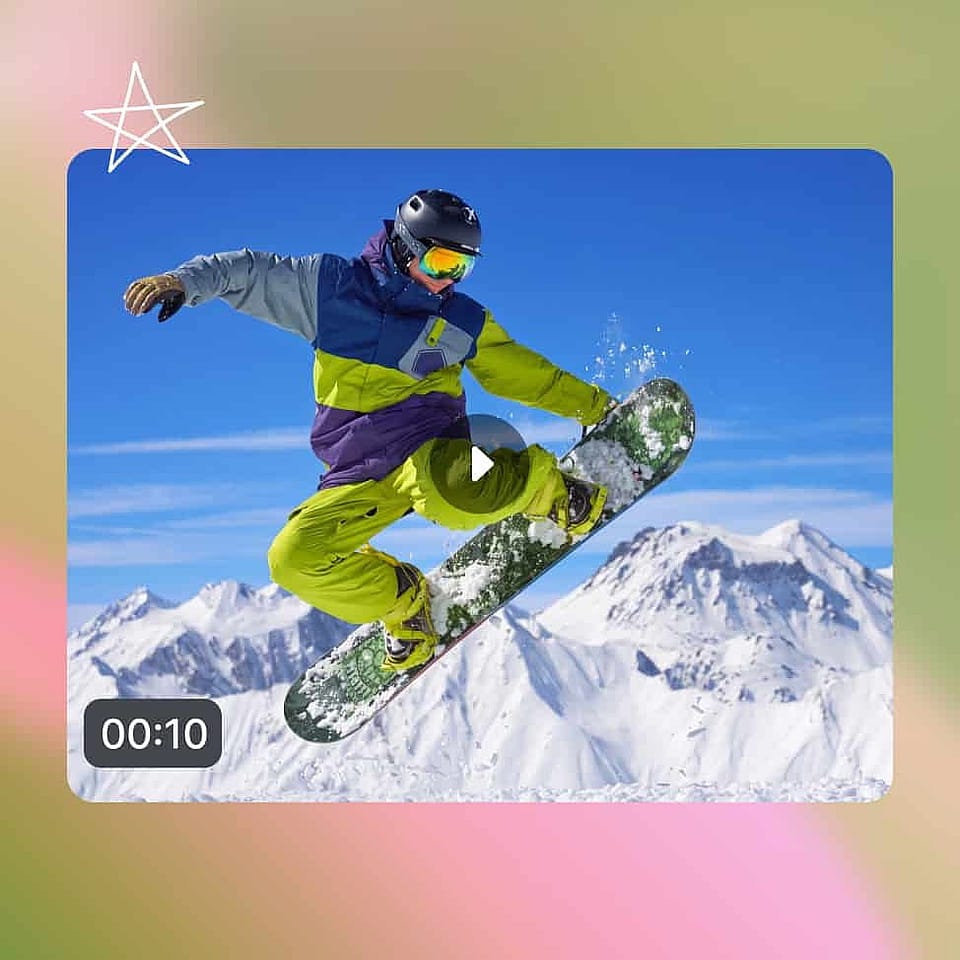
Generate And Export
Generate the video, review the motion and pacing, and adjust your prompt or settings to get closer to the scene you want. When it looks right, add sound, extend, or upscale the clip and download it.
Best Uses of AI Text to Video Generator
Use AI text to video generator for both professional and personal projects.
Turn a Script Into a Video Ad
Marketers can write a short script or concept and generate a finished ad scene without booking a shoot. You describe the product moment you want, generate a few versions, and pick the one that sells the idea. This makes it practical to test ad concepts before committing to a full production.
Try it NowVisualize Concepts and Storyboards
Agencies and filmmakers can turn a written idea into a moving storyboard to show a client or a team. With Smart Shot, a single prompt becomes a multi-cut sequence that communicates pacing and tone far better than a static board. It is a fast way to pitch a scene before anyone picks up a camera.
Try it NowMake Explainers From a Prompt
Creators and educators can generate explainer and how-to videos by describing each scene in text. You skip filming and editing and still get clear, watchable footage that carries your message. Because each clip takes minutes, you can produce a series of lessons quickly.
Try it NowGenerate B-Roll and Scene Fillers
Video editors can create custom B-roll and background scenes that exactly match a project instead of hunting through stock libraries. Describe the shot you are missing and generate it in the aspect ratio you need.
Try it NowFrequently Asked Questions
Get Insights from Experts Blog
Get the insights you need. Our experts share actionable hacks, break down the hottest topics, and provide essential how-to guides to help you create, optimize, and scale.
Read More