AI Photo Editor
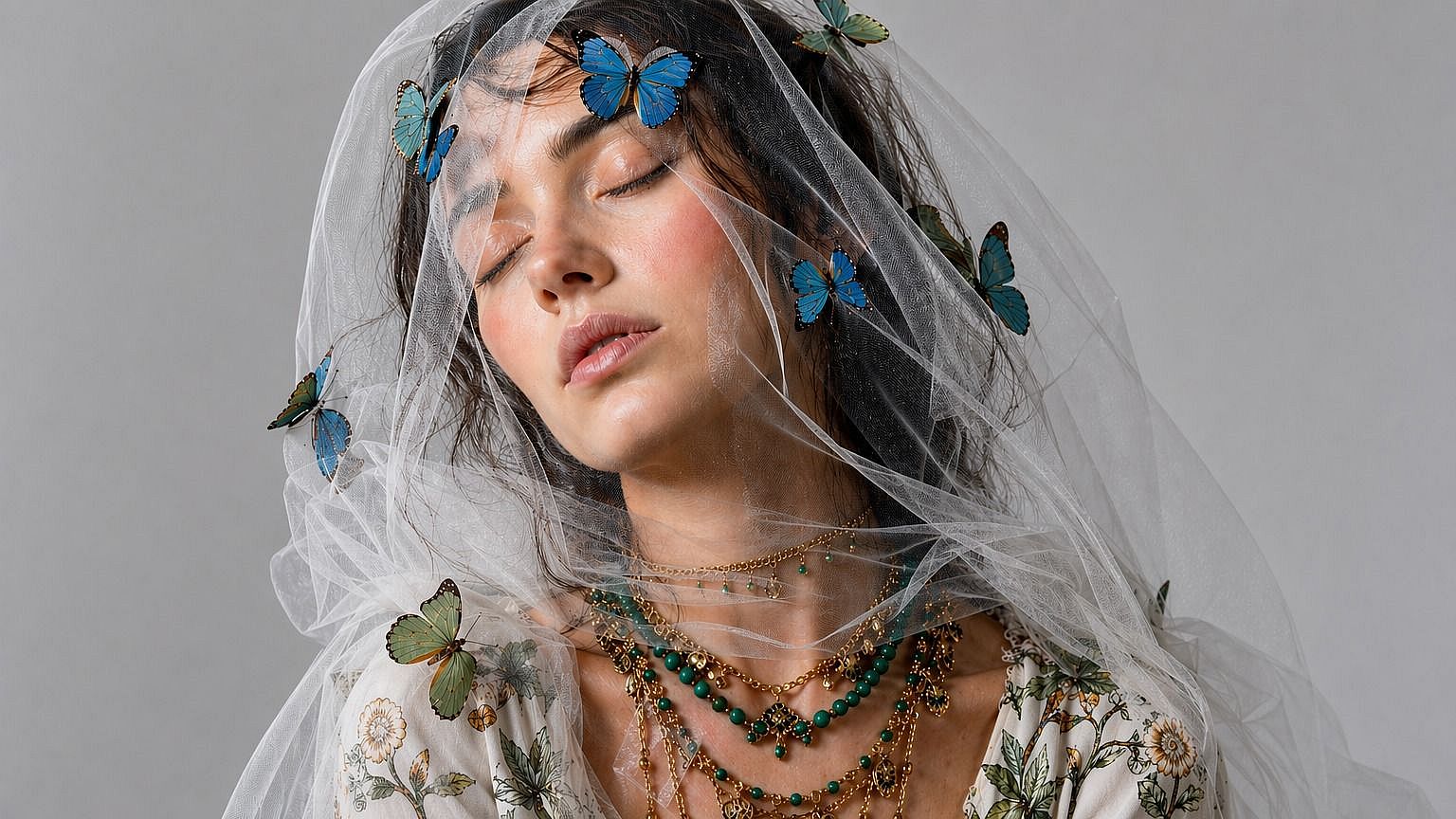
Smooth skin, swap faces, upscale to 4K, remove objects, and change camera angles. Just describe what you want or pick a tool, and OpenArt's AI photo editor does the rest.
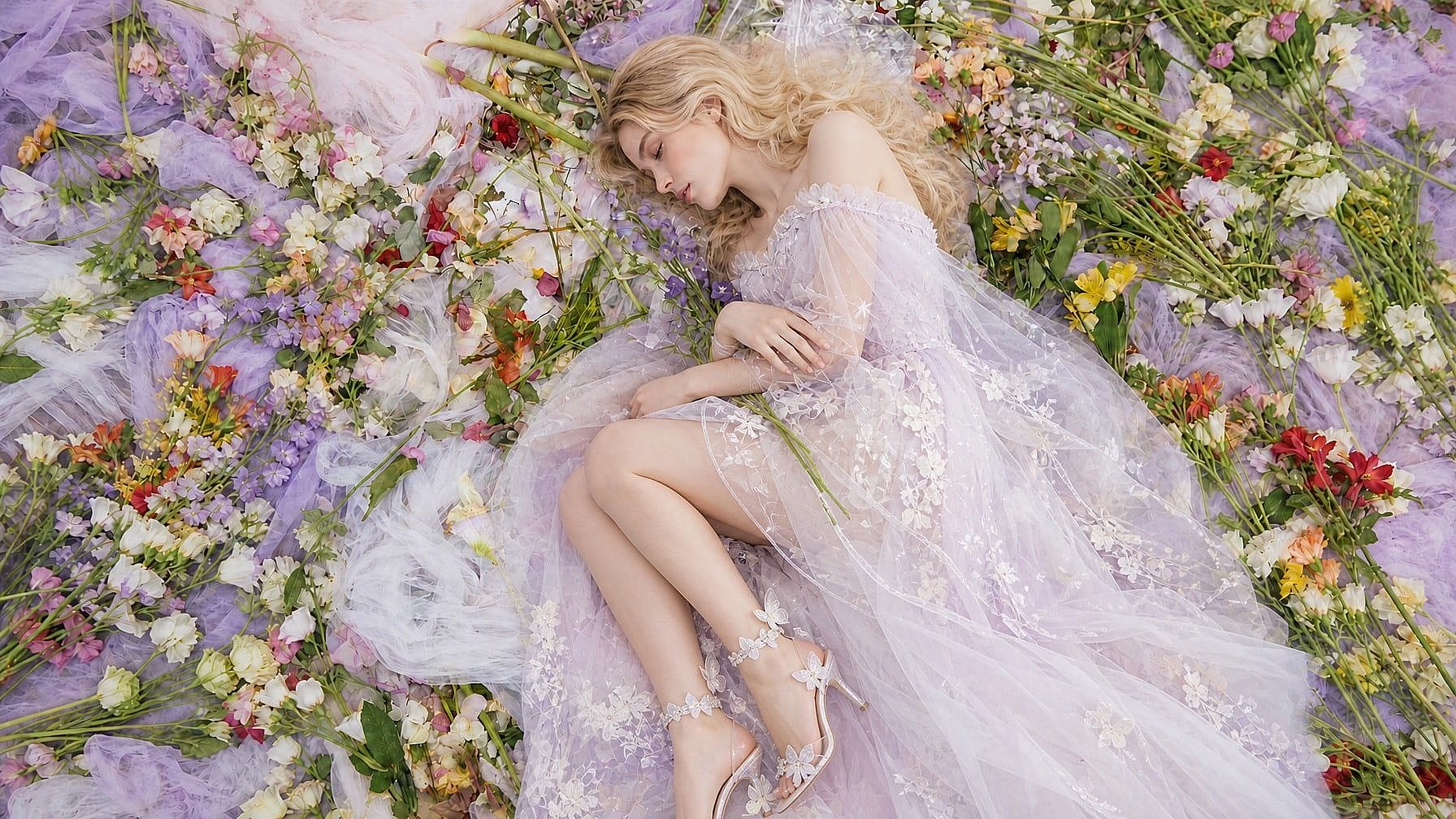
Why Choose OpenArt's AI Image Editor
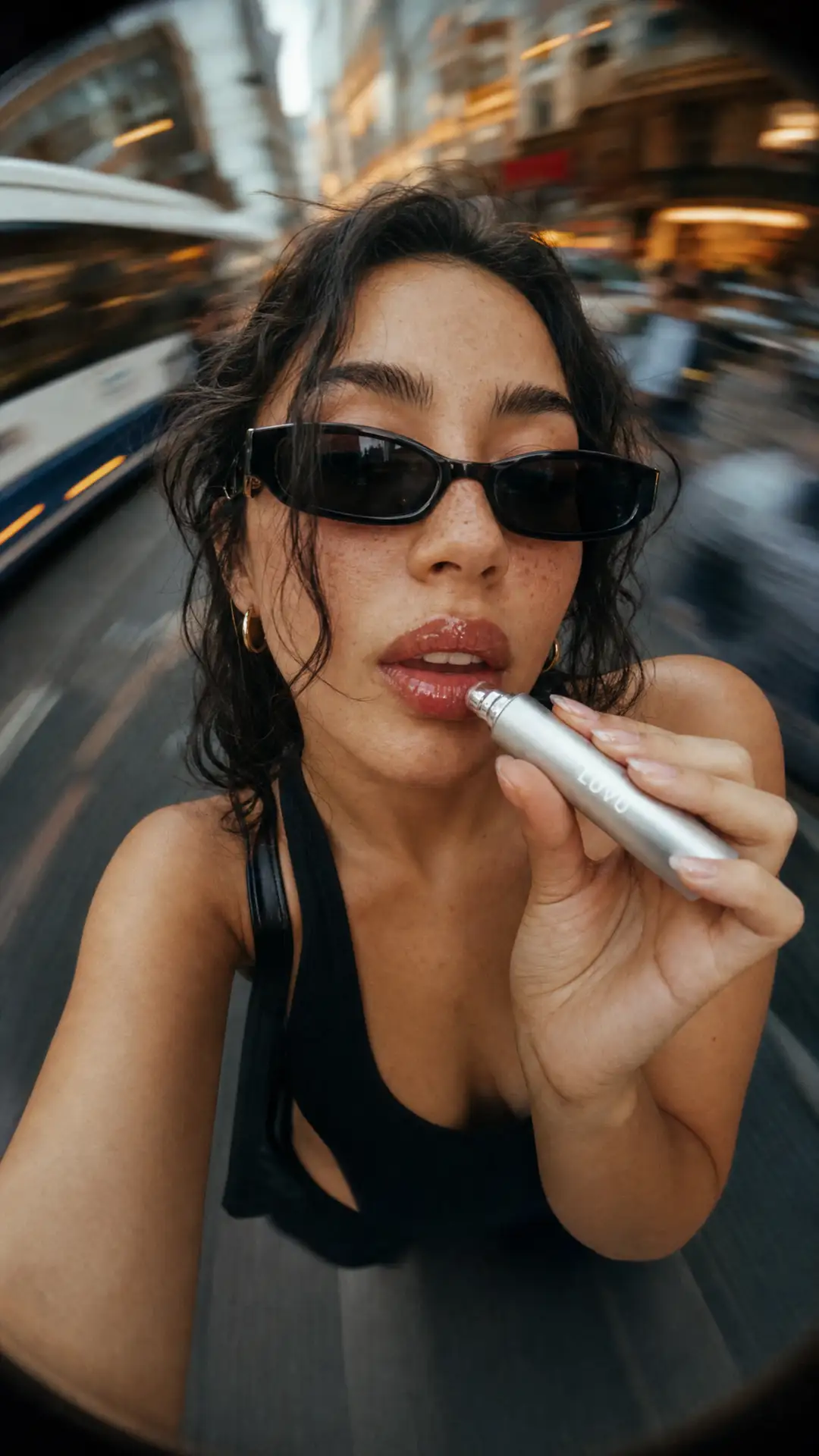
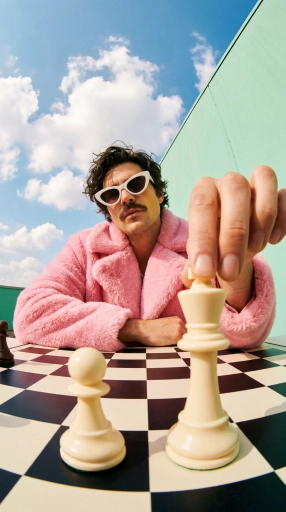
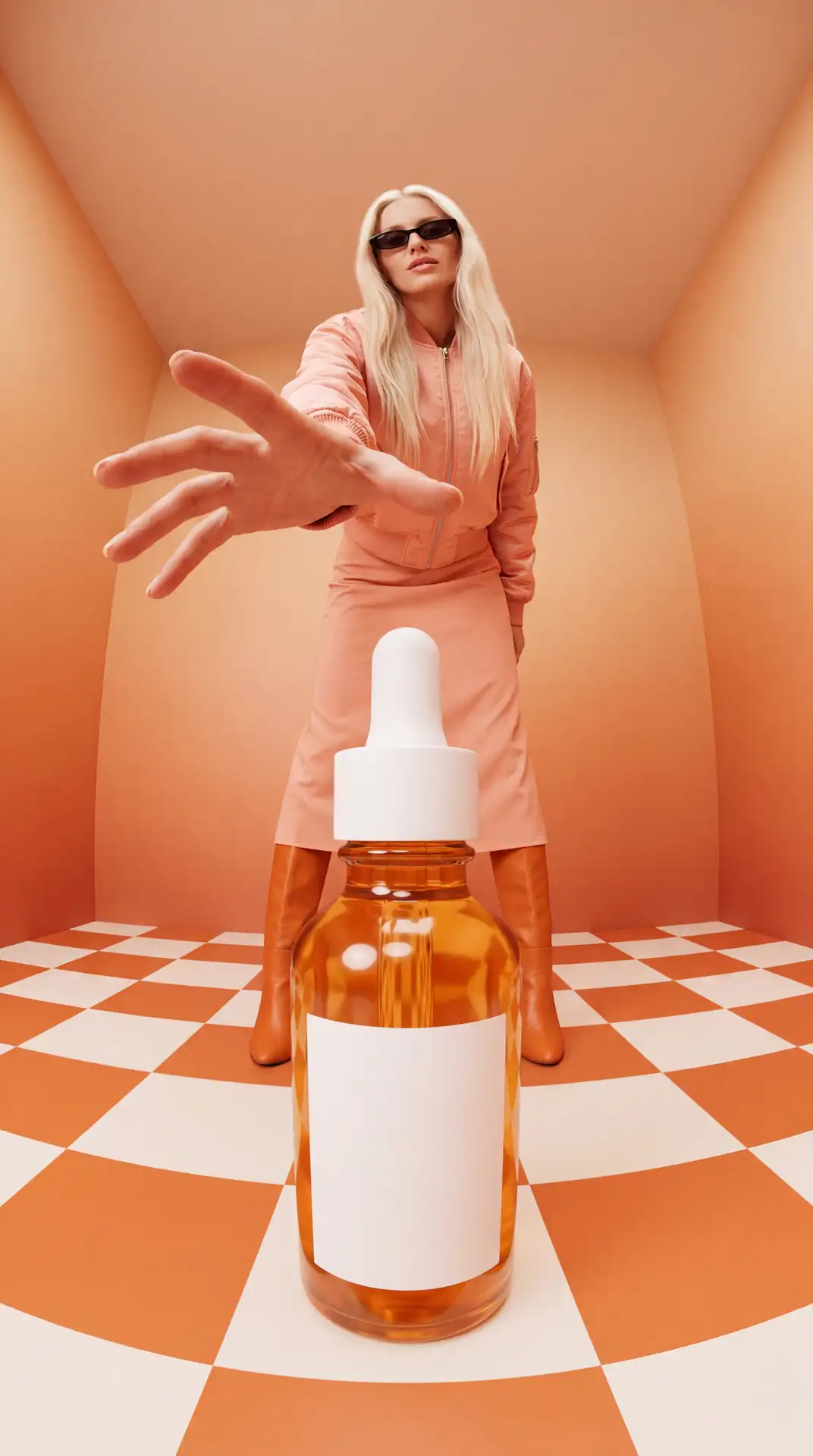
Edit by Just Describing It
Tell OpenArt what to change in plain English and watch it happen. Prompt-based photo editing means no layers, no brushes, and no manual selections, just type and generate.
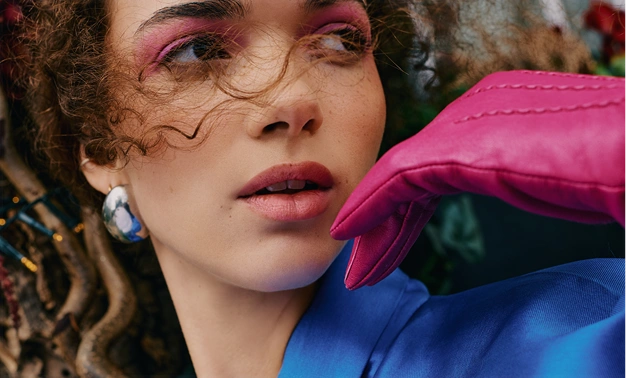
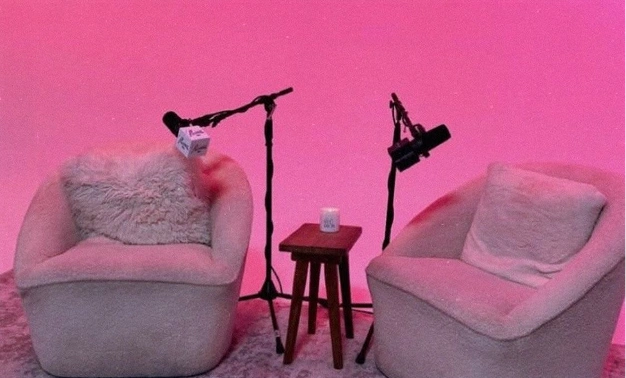
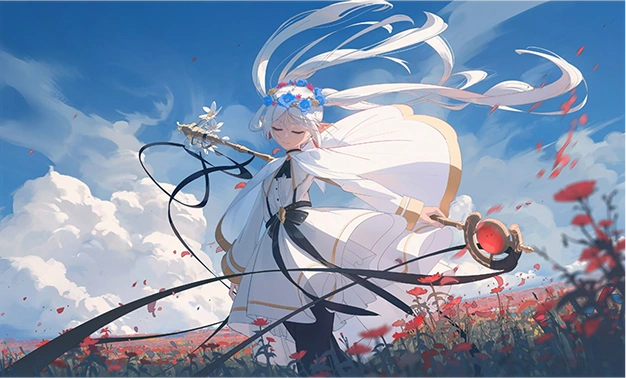
Pro-Level Results, Zero Effort
Get edits that look professionally made. From AI skin retouching to perspective changes, the AI handles the technically difficult parts so you don't have to.
One Tool for Every Edit
Swap faces, upscale photos to 4K, fix lighting, remove objects, change camera angles, all in one place. No need to jump between apps or pay for multiple subscriptions.
What You Can Do with OpenArt's AI Photo Editor
OpenArt's photo editing tools are powered by best-in-class AI image models including Seedream 5, GPT Image 2, Nano Banana Pro, Recraft V4, and more.
Edit Images with a Simple Prompt
Type what you want changed and the AI takes care of it. Use Area Edit to target a specific region, or Annotate mode to mark up the image with arrows and shapes that guide the AI to exactly what you mean, or start from scratch with OpenArt's AI image generator.
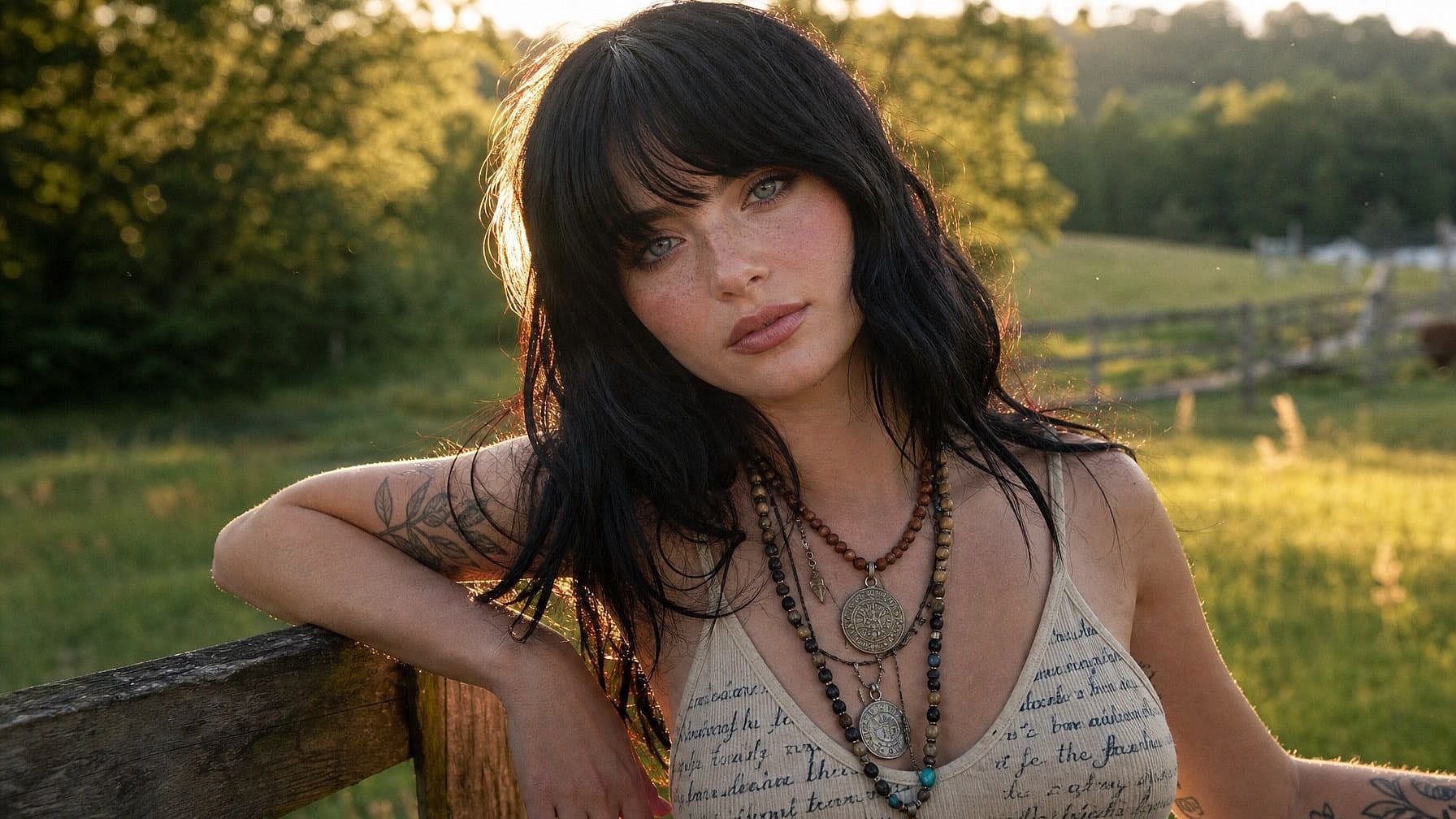
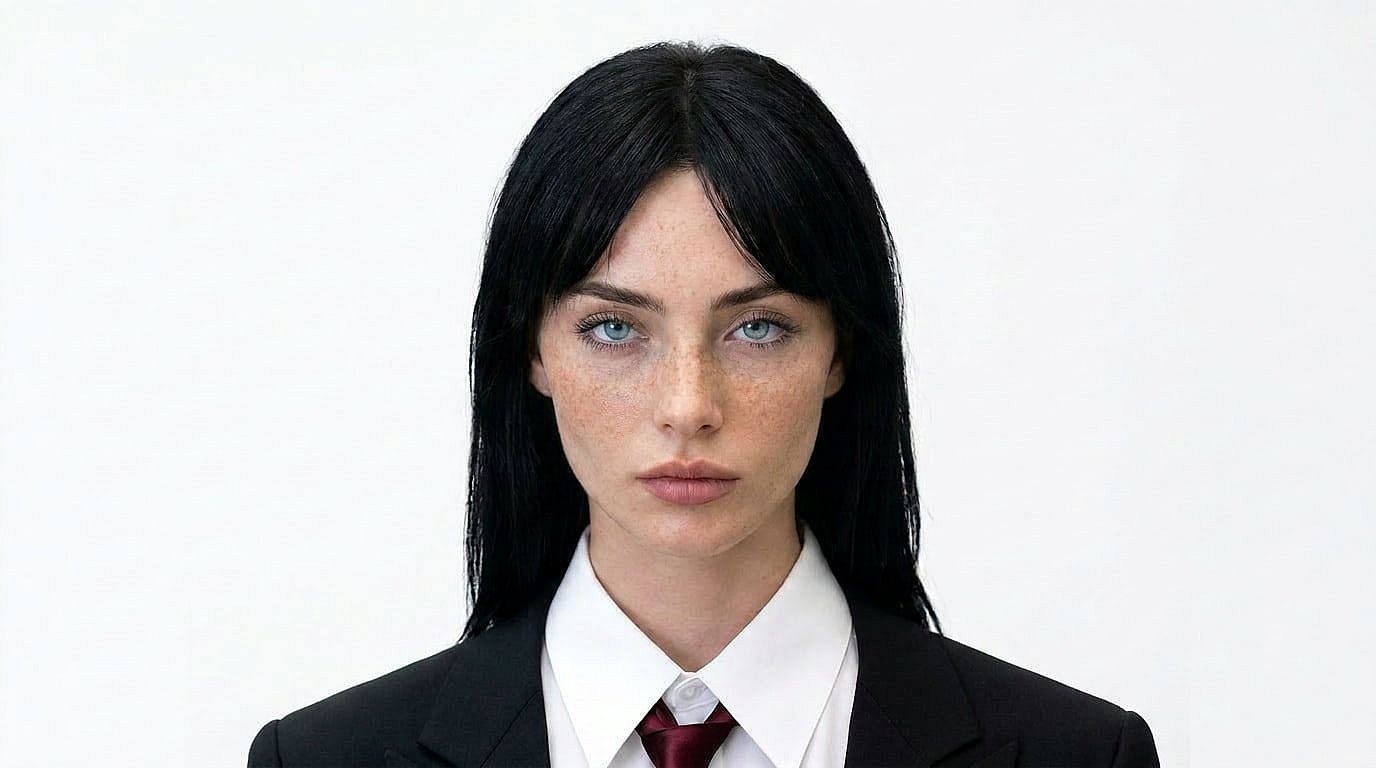
Swap Faces in One Click
Upload your photo, drop in a reference face, and AI face swap cleanly replaces it without touching anything else in the frame. Great for portraits, mockups, character projects, or fun edits with family photos.
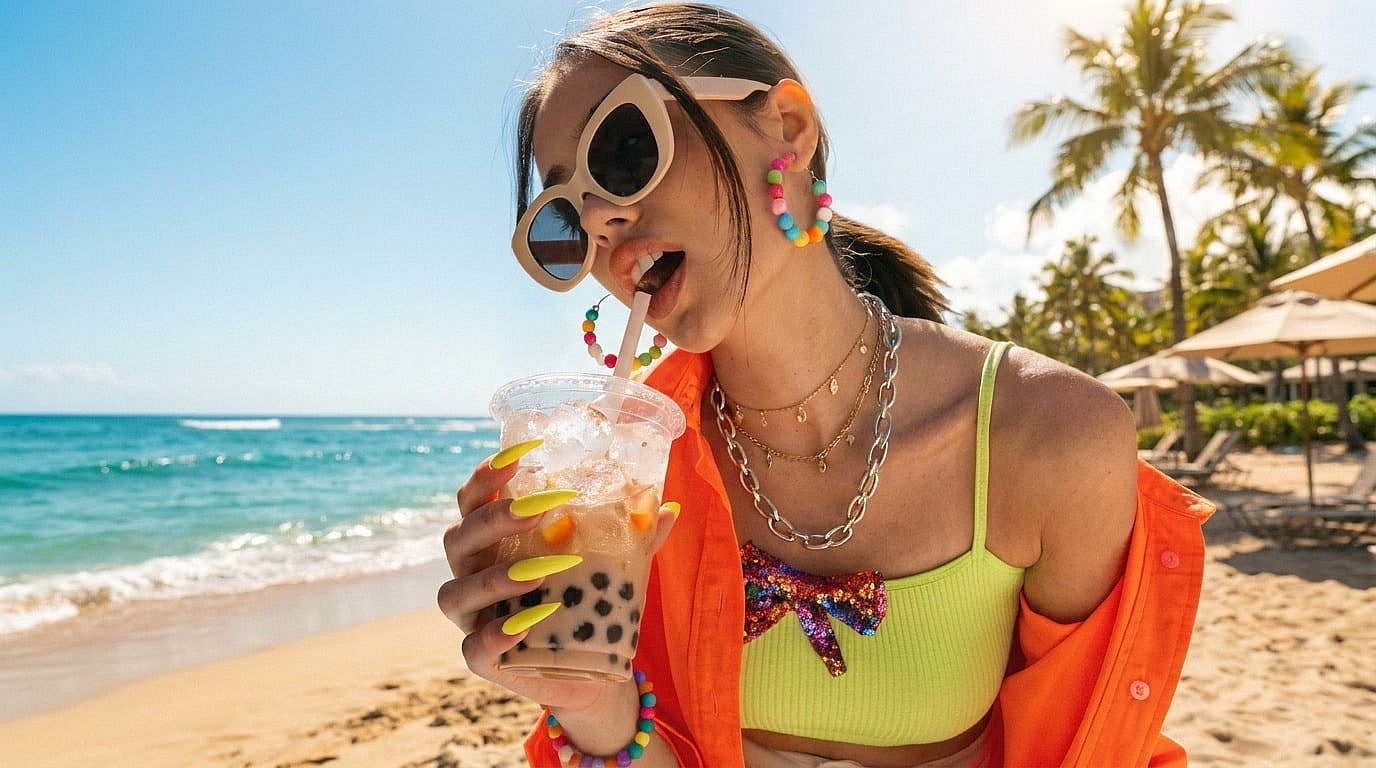
Upscale and Enhance to 4K
Turn blurry or low-res images into sharp, high-quality photos. Pick your upscale mode, choose Fast or Ultra quality, and toggle skin enhancement on for portraits that need extra polish.
Fix Plastic Skin with Vellum
Get rid of the uncanny "plastic skin" look with the Topaz Skin Enhancer. Choose your output resolution (2K, 4K, or 8K), dial in texture level, and end up with skin that looks genuinely real.
How to Edit Photos with AI
Edit any photo in three quick steps with OpenArt's online AI photo editor.
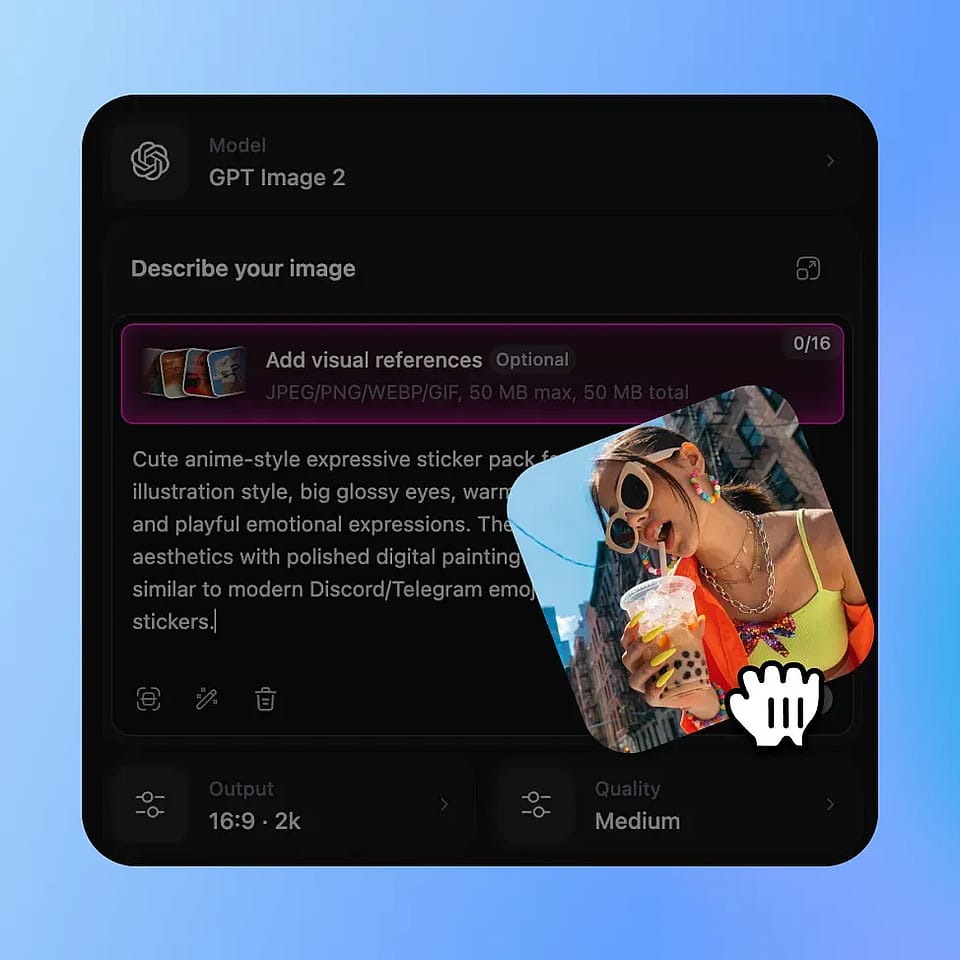
Upload Your Photo
Drop in any image you want to edit, portraits, product shots, old photos, anything.
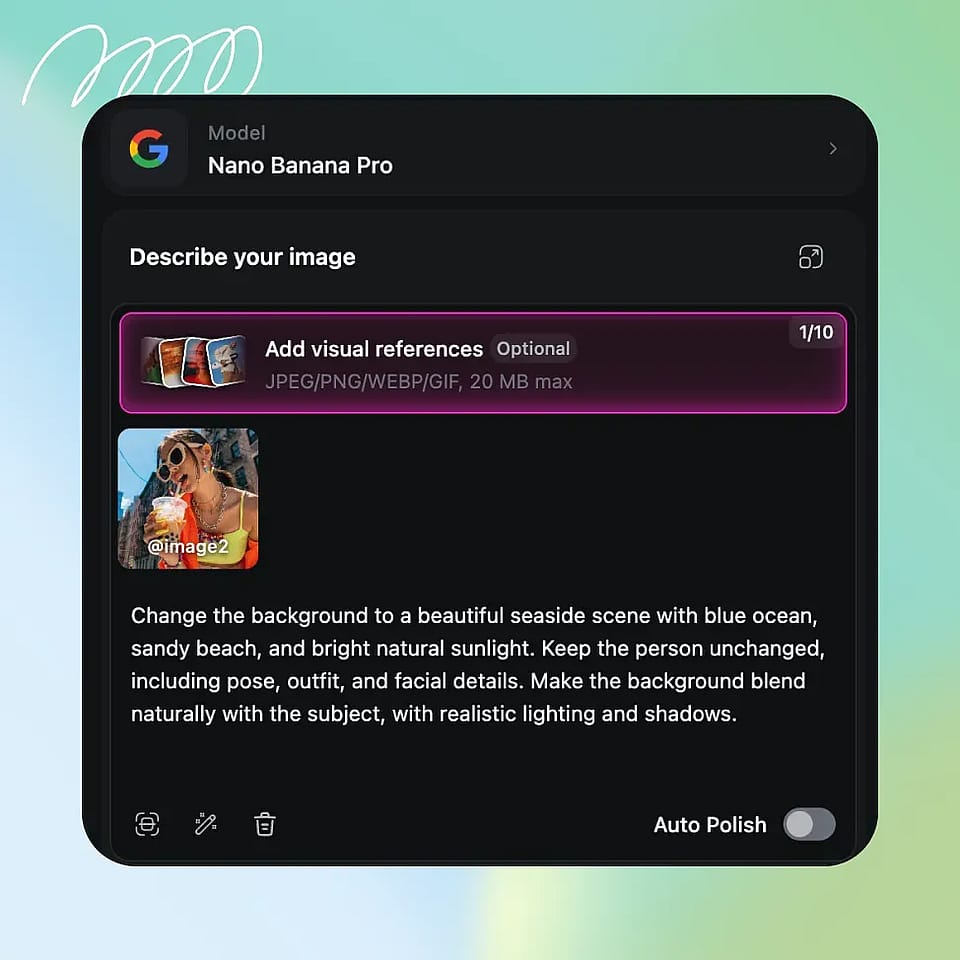
Describe Your Edit
Type what you want changed, use Area Edit to target a specific spot, or use Annotate mode to mark up the image directly.
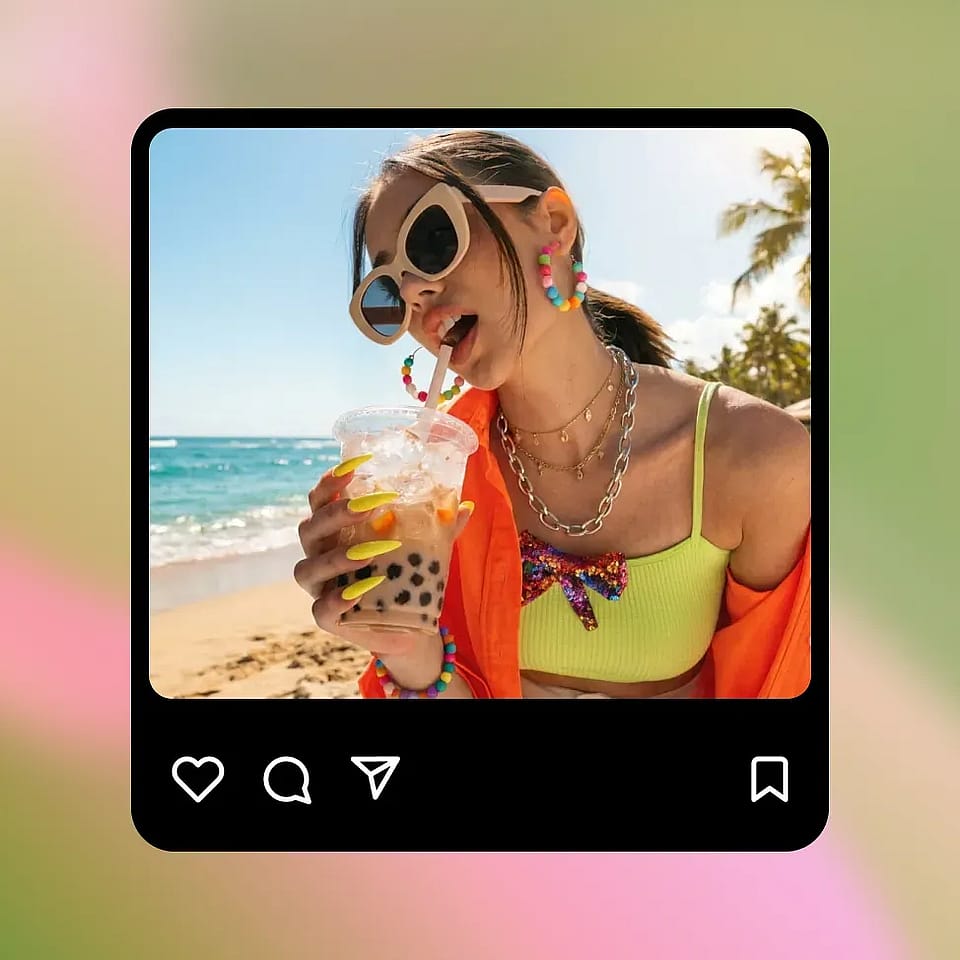
Generate and Download
Hit generate, review the result, and download your edited photo. Tweak the prompt and regenerate until it's right.
How Creators Use OpenArt's AI Image Editor
From quick personal edits to full creative workflows, here's how different people put it to work.
AI Photo Editing for Social Media
Touch up selfies, swap outfits or backgrounds, fix lighting, and keep your feed looking sharp.
Try it Now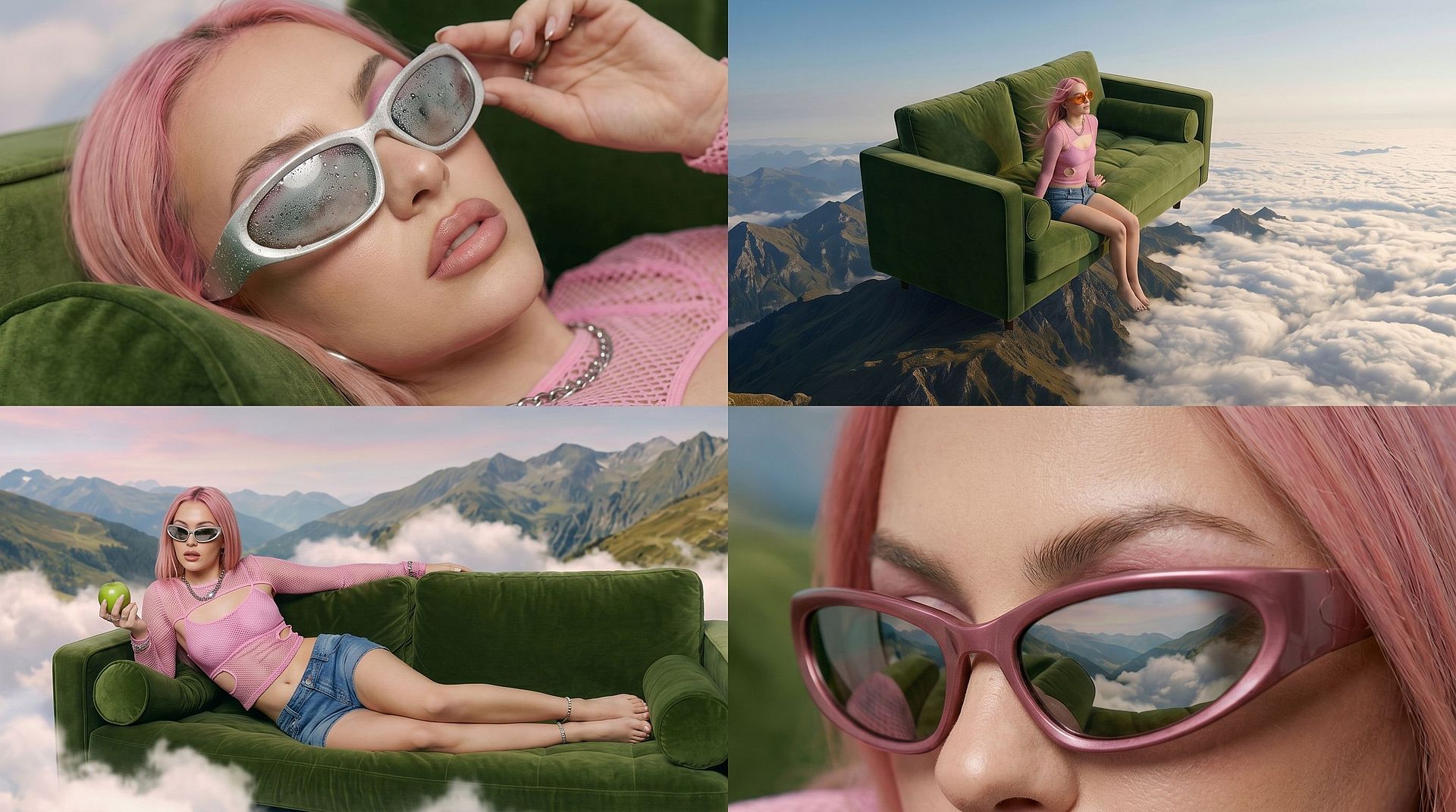
Edit Product Photos for Ads and Listings
Edit product photos and clean up images for ads and listings. Test angles, run visual A/B tests, and ship campaigns faster on a leaner budget.
Try it Now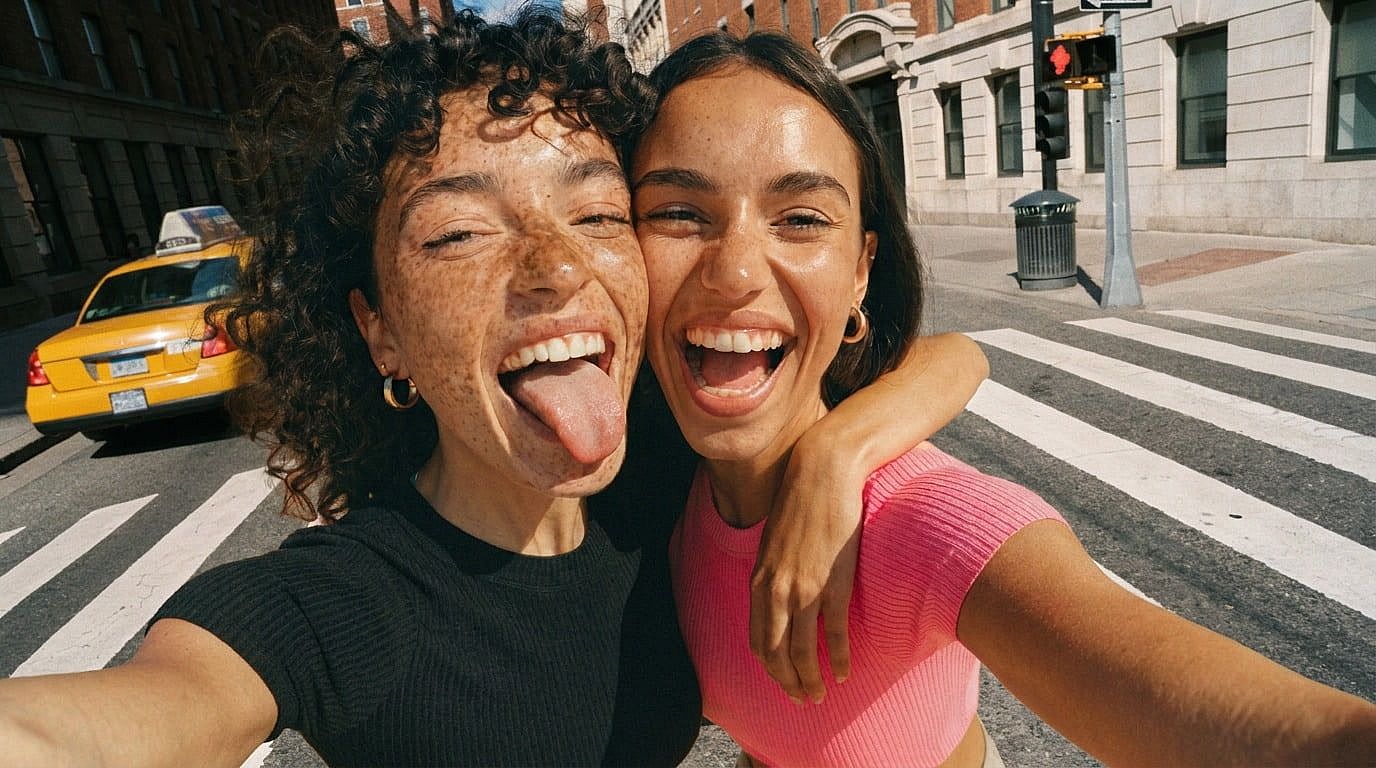
AI Retouching for Photographers
Let AI handle the repetitive retouching. Use Vellum for skin, upscale shots to 4K, and test edits before committing in Photoshop.
Try it NowFrequently Asked Questions
Create without limits
Join thousands of creators using OpenArt to generate stunning images, videos, and more — all in one platform.
Get Started for Free →