 ChatGPT
 Perplexity
 Claude
 Gemini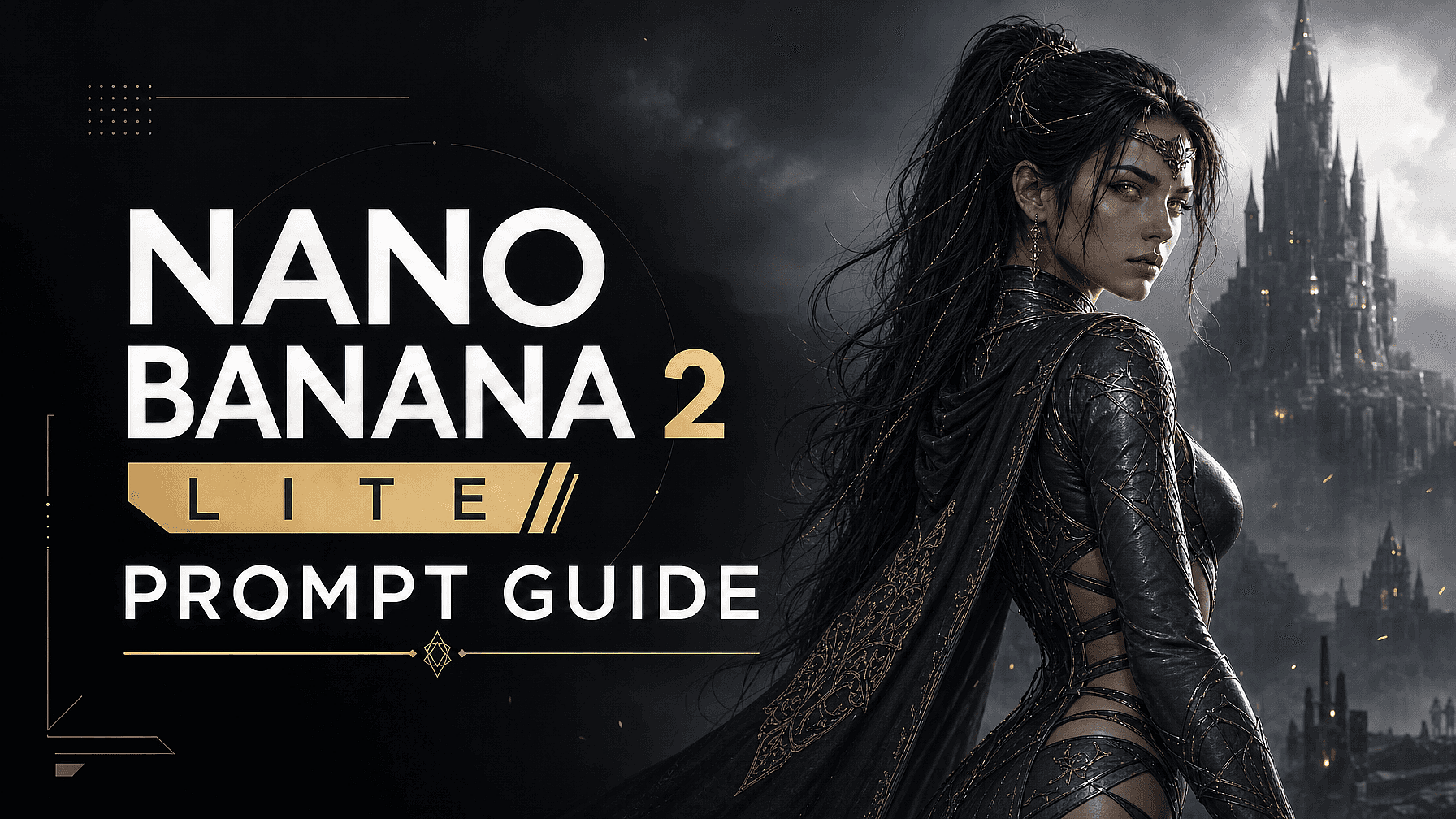
Nano Banana 2 Lite is one of the fastest image models on OpenArt, and a lot of what makes it useful comes down to how you prompt it. Its speed, in-image text, and multi-reference fusion all reward a clear, specific prompt.
This guide covers what actually works.
Key takeaways
- Describe the whole image (subject, style, lighting, composition), not just the subject.
- Put any in-image text in quotes and keep it short for clean rendering.
- Upload reference images to fuse a character, product, background, or style.
- Fix small problems with Edit Image instead of regenerating the whole image.
- Iterate fast: generate a batch, then refine by description on OpenArt.
Describe the whole image, not just the subject
A simple prompt like "a woman reading in a cafe" is a fine starting point, but it leaves a lot up to the model to guess.
Nano Banana 2 Lite responds much better when you describe the full picture in more detail: the subject, the style, the lighting, the setting, and the framing. "A woman in a mustard sweater reading by a cafe window, warm afternoon light, shallow depth of field, photoreal, 3:2 format." Same subject, completely different result. The more context you give, the less the model has to guess.
Put your text in quotes
In-image text is one of Nano Banana 2 Lite's strengths, so use it deliberately. When you want words in the image, write them in quotes and say where they go.
For example: a bold headline reading "GRAND OPENING" across the top, with "Free coffee all week" underneath. Keep the text short and name its role, like headline, label, or caption. Short, quoted text renders far more cleanly than long paragraphs baked into an image.
Use image references instead of describing appearance
When you can show something, do not spend half your prompt describing it. Upload a reference image and let the model anchor to it.
This works for a character's face, a product, a background, or a visual style. Nano Banana 2 Lite can fuse several references into one coherent image while holding each element steady. Reserve your prompt text for what the reference cannot convey, like the action, the layout, and the mood.
Pick your format and framing
Pick a format that matches where the image will live: vertical for Reels and Shorts, square for feed posts, or widescreen for thumbnails and banners. OpenArt supports all different aspect ratios.
Then call the shot you want, such as "close-up," "wide establishing shot," "flat lay," or "eye-level product shot." Framing is one of the easiest things to control, so it is worth being explicit every time.
Edit instead of regenerating
When most of an image is right and one detail is off, do not start over. Open Edit Image and target just the part that needs to change, using Area Edit.
A background that does not fit, a label that came out slightly wrong, an object you want removed. Editing that one region preserves everything that already worked and saves you a full new generation.
Lean on real-world knowledge
Because it is a Gemini model, Nano Banana 2 Lite draws on real-world knowledge. Naming real places, objects, and materials helps it render them accurately.
"A Kyoto side street in autumn" or "a brushed-aluminum laptop on an oak desk" gives the model concrete anchors, which usually beats vague descriptions like "a nice street" or "a modern desk."
Iterate fast for refined final results
Nano Banana 2 Lite is cheap and quick, so treat generation like sketching. Generate a batch, pick the closest, then refine by describing changes: "warmer light," "add a red scarf," "tighter crop."
For a single subject or a short set this is fast and painless. When you need a character kept perfectly consistent across a long series, dense group scenes, or print-resolution detail, step up to Nano Banana Pro on OpenArt, where you can also compare GPT Image 2 and Recraft V4 in the same workspace.
3 sample prompts
Here is how these guidelines come together in practice.
Sample 1: Marketing creative with real text
Mode: Create Image
References: none
A vertical poster for a weekend coffee sale. A cozy cafe scene with a steaming latte on a wooden table, soft morning light. Bold headline text at the top reading "WEEKEND ROAST", a smaller line below reading "Buy one, get one free", and a small tag at the bottom reading "Sat and Sun only". Clean modern sans-serif type, cream and brown palette, 4:5 format.
What this demonstrates: in-image text placed by role with the words in quotes, a named format, and a clear palette, which is exactly what Nano Banana 2 Lite's text rendering handles well.
Sample 2: Product scene with reference fusion
Mode: Create Image with references
References: product photo + background or style reference
Place the uploaded serum bottle on a sunlit bathroom shelf beside a folded white towel and a small eucalyptus sprig. Soft natural window light from the left, shallow depth of field, photoreal, square format. Keep the bottle label sharp and readable.
What this demonstrates: a product reference doing the work on appearance while the prompt handles the setting, lighting, and framing, plus a reminder to keep the label readable.
Sample 3: Quick edit instead of regenerating
Mode: Edit Image
References: your generated image
Swap the gray studio background for a warm beige gradient. Keep the subject, pose, and product label exactly the same.
What this demonstrates: a targeted local edit that changes one element and preserves the rest, so you refine without spending a full new generation.
The bottom line
Start with a clear, detailed description, show with references anything you can rather than describe it, keep text short and in quotes, and iterate quickly. Nano Banana 2 Lite rewards specificity, and on OpenArt's AI image generator you can carry a promising draft further with Nano Banana Pro, GPT Image 2, or Recraft V4 whenever a project calls for it.
Frequently asked questions: How to prompt Nano Banana 2 Lite
How long should a Nano Banana 2 Lite prompt be?
Detailed but focused. Cover the subject, style, lighting, composition, and any text, and skip filler that your reference images already handle.
How do I get readable text in an image?
Put the exact words in quotes, keep them short, and say where they belong, such as a headline or a label.
How do I keep a character consistent?
Upload a reference image and reuse it. This works well for a single character or a short set; for long, character-heavy projects, use Nano Banana Pro.